
This campaign sends phishing emails tailored to each recipient’s behavior giving them the chance to spot and report threats in real time. Correct responses earn acorns, while any missteps trigger a quick, targeted microtraining to reinforce safer habits. It’s a continuous, low-pressure way to build lasting awareness all school year long.
Note: This campaign includes the Onboarding Campaign that first teaches users how to submit a suspicious email using the CyberNut addon (Blue Squirrel)
Below is what you can expect during a Phishing Training Campaign using Gmail.
-
A school district Tech Admin will schedule a Phishing Training Campaign. In most cases this will include an Onboarding Campaign which will teach you how to report a suspicious email using the CyberNut Reporting Tool.
▶️ Watch Onboarding Overview: User Experience - Once you have completed the Onboarding portion, you will receive a phishing simulation email approximately once a week.
- Open the email and click the CyberNut Reporting Tool (blue squirrel) in the top ribbon.
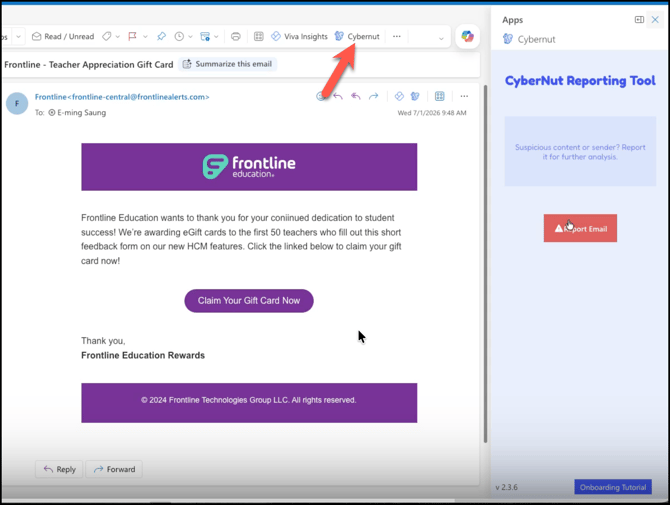
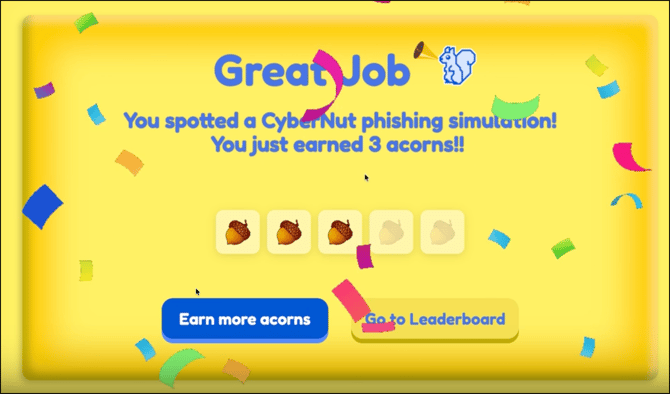
- Once you click the red Report Email button this screen will appear below awarding you 3 acorns. Then you have an option to click Earn more acorns or Go to Leaderboard.
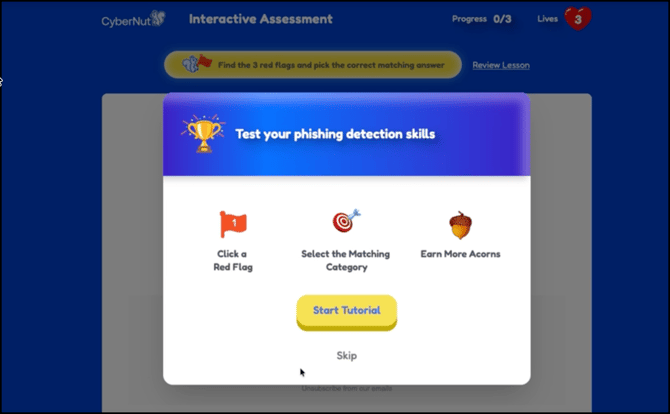
- If you go to Earn more acorns you will see this screen to Start Tutorial to learn more or Skip ahead.
- If you skip it you will immediately show you the red flags from the email and start the Assessment.
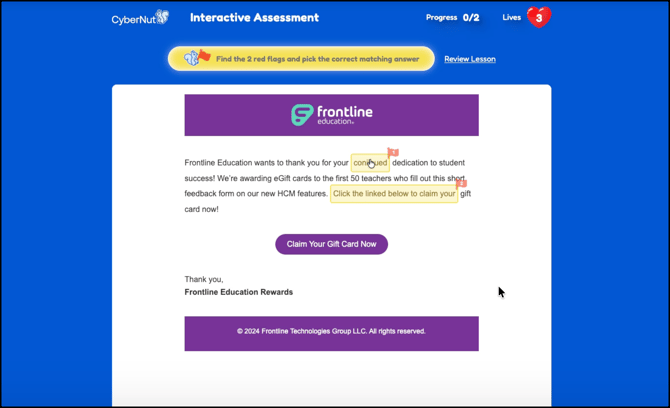
- When you click on the red flags it will ask questions with 3 tries to select the correct answer. Click the questions marks for hints to the answer.
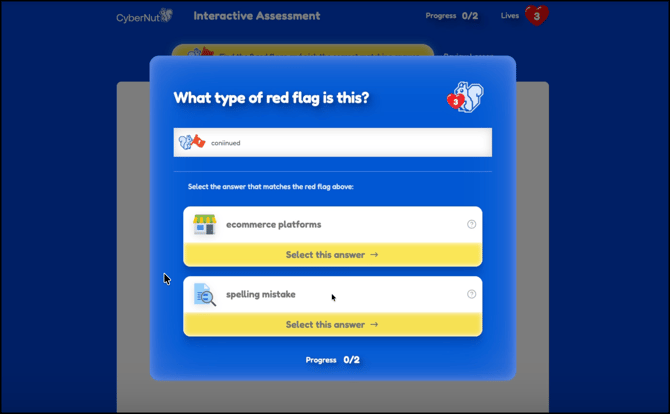
- Upon answering the questions correctly the user will earn 2 additional acorns.
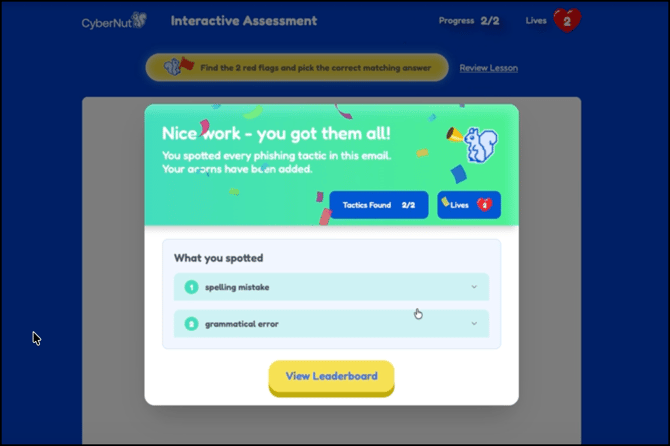
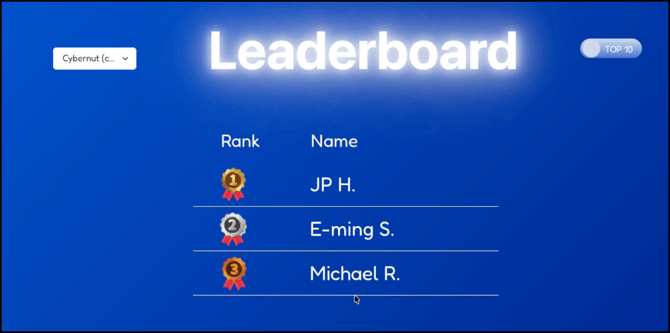
- Then you can click and view the Leaderboard.
- If you select a phishing simulation email and click a link within the email like the button below you will be redirected to a microtraining.
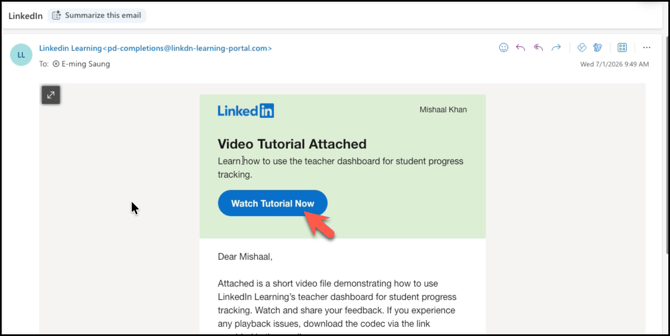
- The user will be taken to a Yikes page with an opportunity to earn 2 acorns if they finish the microtraining.
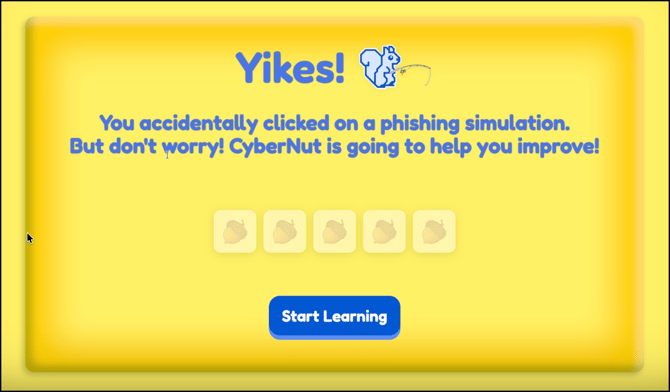
- Once you click the Start Learning button you will be taken to a screen displaying the email with red flags so you can learn how to identify them.
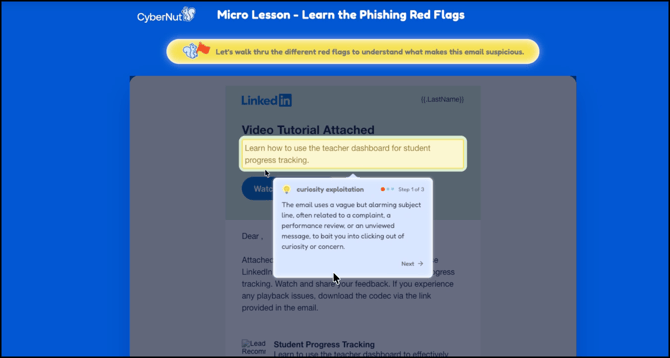
- The user should click through to learn about each red flag. Simulation emails have between 2-4 flags.
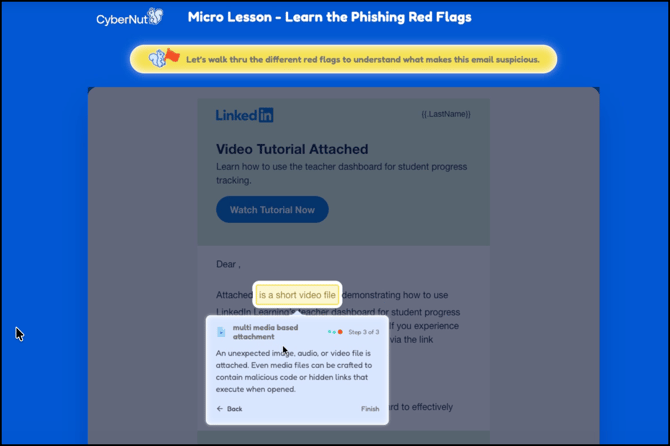
- Once the tutorial is complete, you will be taken to the Assessment like shown in Step 6-9 above.