
To find the lessons, go to Resources > Pre-K/K Lessons.
View the Pre-K/K Summary Report- Go to Reports & Tools > On Demand Report > Pre-K/K Summary Report.
- Filter by your school’s Location, and set Role to Teacher.
- Click Generate Report.Each Teacher at your school is listed with a row for each lesson, showing the number of students who completed it and the date.
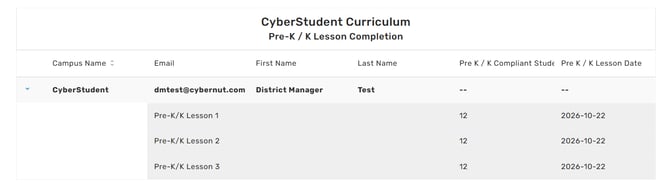
Important: This is the only report where you filter by Teacher to see student progress. Because Teachers record Pre-K/K lessons for their whole class, results are listed under each Teacher rather than under individual students.
Export the report- With the report generated, click the Export tab.
- Choose your preferred format.
- Find the file in the My Exports section of your Dashboard.
The Summary Report only shows lessons that Teachers have recorded. Share these steps with your Pre-K and Kindergarten Teachers:
- Go to Reports & Tools > Pre-K / K Tracking.
- Select your Location and click Generate Report.

- A card loads for each lesson. For each lesson your class completed, enter the number of students who watched it in # of Students, then enter the date. You can type the date or select it with the calendar icon.
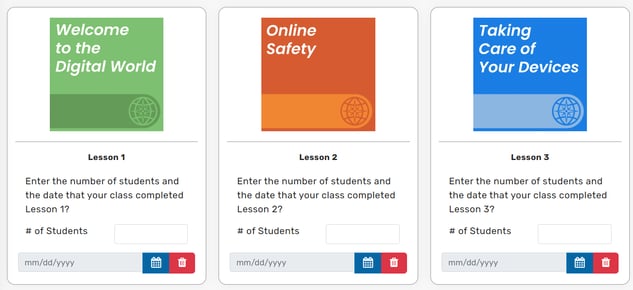
- Click the green check mark to record completion, then click Save.
- Missing Teachers: If a Pre-K or Kindergarten Teacher doesn’t appear in the report, or shows no dates, they may not have recorded their lessons yet. Send them the steps above.
- Check after each lesson: Run the report after each lesson to confirm every class has been recorded.
For questions or help, contact your Customer Success Manager.