
Click below for a full screen walkthrough video.
▶️ Managing Reported Threats in CyberNut
This version of Reported Threats will be phased out in the coming months. (July-Sept 2026) Please see Reported Threats 2.0 and contact your Customer Success manager to learn more.
Reviewing Threats
- Log in to the CyberNut Admin Portal at http://admin.cybernut.com.
- Click Reported threats.
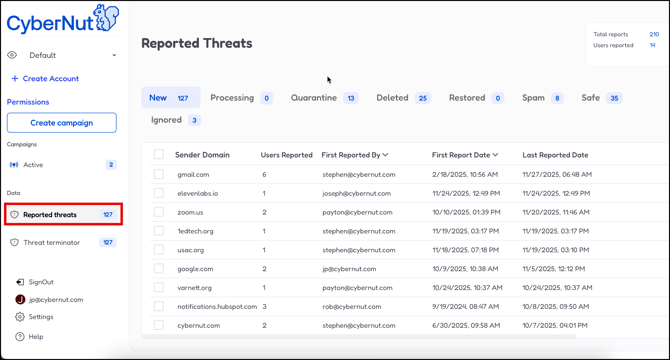
- Click New to show newly reported email threats awaiting review. These have not yet been analyzed or categorized..
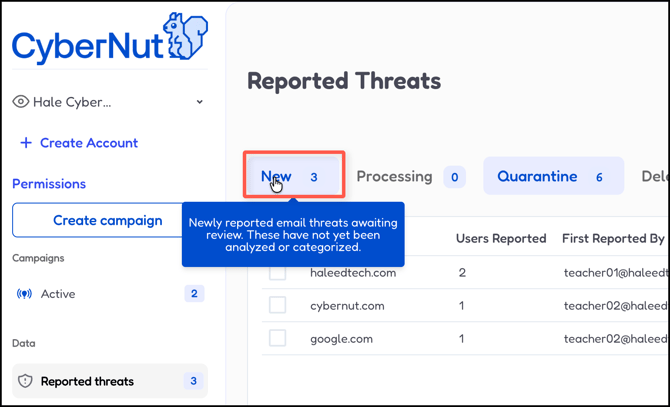
- Click Processing. Please wait as these emails are being deleted, quarantined, marked as spam, etc.
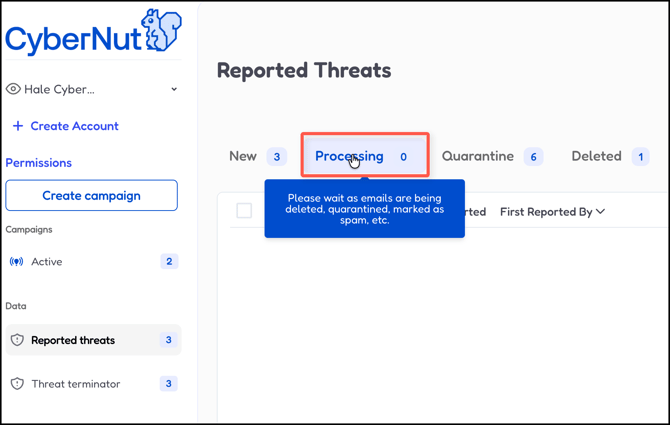
- Click Quarantine. These emails have been moved to Trash and quarantined for 30 days. They will auto-delete permanently unless restored.
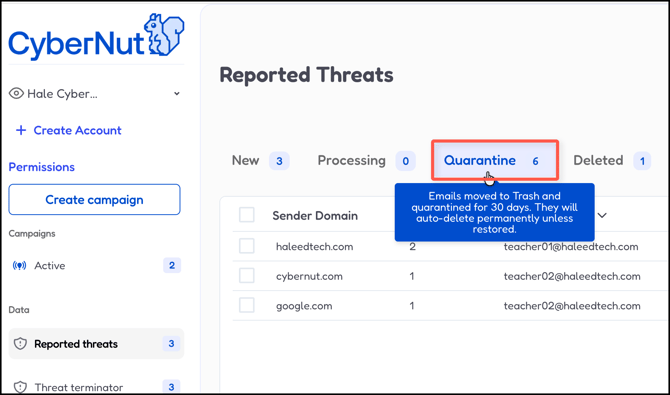
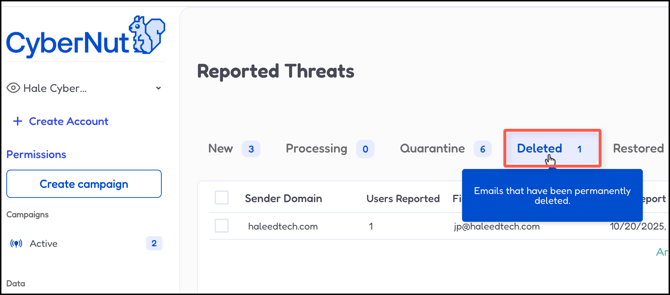
- Click Deleted. These emails have been permanently deleted.
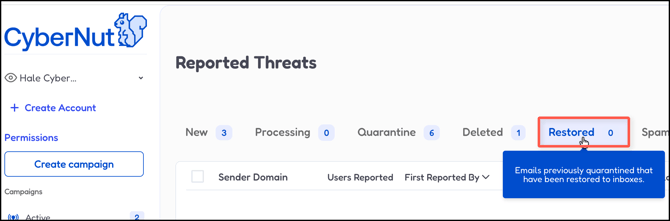
- Click Restored. These emails were previously quarantined and have been restored to inboxes.
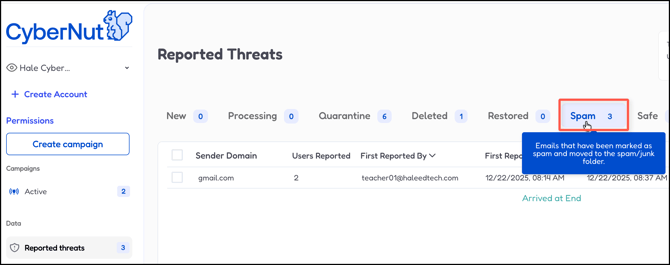
- Click Spam. These emails have been marked as spam and moved to the spam/junk folder.
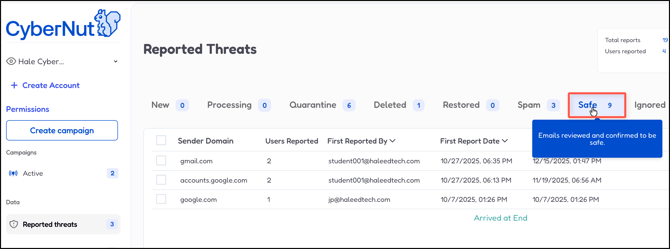
- Click Safe. These emails have been reviewed and confirmed to be safe.
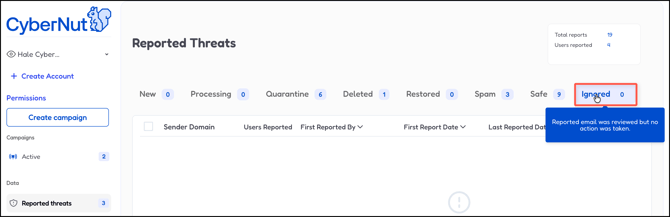
- Click Ignored. These emails have been reported and reviewed with no action taken.
Manage Threats by Domain
- Select New to manage the threats based on the Sender Domain.
- Select a domain from the list which may be a group of emails reported by multiple people.
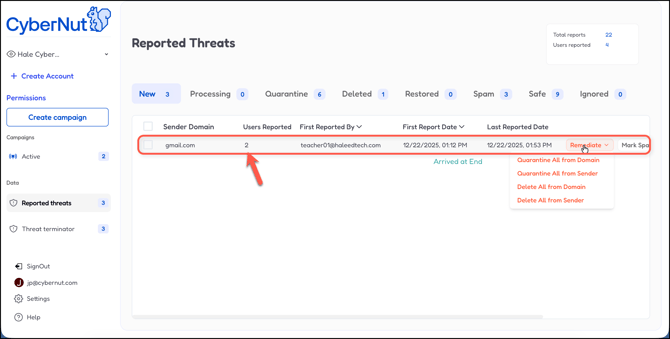
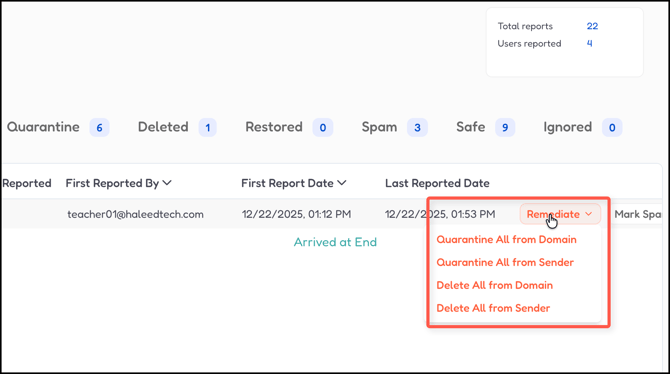
- Click Remediate and select the appropriate action.
Caution: This action is for the entire domain or all emails from the sender.
- Quarantine All from Domain- Quarantine all emails from this domain. Emails will be moved to users' Trash and auto-deleted after 30 days.
- Quarantine All from Sender- Quarantine all emails from this sender. Emails will be moved to users' Trash and auto-deleted after 30 days.
- Delete All from Domain- Permanently delete all emails from this domain across all user inboxes. This action cannot be undone.
- Delete All from Sender- Permanently delete all emails from this sender across all user inboxes. This action cannot be undone.
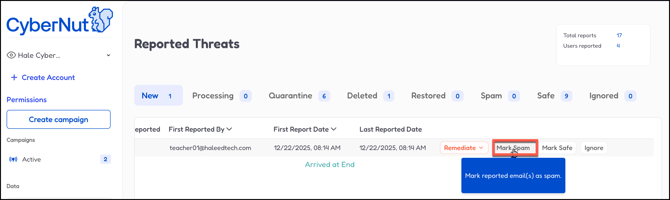
- Select Mark Spam. This will mark this email as spam.
- Select Mark Safe. This will mark this email as safe.
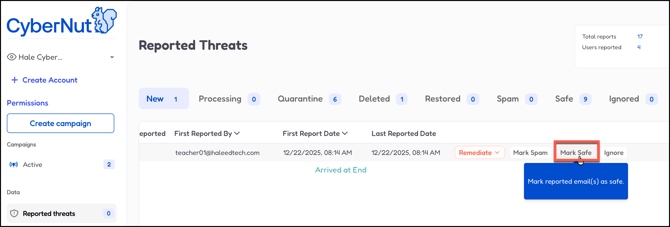
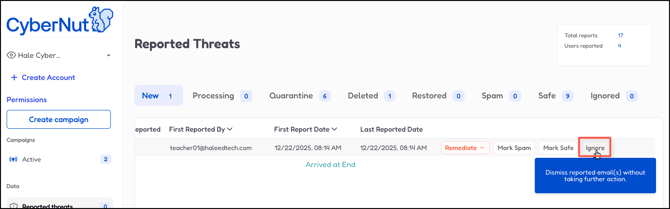
- Select Ignored. This will dismiss reported emails without taking further action.
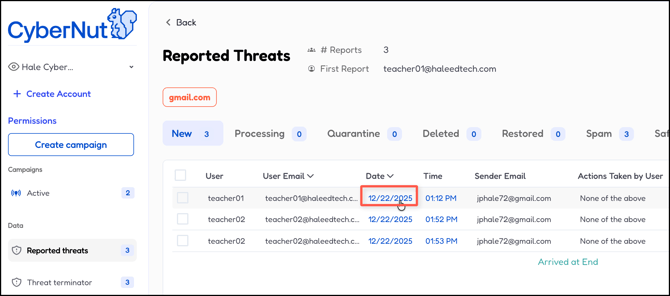
- After selecting the domain, select the date of the specific email.
- Review the Email Content.
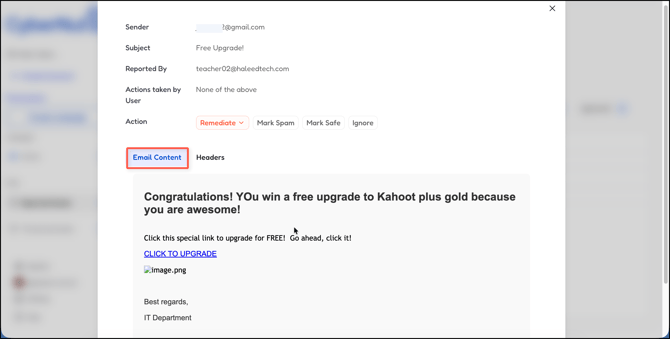
- Review the Headers.
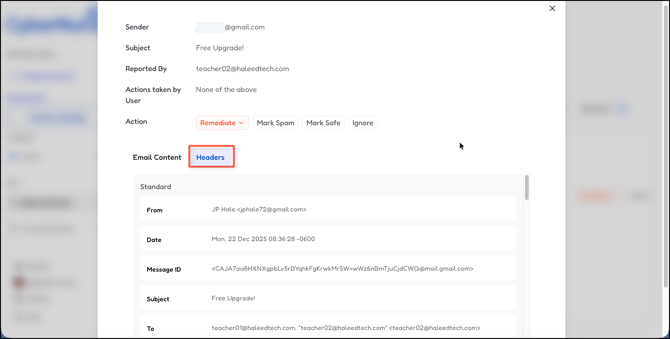
- Click Remediate and select one of the options.
- Quarantine this Email- Quarantine this email. It will be moved to the user's Trash and auto-deleted after 30 days.
- Quarantine All from Sender- Quarantine all emails from this sender. Emails will be moved to users' Trash and auto-deleted after 30 days.
- Delete this Email- Permanently delete this email from the user's inbox. This action cannot be undone.
- Delete All from Sender- Permanently delete all emails from this sender across all user inboxes. This action cannot be undone.
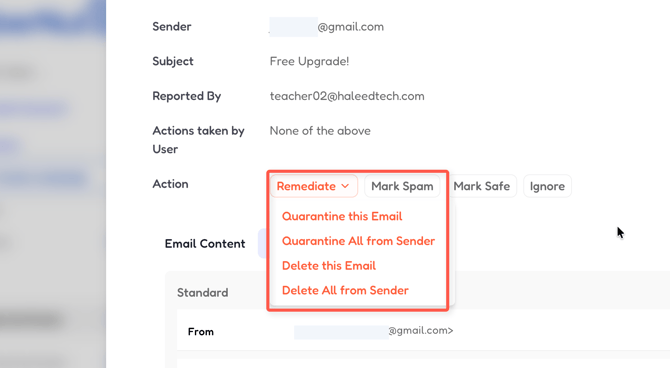
- Click Mark Spam, Mark Safe, or Ignore as before.
Reported Threat types
- New- Newly reported email threats awaiting review. These have not yet been analyzed or categorized.
- Processing- Please wait as emails are being detected, quarantined, marked as spam, etc (Processing time depends on the amount of emails but generally will be complete the same day.)
- Quarantine- Emails moved to Trash and quarantined 30 days. They will auto-delete permanently unless restored.
- Deleted- Emails that have been permanently deleted.
- Restored- Emails previously quarantined that have been restored to inboxes.
- Spam- Emails that have been marked as spam and moved to the spam/junk folder.
- Safe- Emails reviewed and considered safe.
- Ignored- Reported email was reviewed but no action was taken.