
Click below for a full screen walkthrough video.
▶️ Installing the Outlook Add-in for CyberNut
Step 1: Login to the Microsoft 365 Admin Center at https://admin.cloud.microsoft/ and select the Settings dropdown from the left side.
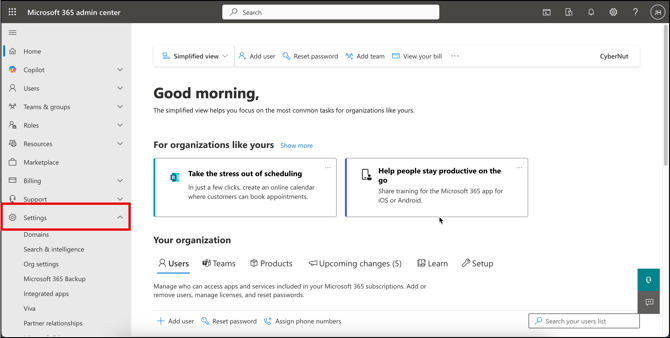
Step 2: Next, click on Integrated Apps.
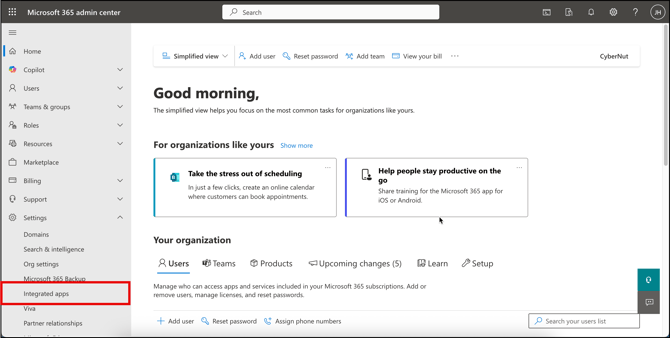
Step 3: Click on the small blue Add-ins hyperlink at the top of the screen.
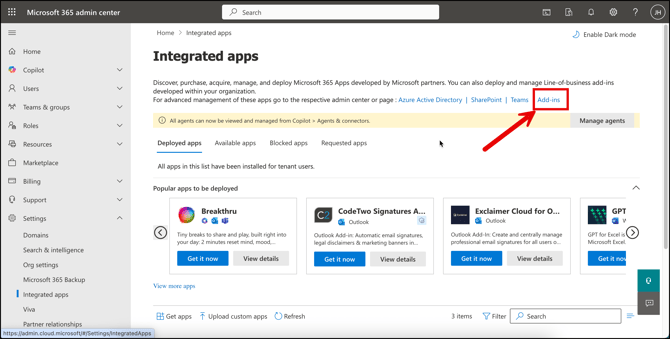
Step 4: Click on Deploy Add-in to begin the deployment.
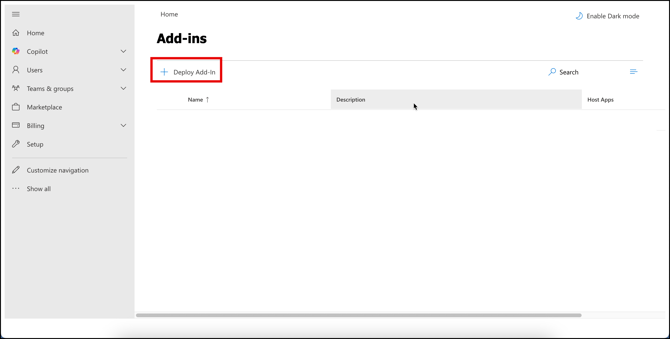
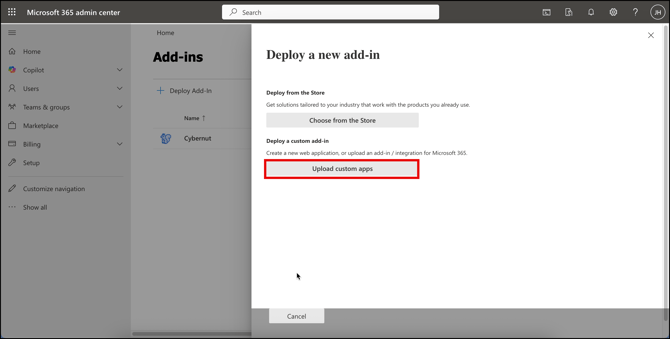
Step 5: Click Next and then click on Upload Custom Apps.
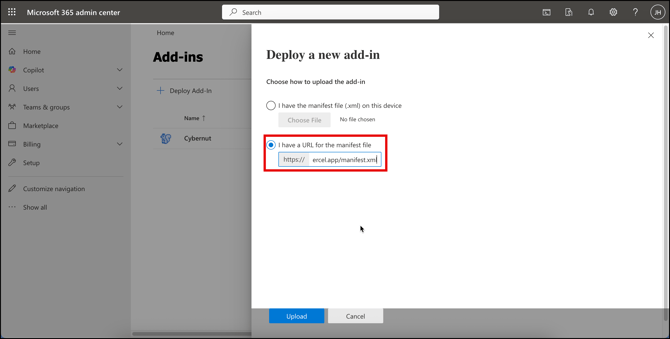
In the I have a URL for the manifest file, please add the link below exactly as it appears (including the https).
If all your users have the newest versions of Outlook (Microsoft 365 Outlook or Outlook for Windows), use the following.
https://cybernut-outlook-addon.vercel.app/manifest.xml
If your users have a variety of versions of Outlook, you must use the following:
https://legacyaddin.cybernut.com/manifest.xml
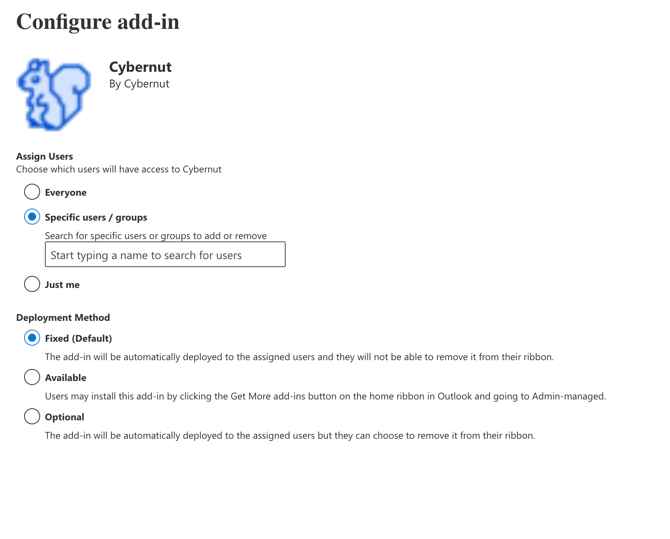
Step 6: Configure the add-on for a deployment to specific groups. Then, select all the users you will run your CyberNut campaigns for.
It may take up to 72 hours for the add on to deploy. Please also ensure that you restart your Microsoft Outlook Client if you use the desktop version.