Click below for a full screen walkthrough video.
▶️ Microsoft Azure Portal API Permissions
For CyberNut to run without any interruptions, please ensure that you have all of the following API permissions under your 'CyberNut Admin' app registration.
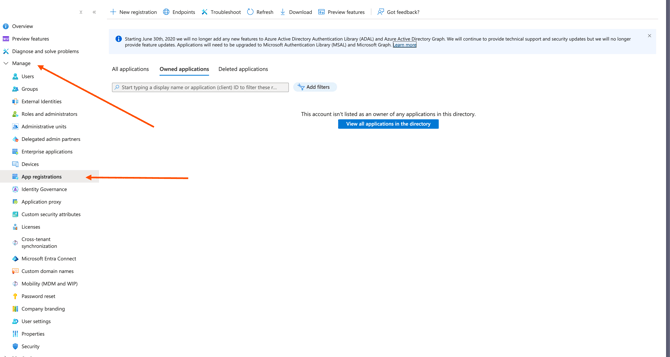
To get started, visit the Microsoft Entra ID Portal and click the 'Manage' dropdown on the left side. Then, click on 'App Registrations'.
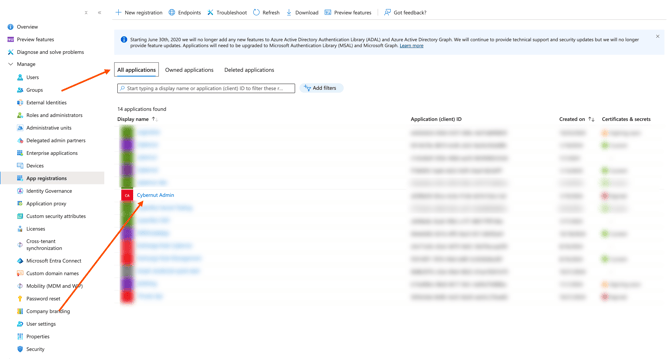
Next, click on 'All Applications' and search for 'CyberNut Admin'. Select this application once you have located it.
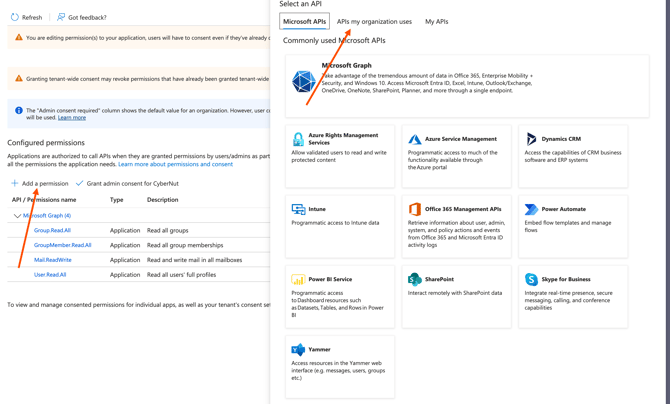
Once you've selected your application, proceed to the 'API Permissions' section. Here, click on 'Add a permission' then select 'Microsoft Graph' and 'Application Permissions'.
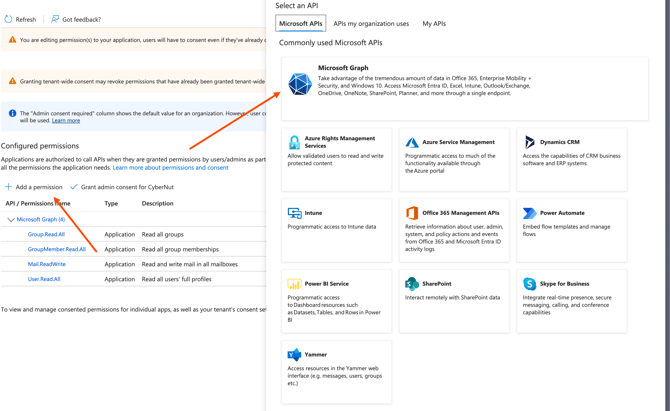
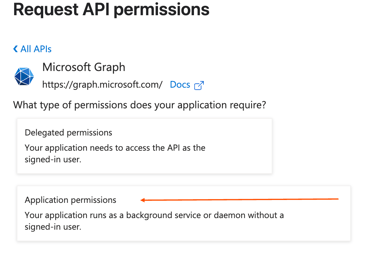
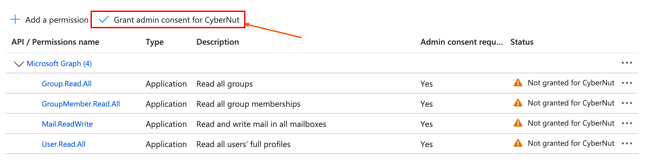
Using Microsoft Graph's Application Permissions, please search for and add the following:
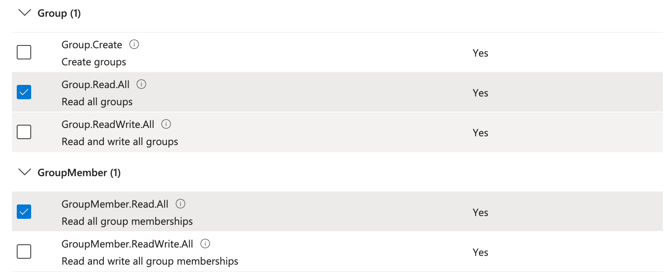
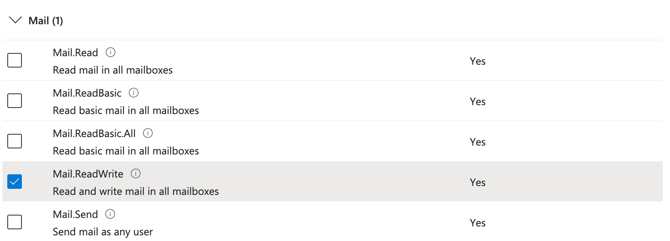
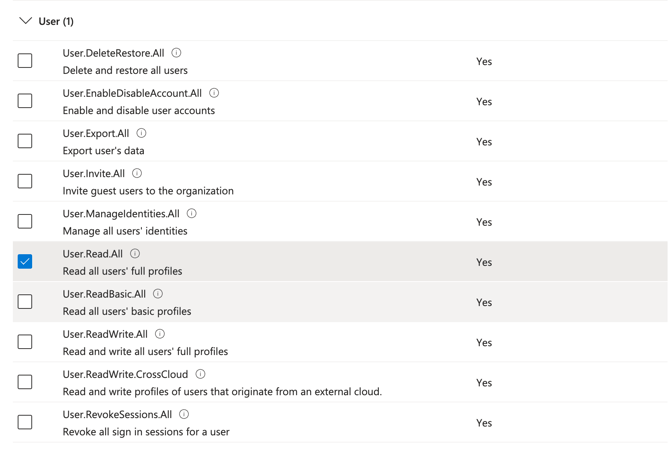
Click 'Add Permissions' once you have selected all of the above. Then, 'Grant Admin Consent'.
Additionally, please click 'Add a permission' once more and click on 'APIs my organization uses' at the top of the popup window.
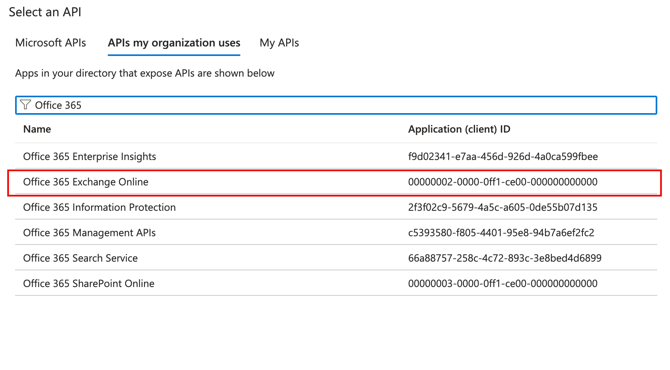
Search for 'Office 365 Exchange Online' in the input field and click on it. Select 'Application Permissions' once again.
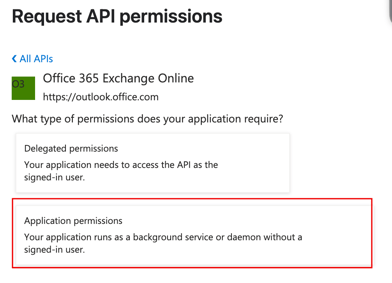
Under 'Other Permissions' please select 'full_access_as_app'. In addition, please select 'Exchange.ManageAsApp' underneath 'Exchange'.
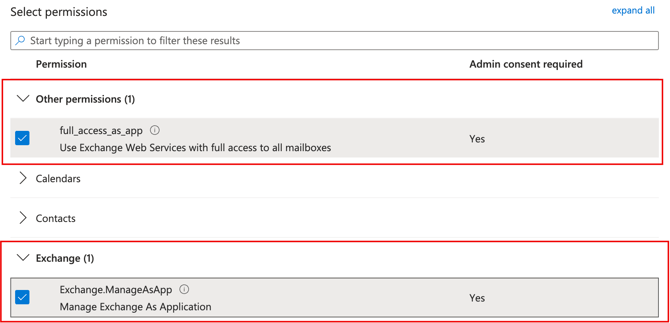
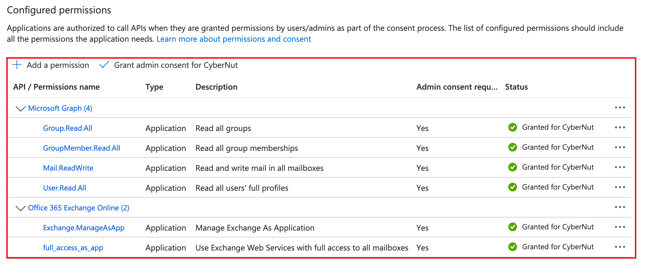
After configuring all these steps, you should now have the following API permissions:
Warning: Please make sure that you 'Grant Admin Consent'. This option is located near the 'Add a permission' button. The status for all these permissions should show 'Granted' on the right side as indicated in the screenshot below.