Skip to content
English
  • There are no suggestions because the search field is empty.

Creating a Policy Acknowledgement Campaign

In this article you will learn how to create a policy acknowledgement campaign.

Click below for a full screen walkthrough video.
▶️ Creating a Policy Acknowledgement Campaign

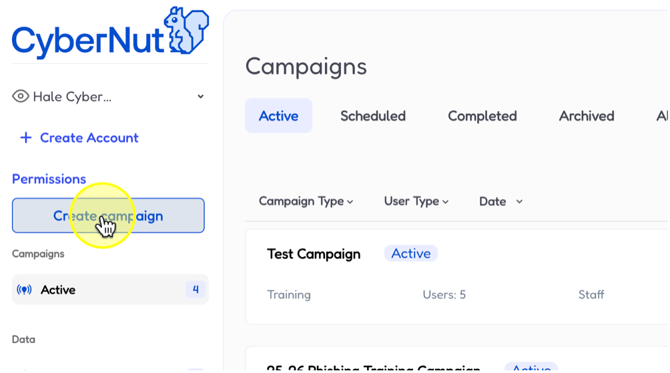
  1. Click on Create campaign.

    Snagit_Step_Image001-2

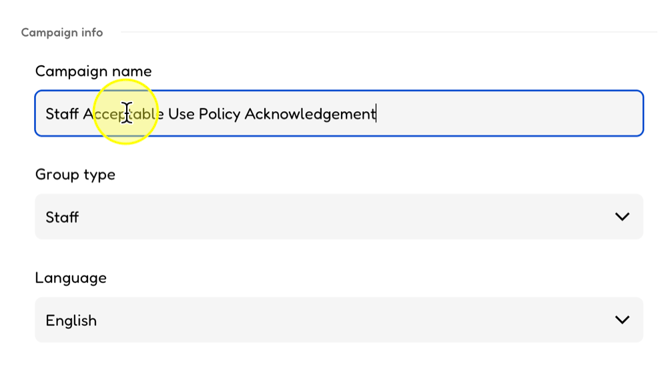
  2. Type a campaign name and select a Group type .
    Snagit_Step_Image002-2

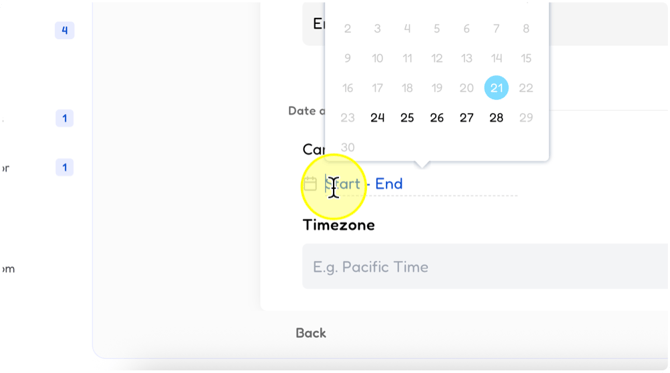
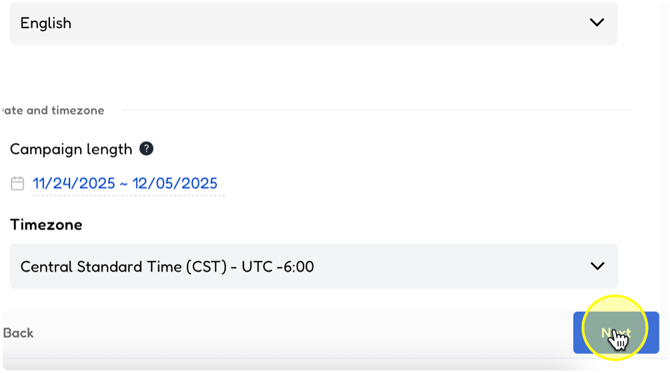
  3. Click Start and select a date..

    Snagit_Step_Image003-3
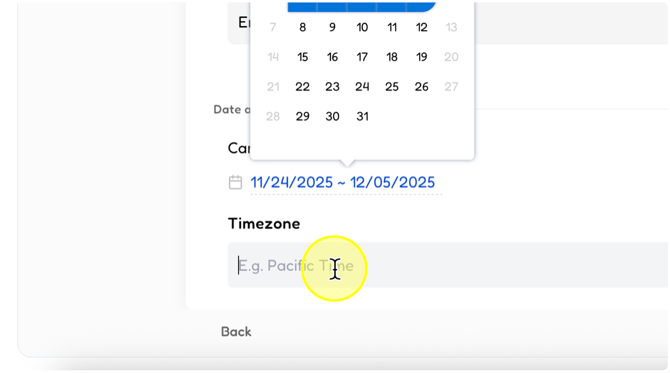
  4. Click the date to end the campaign.

    Snagit_Step_Image005-2

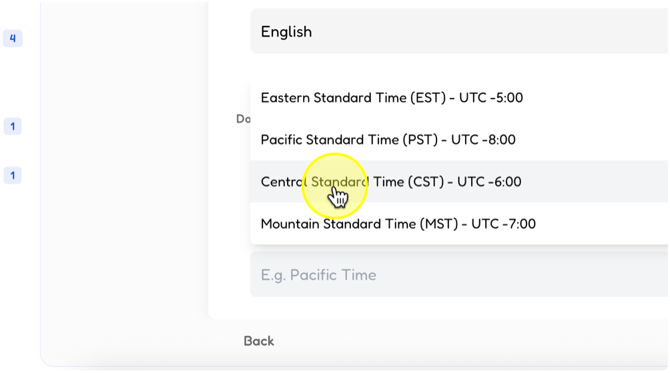
  5. Select the timezone.

    Snagit_Step_Image006-2
  6. Click Next.

    Snagit_Step_Image007-1
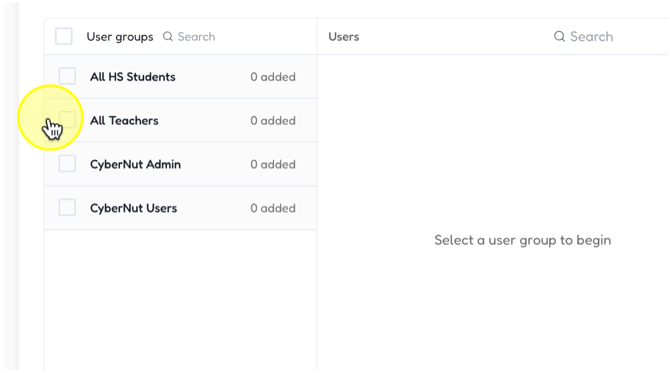
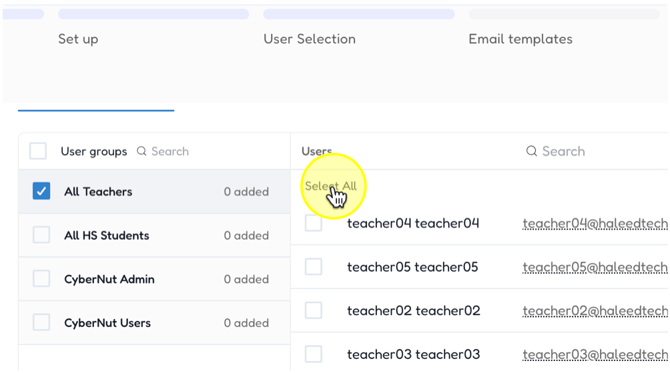
  7. Select the group.

    Snagit_Step_Image008

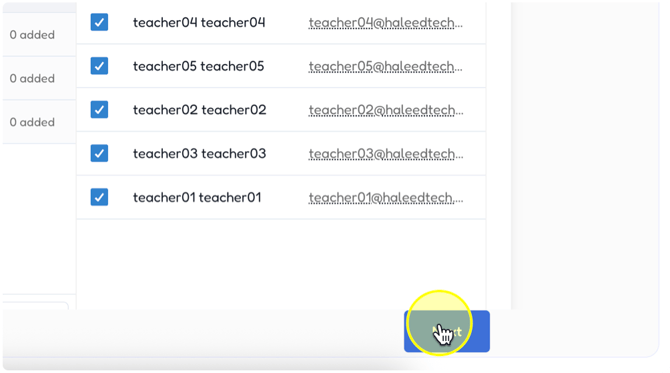
  8. Either Select All or check the box by the individuals.
    Snagit_Step_Image009-2

  9. Click Next.

    Snagit_Step_Image010

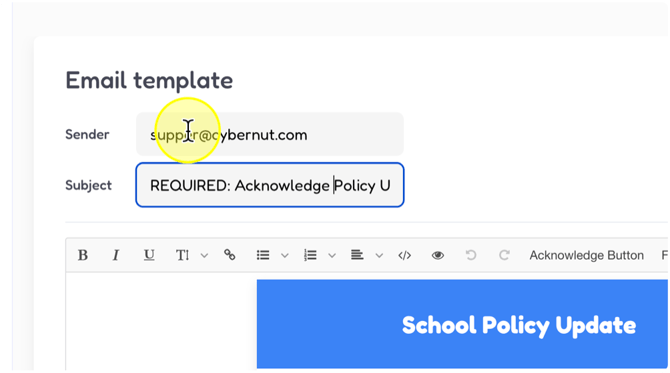
  10. Revise the email Sender.

    Snagit_Step_Image011

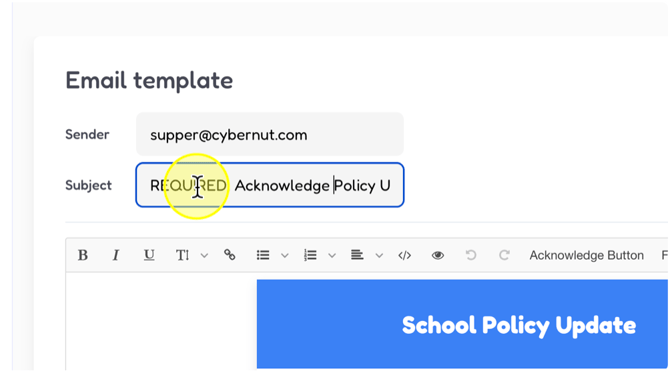
  11. Revise the Subject if needed.

    Snagit_Step_Image012

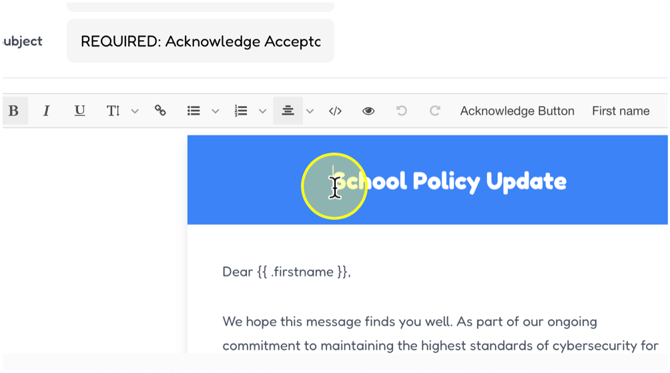
  12. Revise the title if needed.

    Snagit_Step_Image013

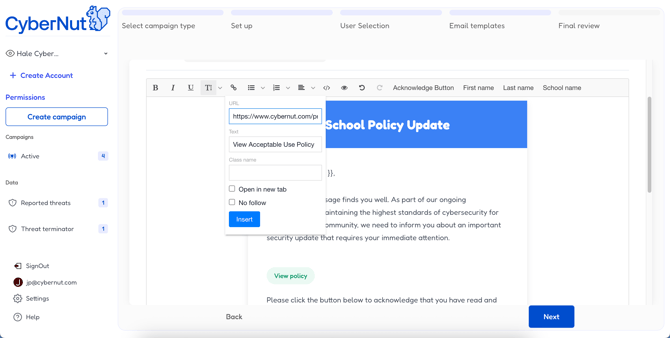
  13. Highlight View Policy and click the hyperlink button and revise the information as needed.
    snag1
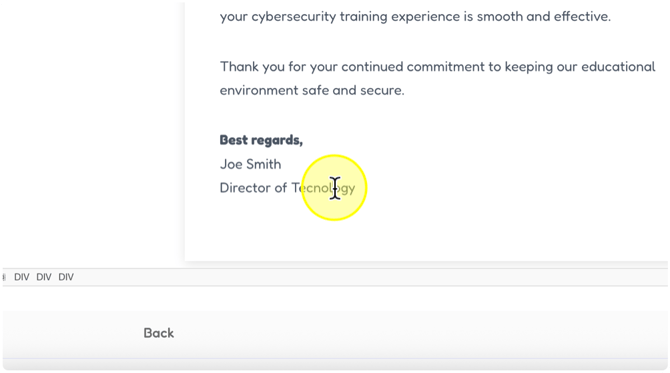
  14. Revise the body of the message if needed.
    Snagit_Step_Image015


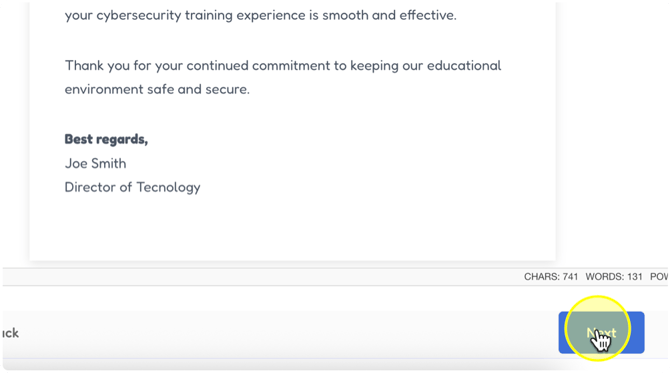
  15. Click Next.

    Snagit_Step_Image016

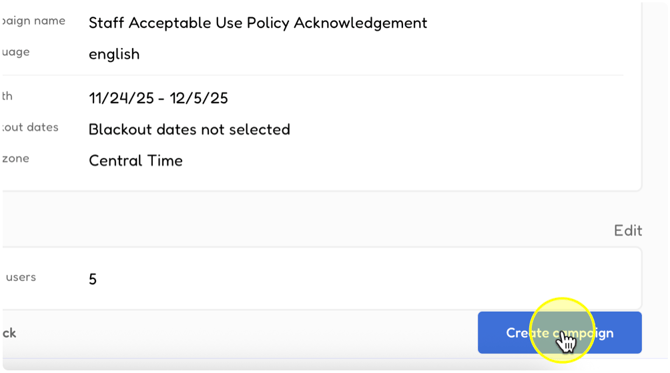
  16. Click Create campaign.

    Snagit_Step_Image017