
-
Login to the CyberNut Admin Portal at http://admin.cybernut.com.
- Go to Settings.
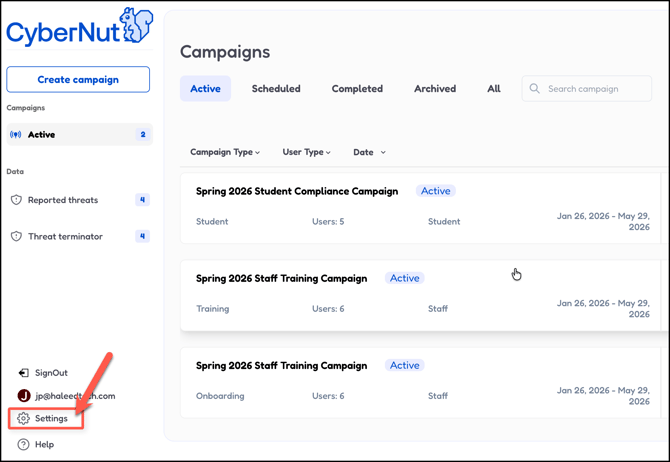
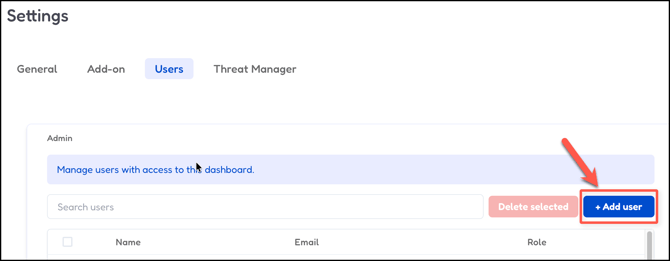
- Click Users and scroll to the bottom and add users. (Note: This will give them permission to the account but does not create their account or email them.)
- Now that they have permission to the account do the following steps based on if you are just conducting a Baseline Campaign or if you have setup single sign on and completed your full technical integration steps.
Do the following if you are only conducting a Baseline Campaign or if single sign on is not set up.
-
Have each admin you want to add go to the Cybernut Admin Portal at http://admin.cybernut.com.
- Click the Sign up button in the top right corner of the browser.
- Complete all steps of the sign up.
If single sign up is complete, follow the directions below.
Directions for Google (Scroll down for directions for Microsoft users.)
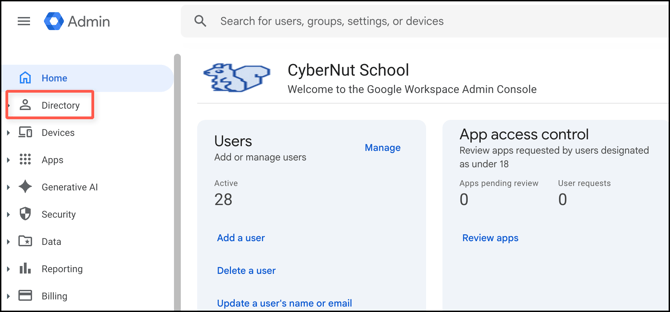
- Go to the Google Admin Console at http://admin.google.com
- Select Directory from the left side menu.
- Click Groups.
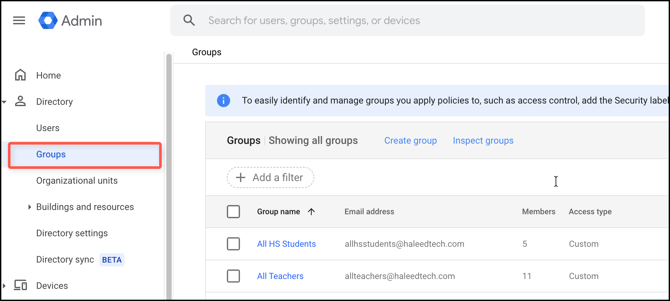
- Click the CyberNut Admin group.
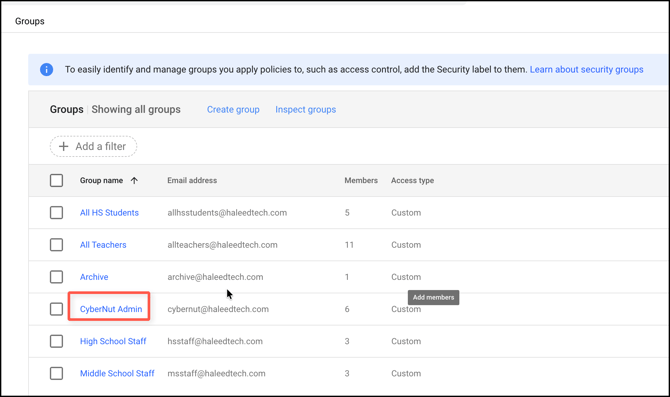
- Click Add Members.
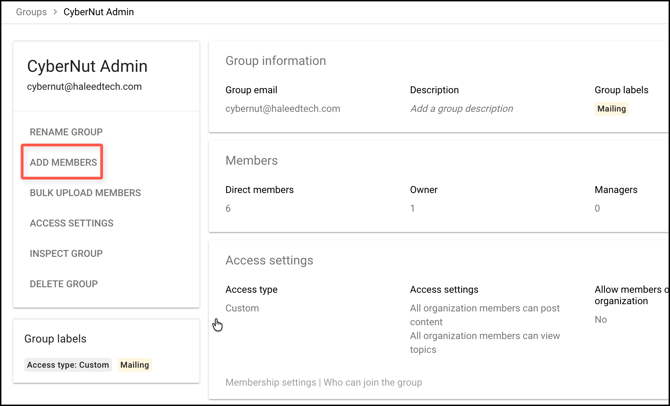
- Add the member(s) you want to have Single Sign On privileges. (For example, I created a CyberNut Manager and added them to this group.)
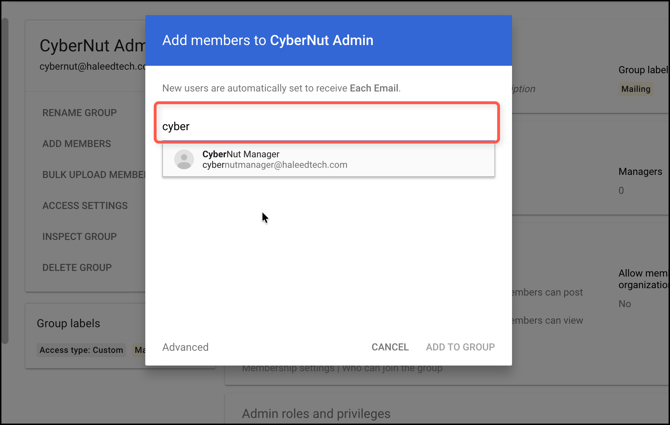
- Click Add to Group.
Directions for Microsoft
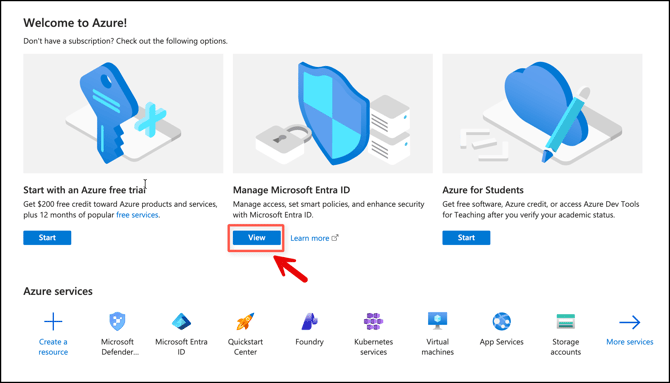
- Go to the Microsoft Azure Portal at https://portal.azure.com/
- Click the View button for Manage Microsoft Entra ID.
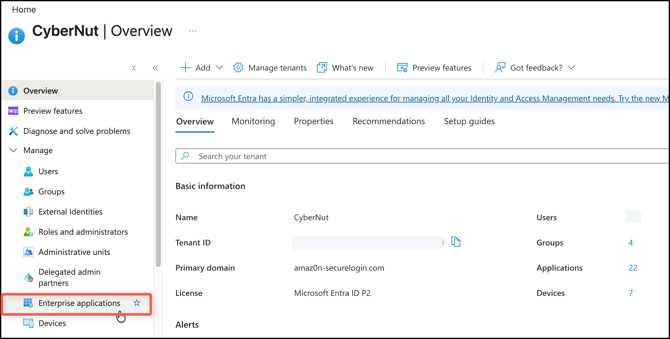
- Click Enterprise applications from the left menu.
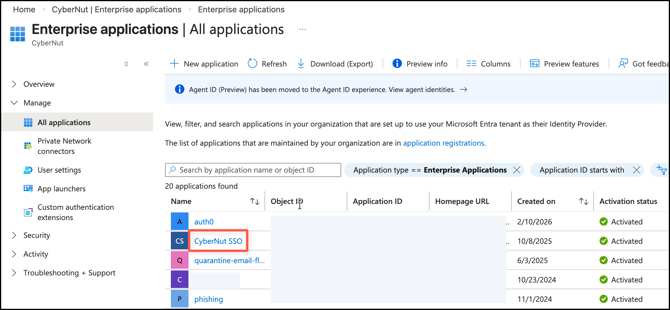
- Locate and click the CyberNut SSO application.
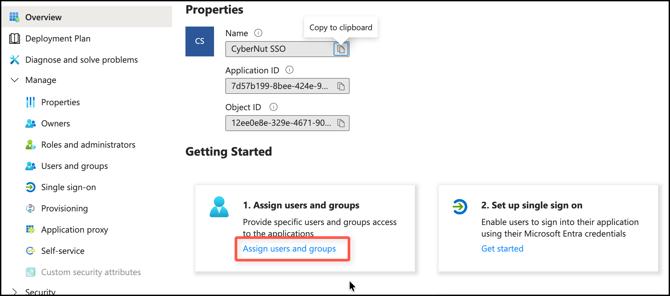
- Select the Assign users and groups link.
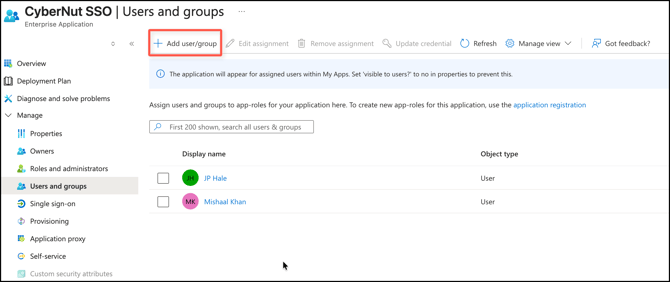
- Click Add user/group.
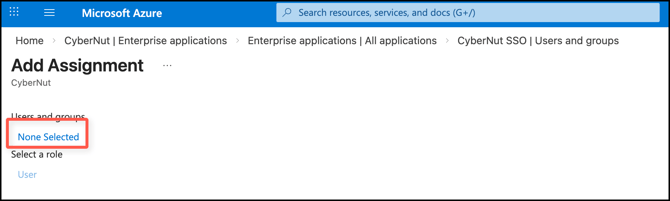
- Click None Selected.
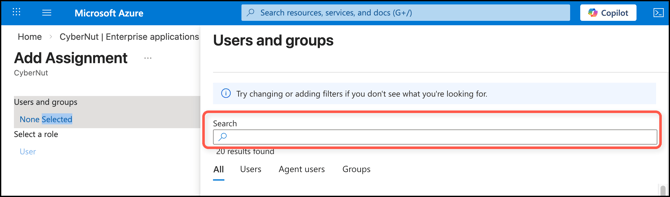
- Search and select the user(s).
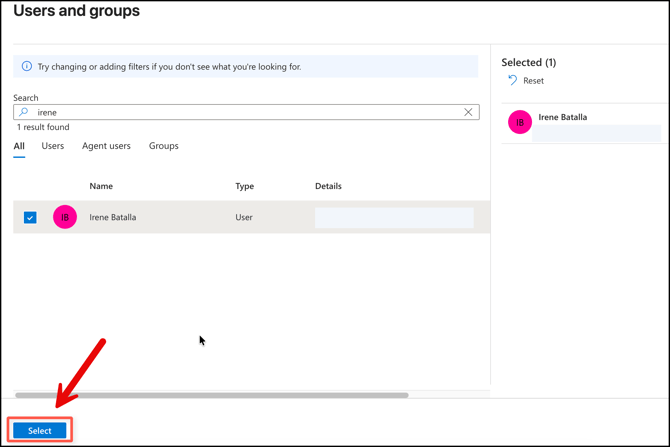
- Click the Select button.
- Click Assign.