
Click below for a full screen walkthrough video.
▶️ Enabling Direct Mail Injection and Directory Sync for Google
Part 1: Google Cloud Console
Step 1: Login to the Google Cloud Console at https://console.cloud.google.com/ using a Super Admin Account.
At the top left of the screen, click your current project and choose New Project in the pop-up window.
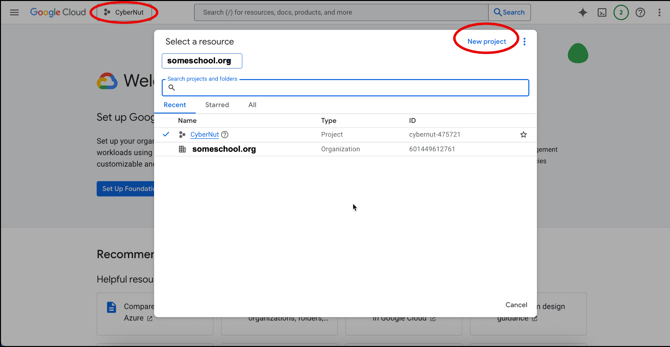
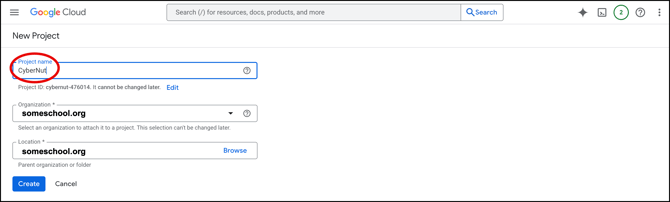
Step 2: Name the project: CyberNut. Then, click Create.
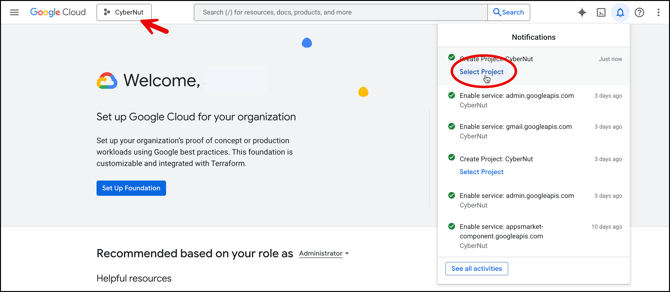
Step 3: The project will take a few seconds to create. Once it is created, you can select it from the notification tab by clicking on the bell.
*IMPORTANT* - Before you proceed, please ensure that you're in the CyberNut project that you just created!
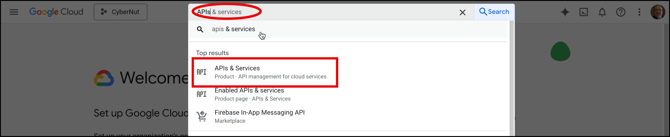
Step 4: Search for APIs & Services and select it.
Step 5: Click + Enable APIs and Services.
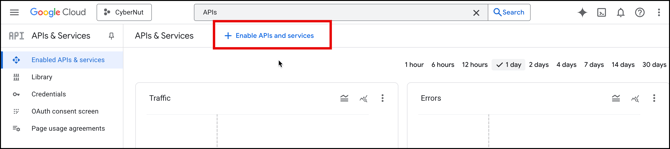
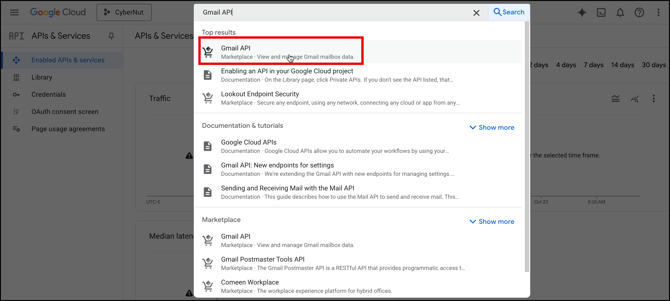
Step 6: Search for Gmail API. This will be used for Direct Mail Injection.
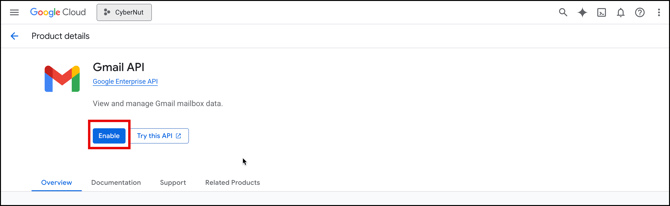
Step 7: Click on the tile for Gmail API and click on Enable.
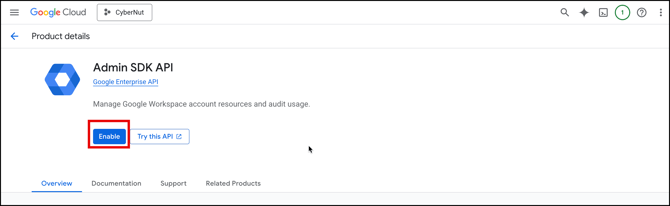
Step 8: Search for Admin SDK API.
Step 9: Click Enabled APIs and Services on the left, then click OAuth Consent Screen. Then click Get Started.
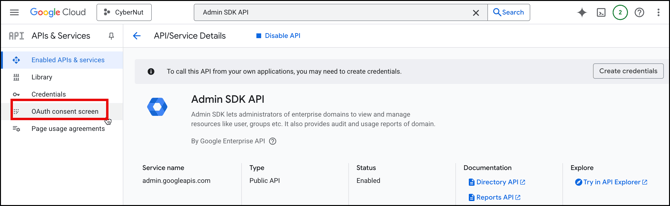
Step 10: Fill out the form with the following fields and click Create.
App Name: CyberNut
User Support Email: Select the email used to create the project.
Audience: External
Developer Contact Information: support@cybernut.com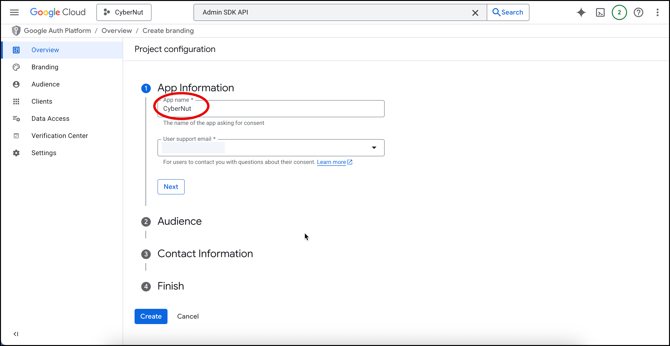
Step 11: Click the menu in the top left and navigate to APIs & Services>Credentials.
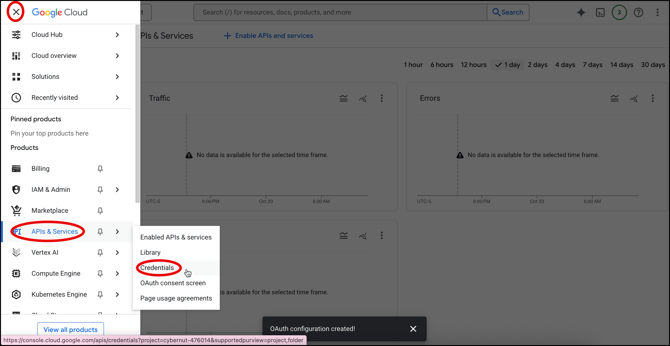
Step 12: Next, click Create Credentials and click oAuth Client ID.
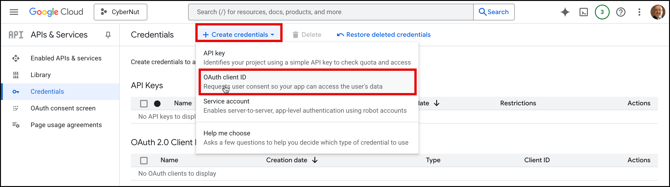
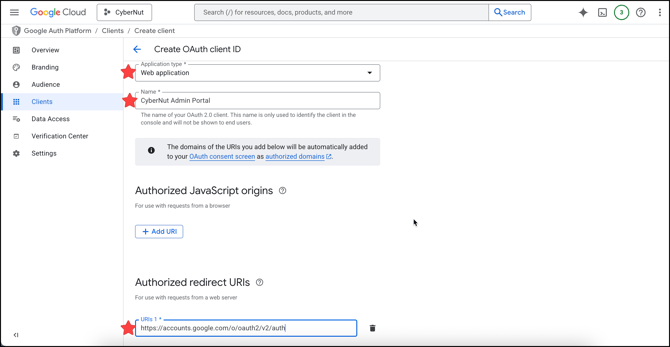
Step 13: Fill out the oAuth Client ID details as indicated below and then click Create.
Application Type: Web Application
Name: CyberNut Admin
Authorized redirect URIs: https://accounts.google.com/o/oauth2/v2/auth
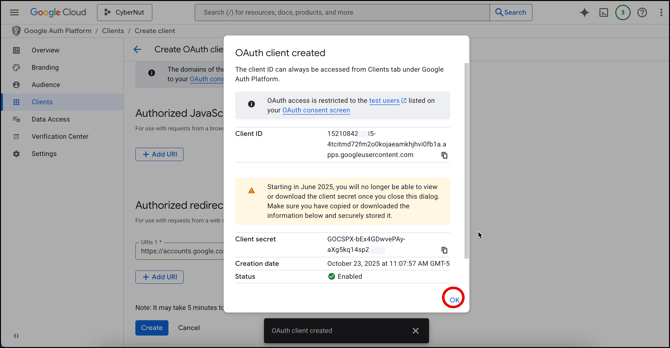
Step 14: Click OK on the confirmation window.
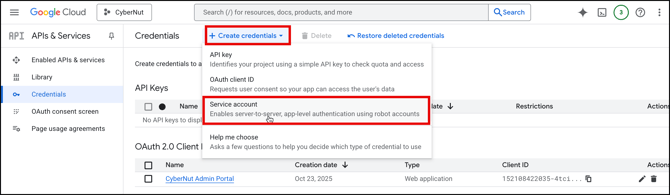
Step 15: Select Credentials in the navigation bar, then click on Create Credentials and click Service Account.
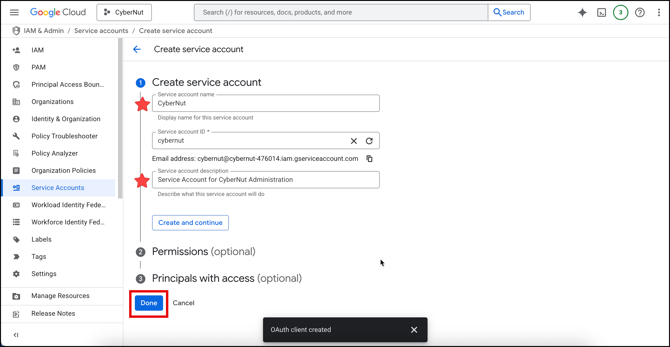
Step 16: Fill out the Service Account Details with the following and click Done.
Service Account Name: CyberNut
Service Account ID: cybernut
Service Account Description: Service Account for CyberNut Administration
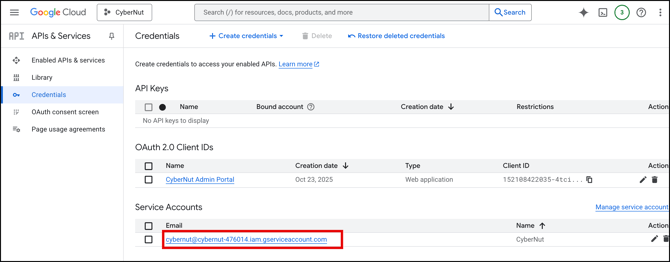
Step 17: Click on the Service Account that we created by clicking on the blue hyperlink underneath the Service Accounts section.
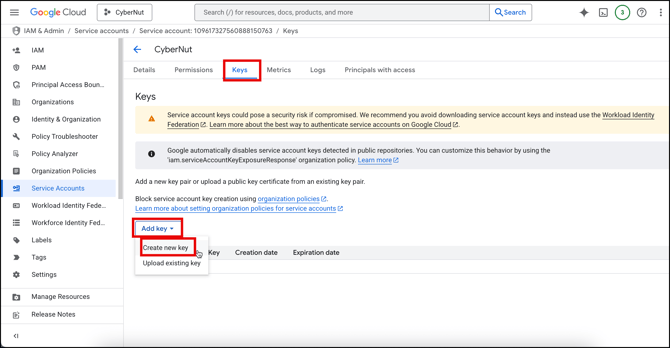
Step 18: Click on Keys and Add Key> Create New Key
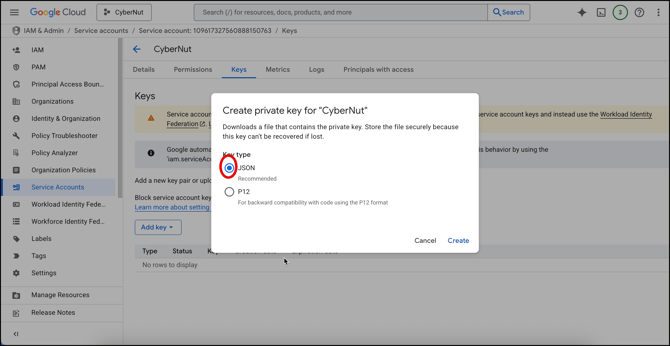
Step 19: Select JSON and then Create.
A .json file containing the required keys should have been downloaded to your computer. These keys are used to connect the CyberNut Admin Portal to your Google Cloud Console account.
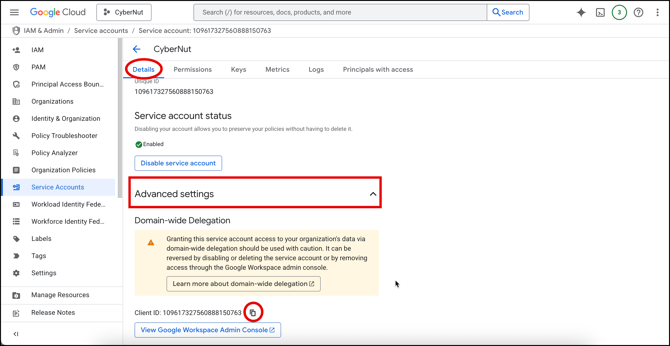
Step 20: Click Details and then Advanced settings. Click the copy icon next to Client ID. Then, open the Google Admin Console using the provided View Google Workspace Admin Console button below it.
Part 2: Google Admin Console
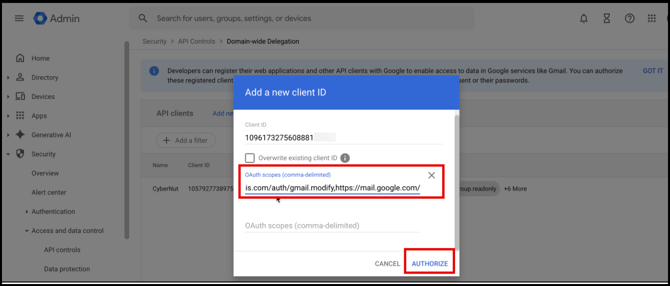
Step 21: Log in to the Google Admin Console at http://admin.google.com and click on Security>Access and data control>API controls.
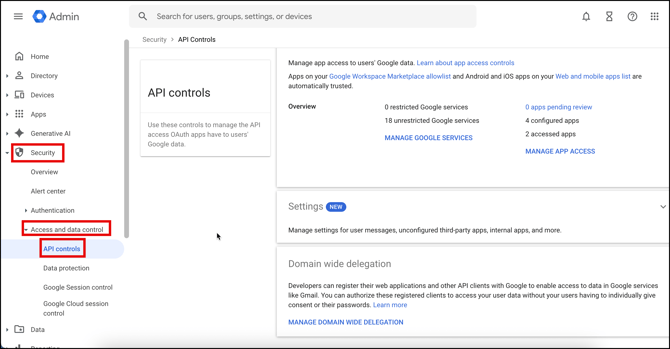
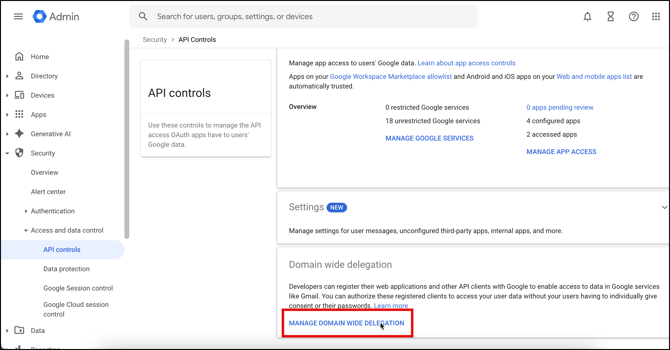
Step 22: Click on Manage Domain Wide Delegation.
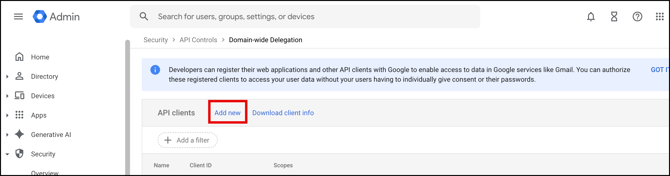
Step 23: Click on Add New.
Step 24: Paste in the copied Client ID from Step 20.
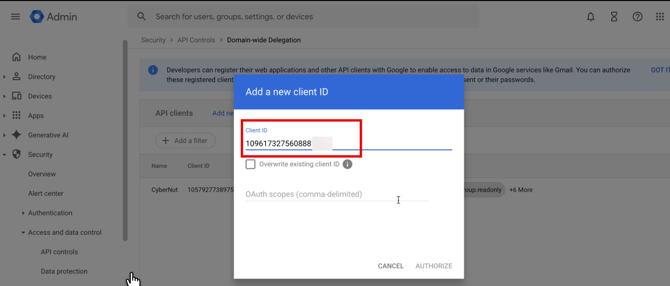
Step 25: Copy/paste all the scopes together below into the OAuth Scopes line and click Authorize. Then click Confirm.
Domain Wide Delegation Scopes:
https://www.googleapis.com/auth/admin.reports.audit.readonly, https://www.googleapis.com/auth/admin.directory.group.readonly, https://www.googleapis.com/auth/admin.directory.group.member.readonly, https://www.googleapis.com/auth/admin.directory.user.readonly, https://www.googleapis.com/auth/gmail.insert, https://www.googleapis.com/auth/gmail.readonly,https://www.googleapis.com/auth/gmail.modify,https://mail.google.com/,https://www.googleapis.com/auth/admin.directory.user,https://www.googleapis.com/auth/admin.directory.user.security,https://www.googleapis.com/auth/cloud-identity.groups.readonly
Part 3: CyberNut Admin Portal
Step 26: Log in to the CyberNut Admin Portal at http://admin.cybernut.com and click on Settings in the bottom left corner.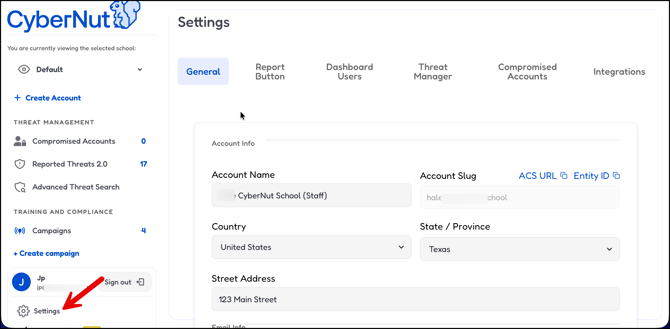
Step 27: Click on the Integrations tab at the top. It should display the following fields: Service account email, Service account private key, and Google Workspace admin email. (used in Cloud project). Then click the button labeled Upload JSON key instead and upload the JSON that was downloaded from the project.
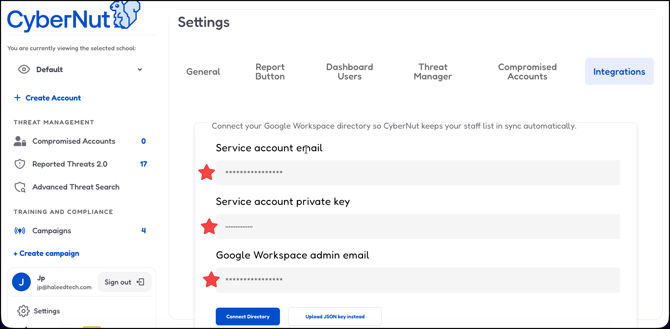
Step 28: Upon uploading the JSON file the Service account email and Service account private key will be filled in automatically. Type in the email account used in the Cloud Console. Then select the Connect Directory button.
Step 29: Click the General tab.
Select the Email Delivery Method dropdown and select Direct Mail Injection. Then scroll down and click Save.
Note: You may need to contact CyberNut to reset permissions to your new account.