Click below for a full screen walkthrough video.
▶️ Editing a Phishing Training Campaign
1. Log in to the CyberNut Admin Portal at http://admin.cybernut.com
2. Select Campaigns.
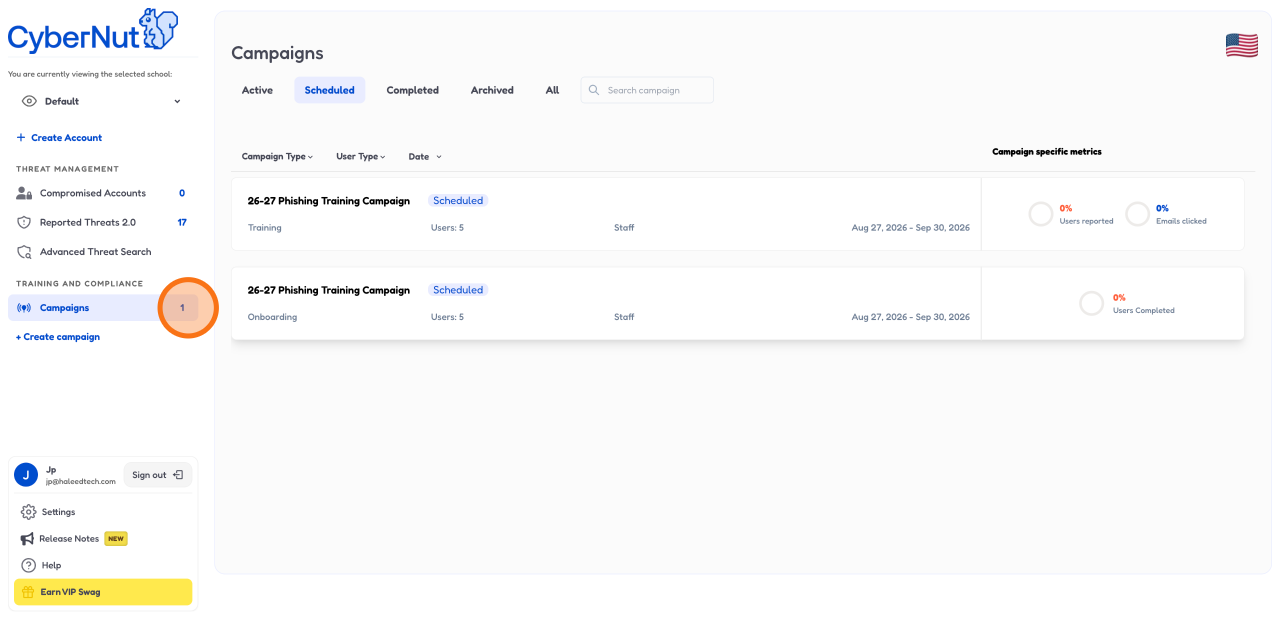
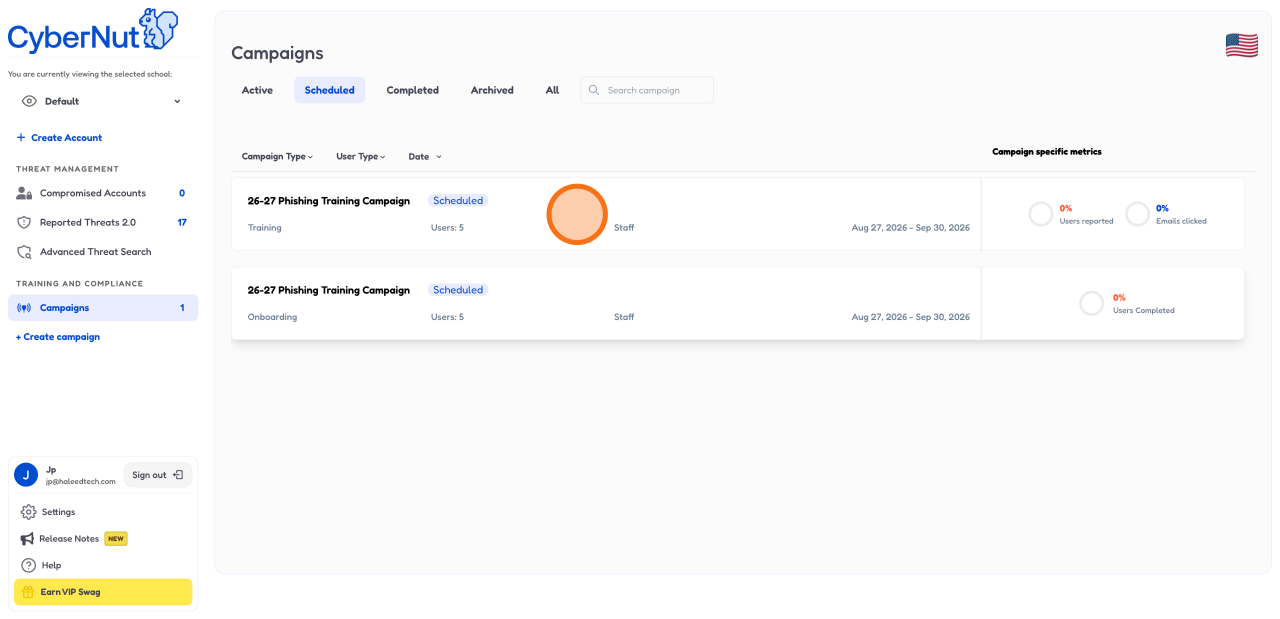
3. Select the campaign you want to edit.
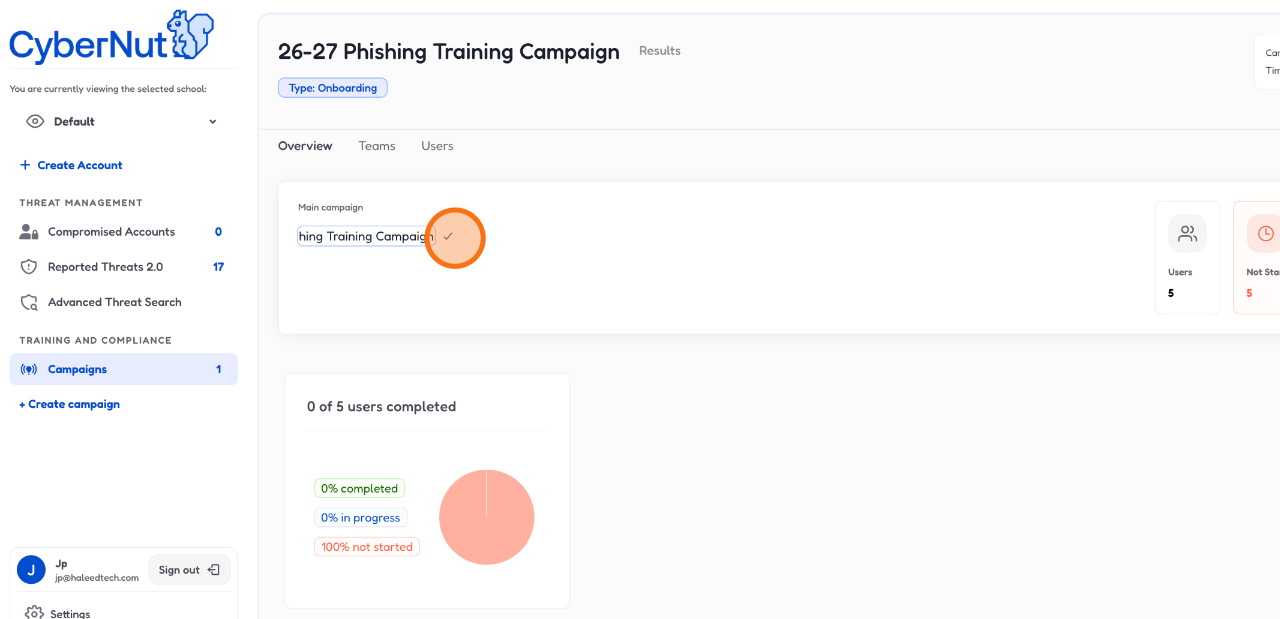
4. Edit the name of the campaign if needed.
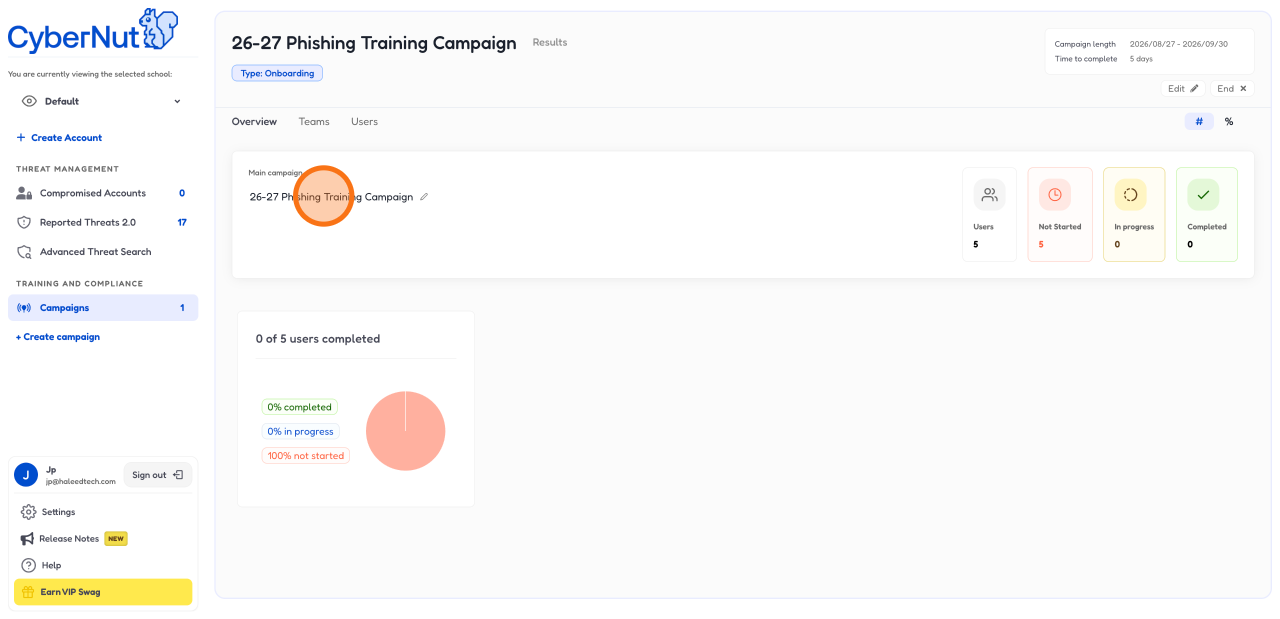
5. Click the checkmark to save the name.
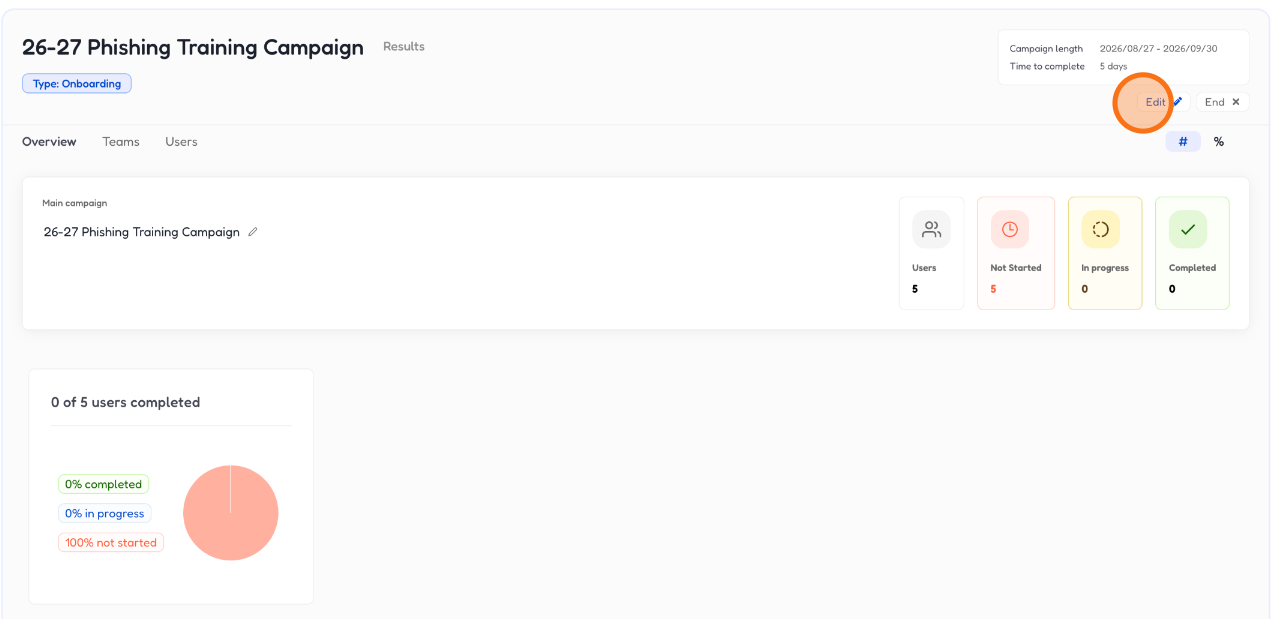
6. Click "Edit" to open up the settings and make changes to this entry.
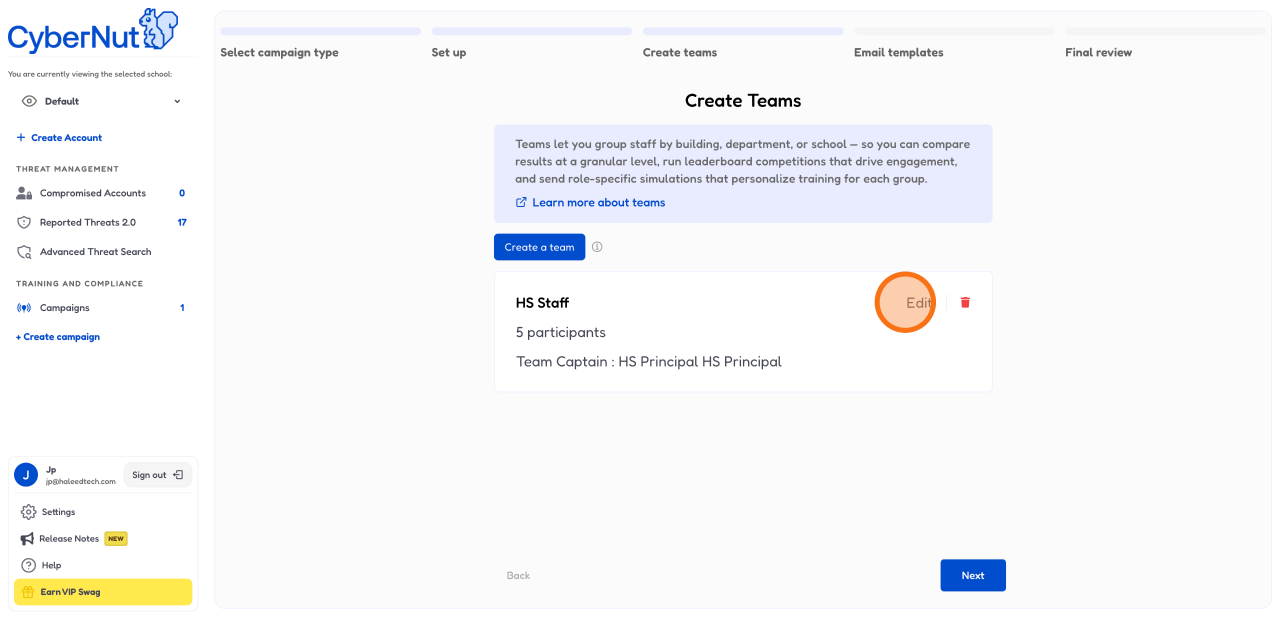
7. Click "Edit" to update or change who receives the emails and who may or may not be the Team Captain.
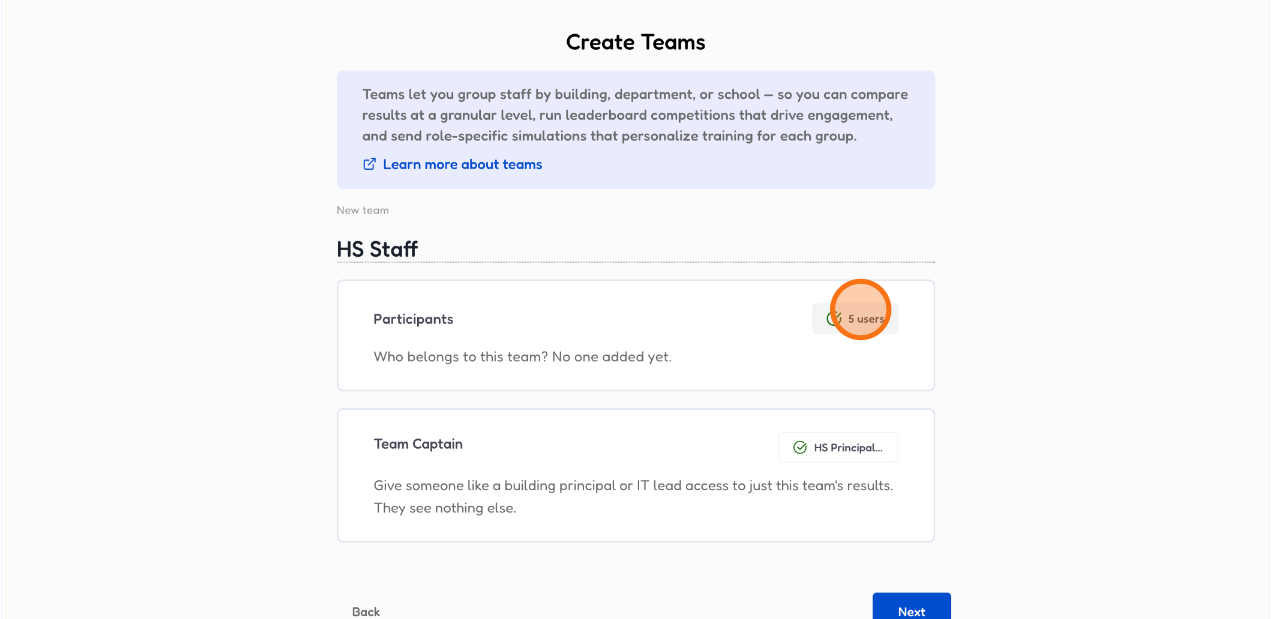
8. In this example, we will select "5 users" to adjust who should receive the phishing emails.
9. Select the user group as your target audience.
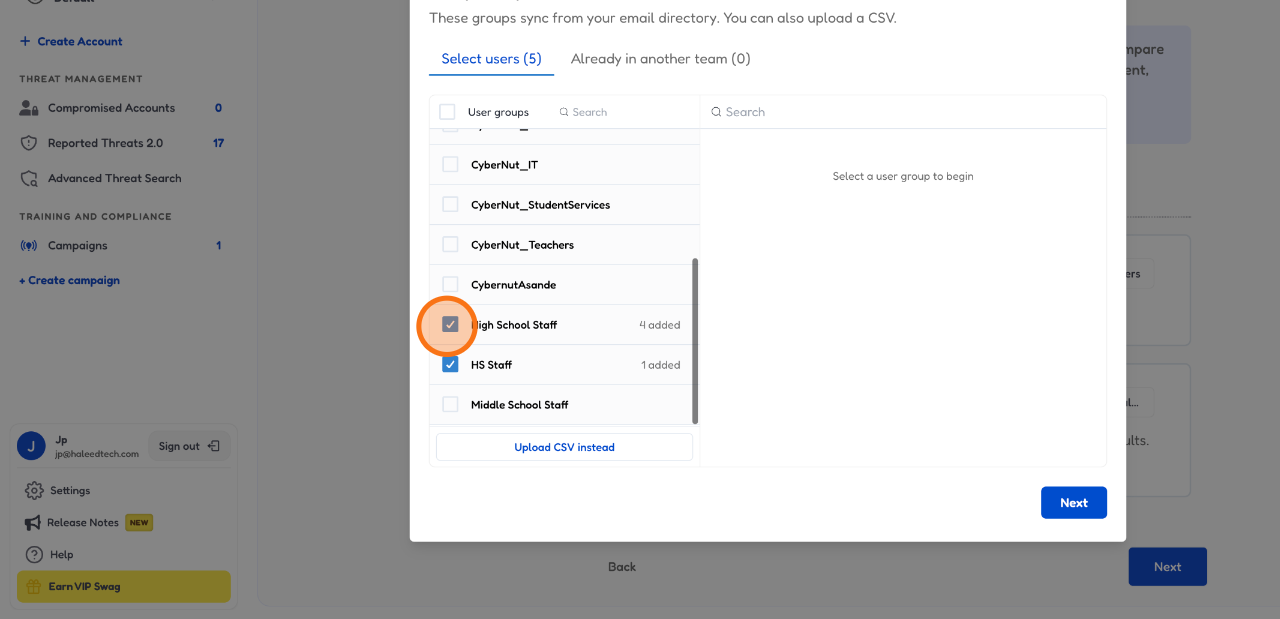
10. Select or deselect the users that should receive the emails.
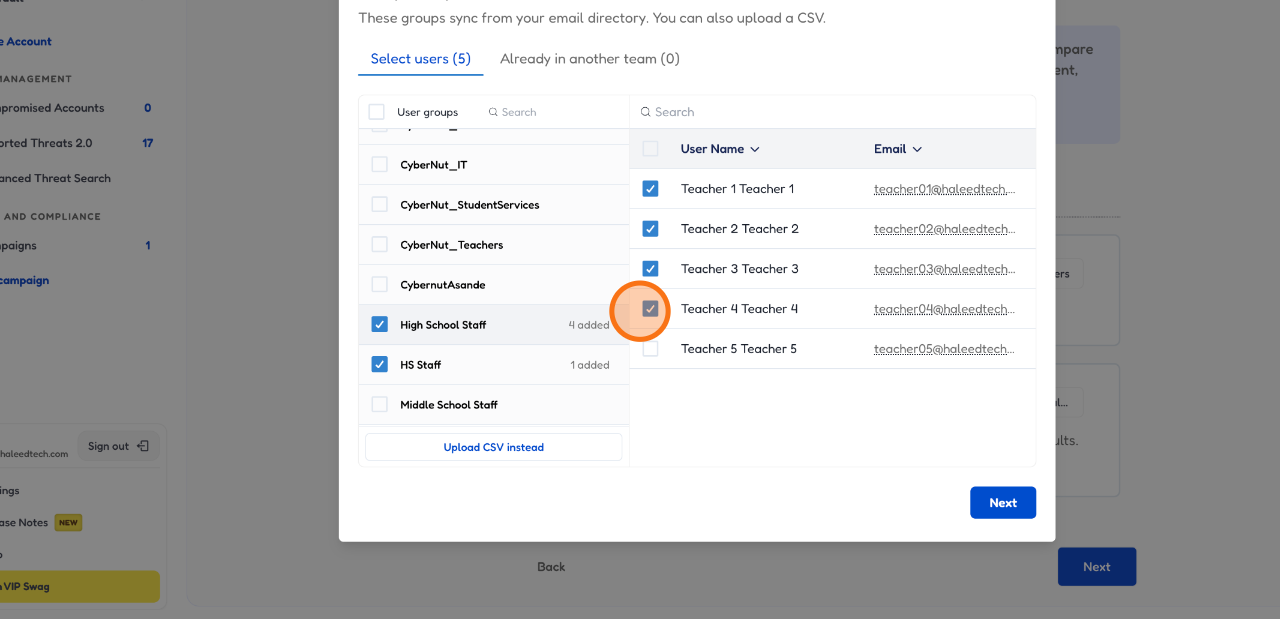
11. Click "Next" to move to the following step once you're happy with your selections.
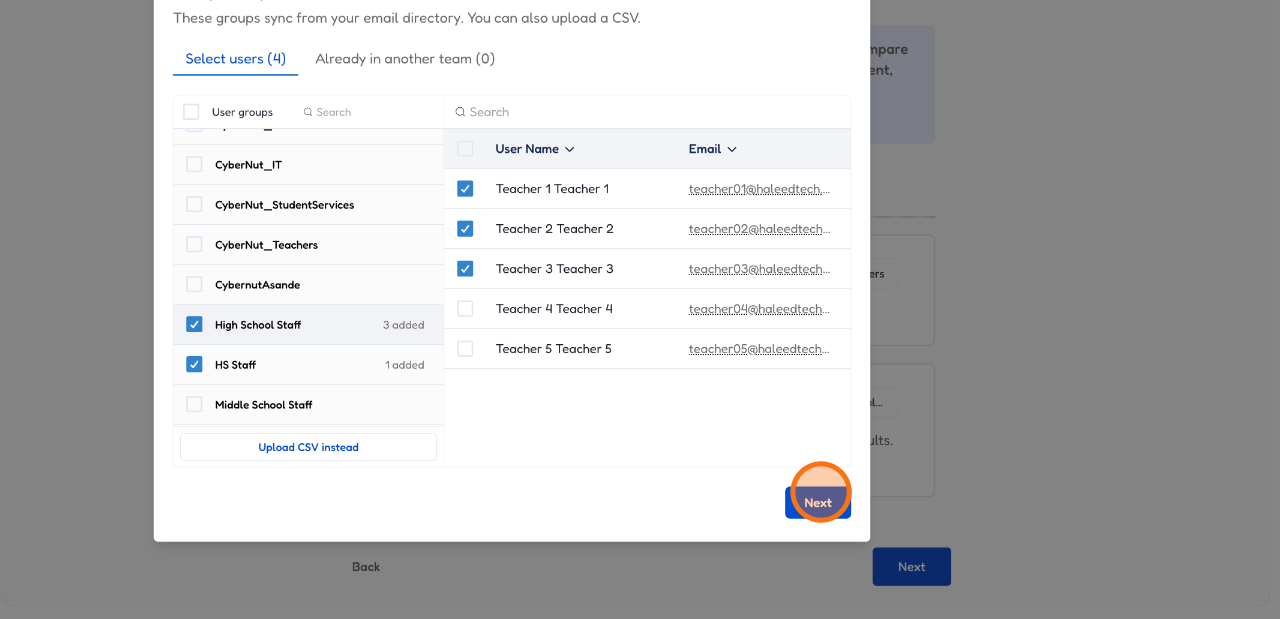
12. If you need to remove or add a Team Captain select this button.
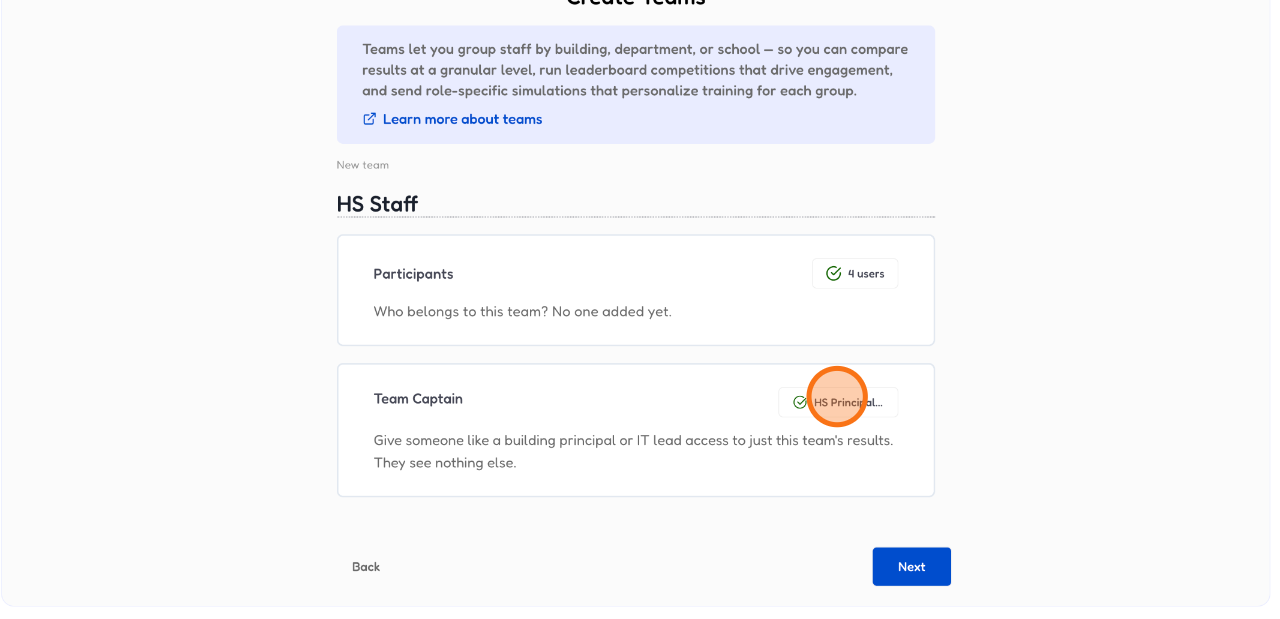
13. Check or uncheck if you need a Team Captain.
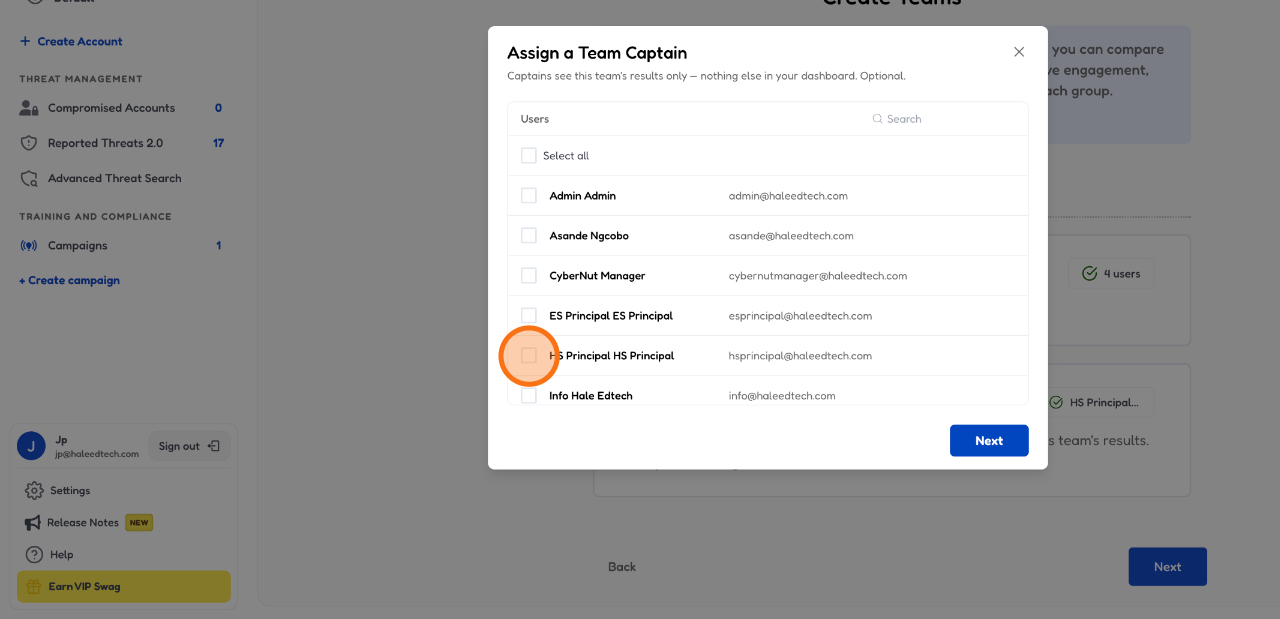
14. Click "Next" to keep the momentum going — almost there.
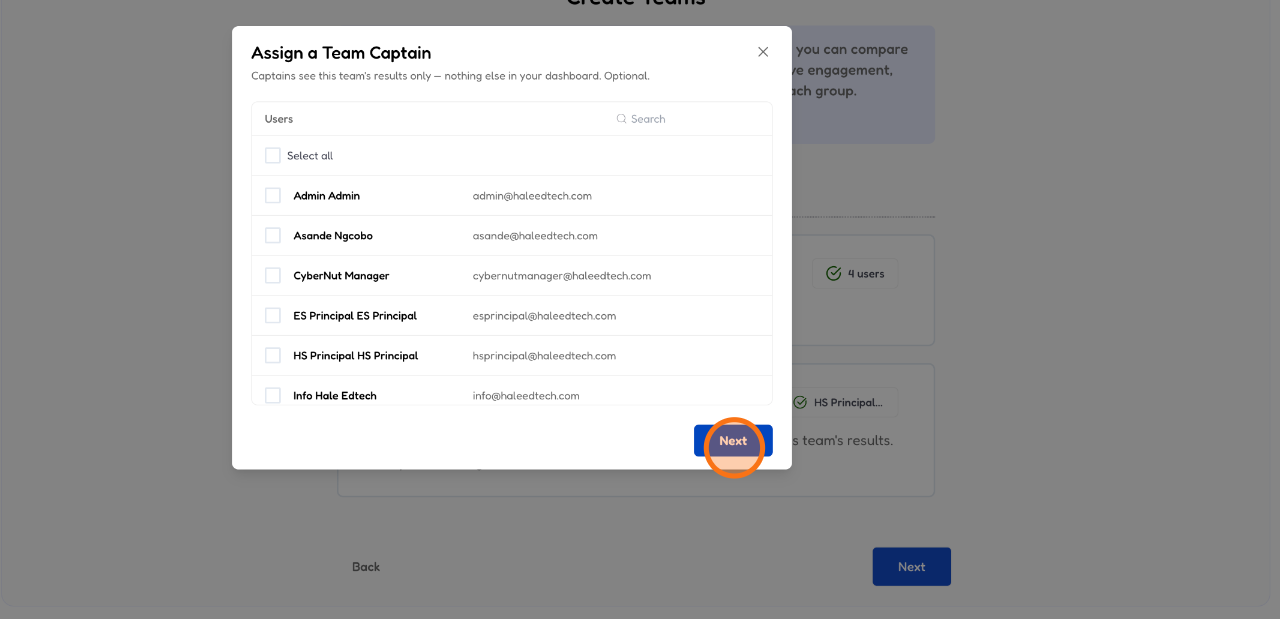
15. One more "Next" — this step confirms your configuration before the final save.
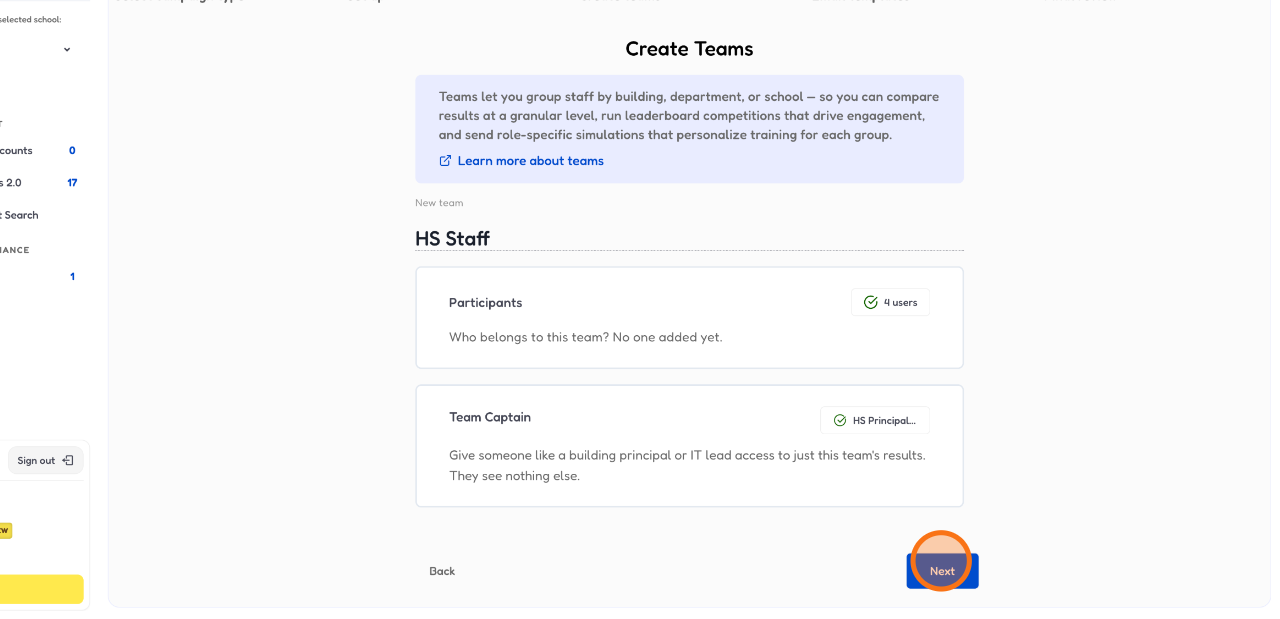
16. Click "Next" to review your settings before wrapping things up.
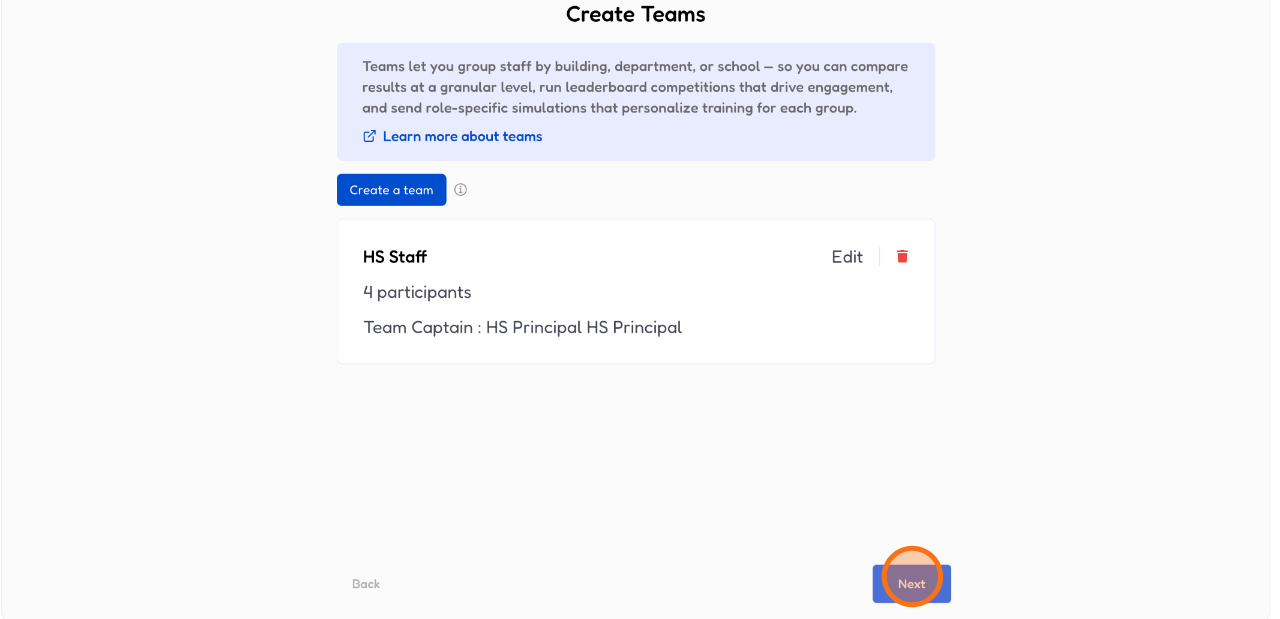
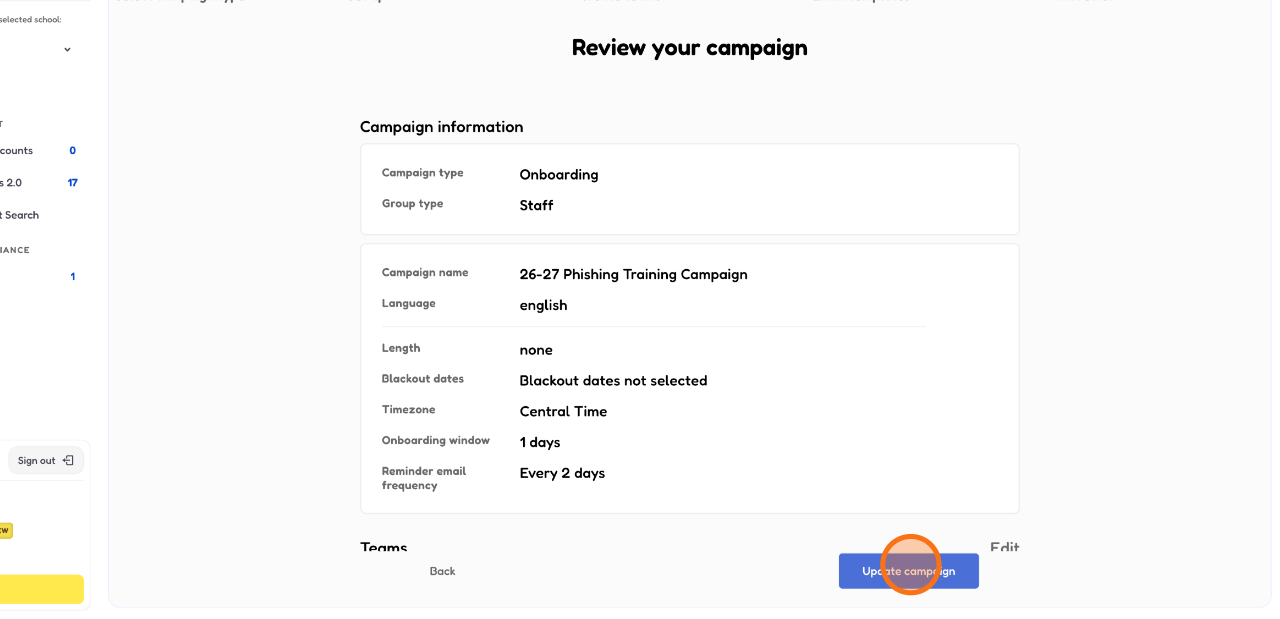
17. Click "Update campaign" to save all your changes and apply them to the campaign.
18. Congratulations!
You now know how to edit your campaigns.