Click below for a full screen walkthrough video.
▶️ Enabling Active Directory Sync for Microsoft.
Part 1: Update Permissions in Entra
- Log in to Microsoft Azure at https://portal.azure.com/.
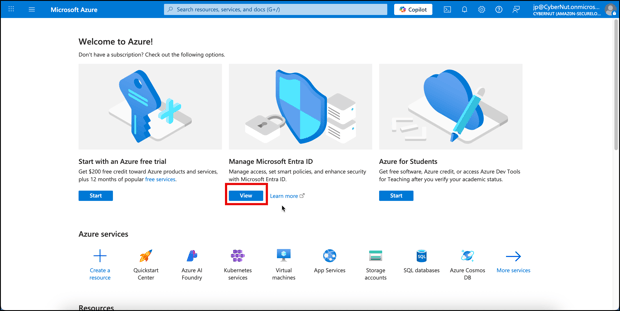
- Click the View button below Manage Microsoft Entra ID.
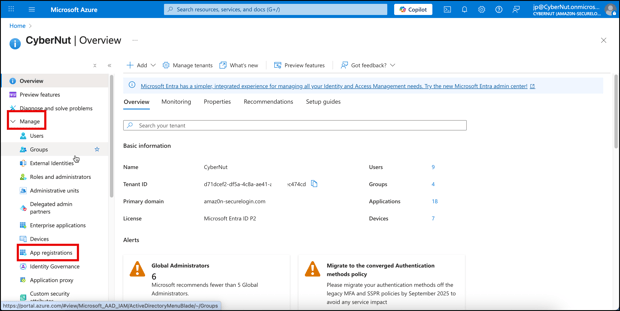
- Click Manage dropdown menu on the left sidebar and click App Registrations.
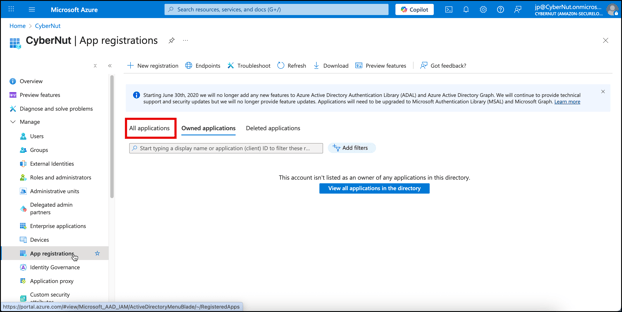
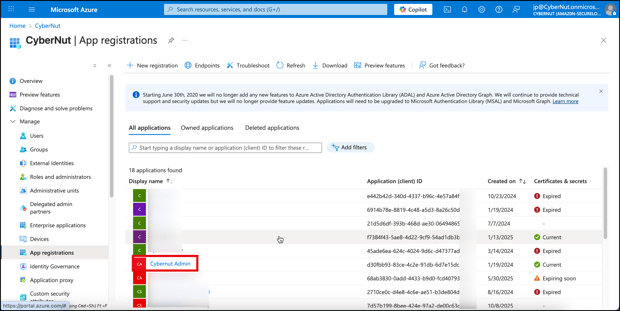
- Click All applications.
- Locate and select CyberNut Admin.
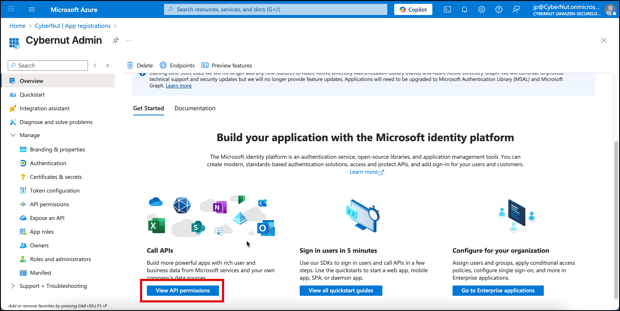
- Click View API Permissions for Call APIs.
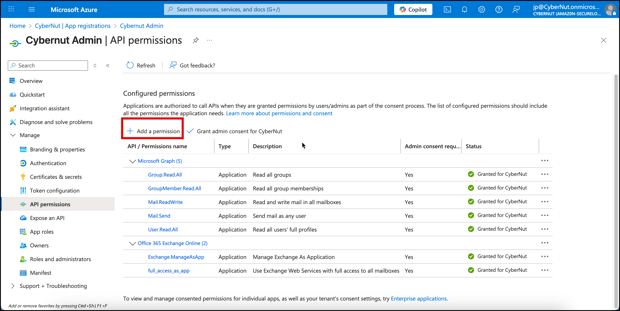
- Click Add a permission.
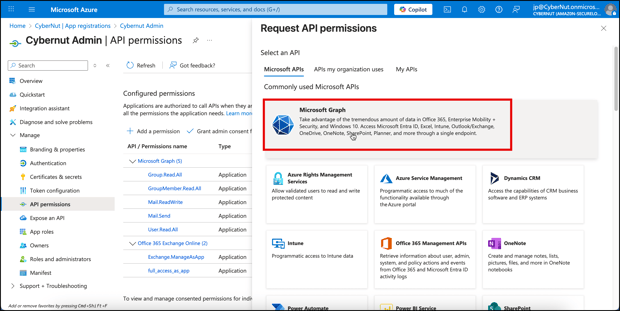
- Click Microsoft Graph.
- Click Application permissions.
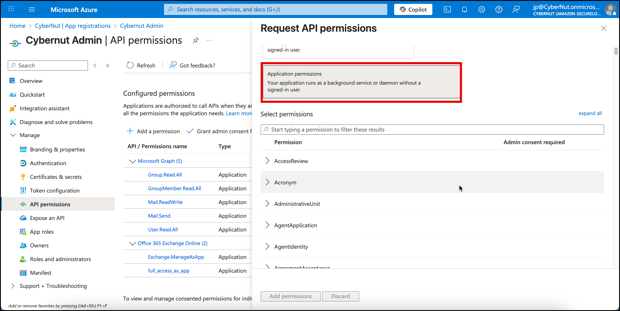
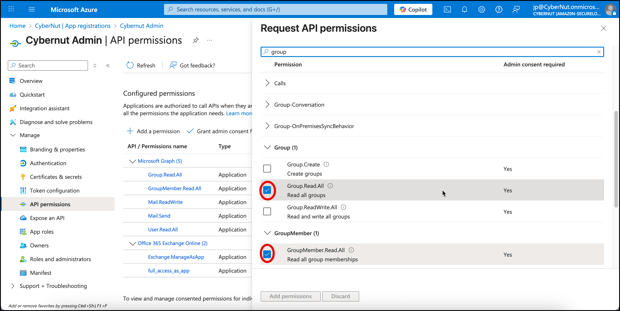
- Search for group and select Group.Read.All and GroupMember.Read.All. Then click Add permissions.
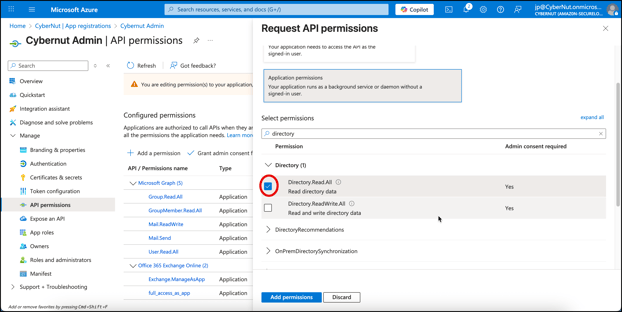
- Search for directory and select Directory.Read.All. Then click Add permissions.
Part 2: Enable Directory Sync in CyberNut Admin Portal
- Login to the CyberNut Admin Portal at http://admin.cyberrnut.com
- Click Settings in the bottom left corner.
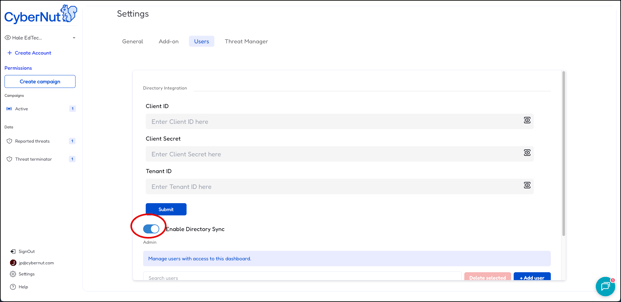
- Click Users, scroll down and turn on Enable Directory Sync.