
Click below for a full screen walkthrough video.
▶️ Deploying the CyberNut Chrome Extension for Gmail
The CyberNut extension is an optional feature that displays the Cybernut icon in the ribbon of an email.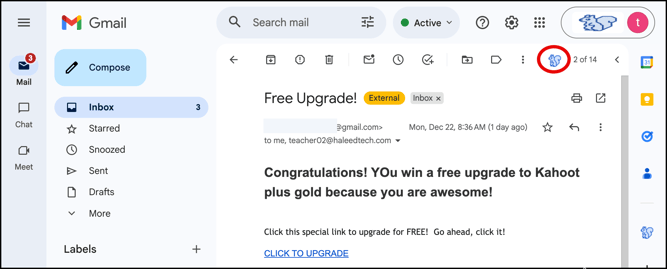
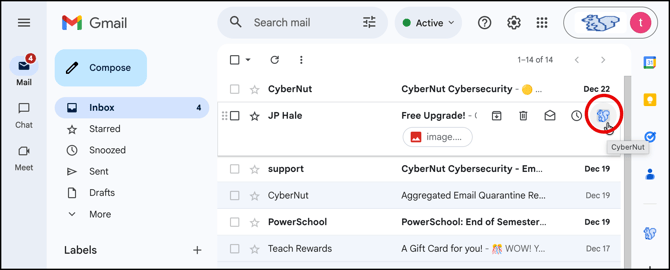
You can also find the CyberNut icon as a hover action before opening the email.
Directions for Installing the Extension
- Go to the Google Admin Console at http://admin.google.com.
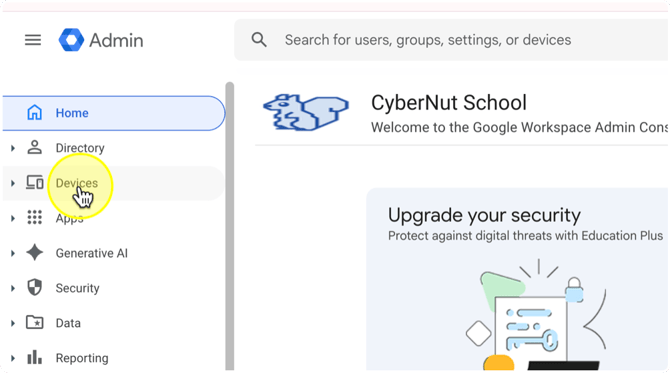
- Click Devices on the left side bar.
- Click Chrome.
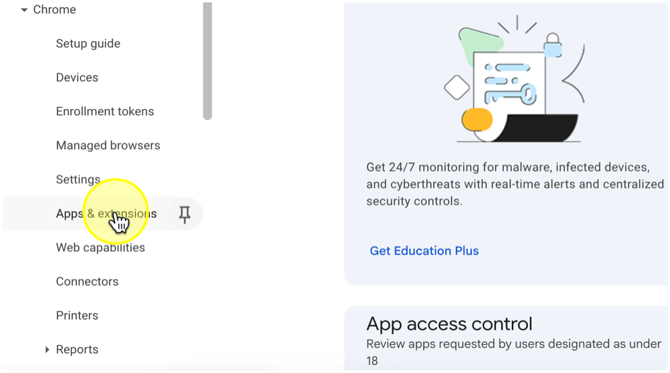
- Click Apps & extensions.
- Click the Users & Browsers tab at the top.
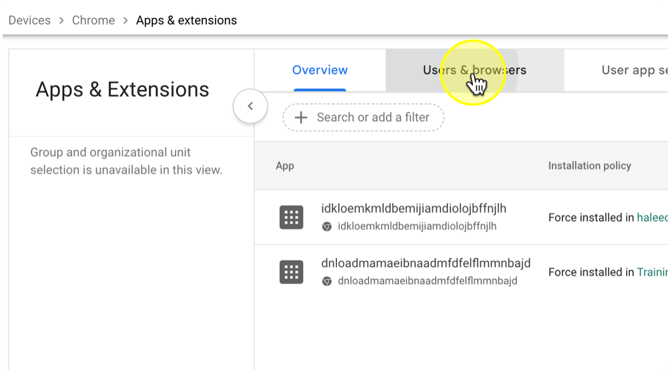
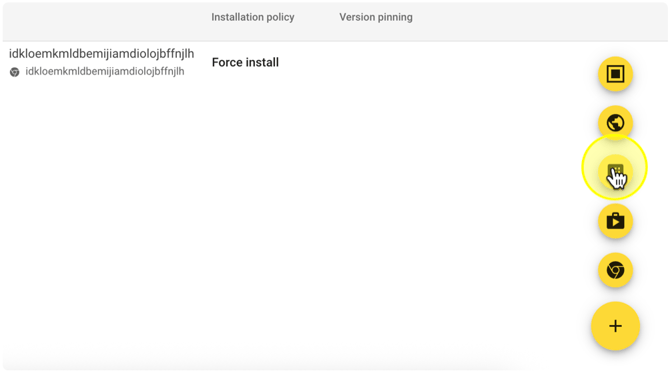
- At the bottom right, click the yellow plus icon.
- Click the icon at that appears like a waffle labeled Add Chrome app or extension by ID.
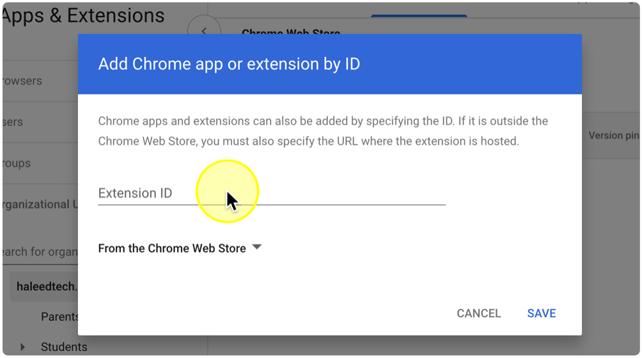
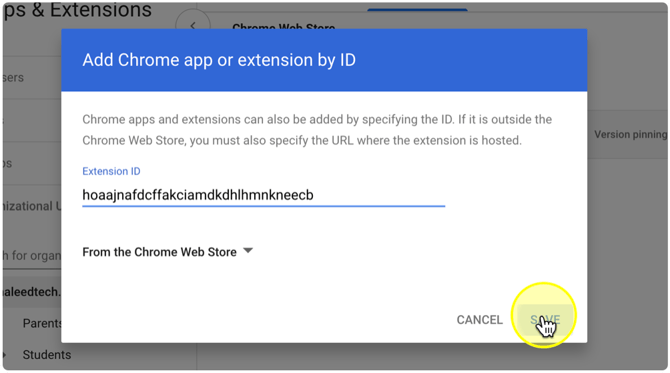
- Paste the following where it is labeled Extension ID hoaajnafdcffakciamdkdhlhmnkneecb
- Select From the Chrome Web Store and click Save.
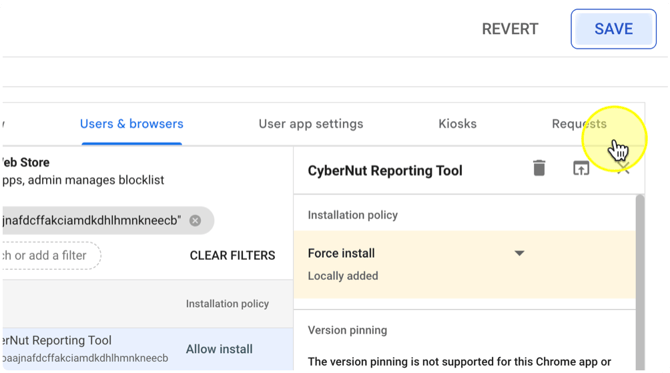
- Click Force Install on the drop down.
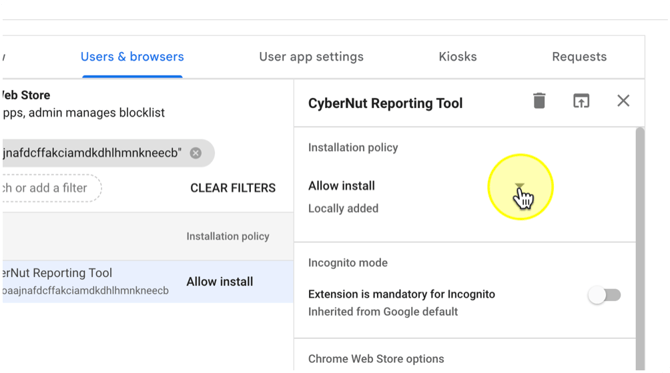
- Click Save.
Note: It may take 24 hours before all users see the extension.