Click below for a full screen walkthrough video.
▶️ CyberStudent Bulk User Upload
1. Log in to CyberStudent at https://universal.neptunenavigate.com/
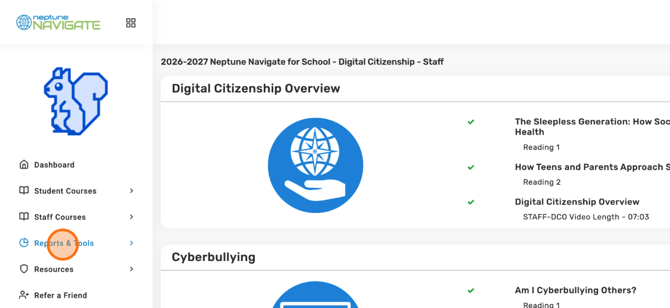
2. Start by opening "Reports & Tools." That's your home base for managing users and locations.
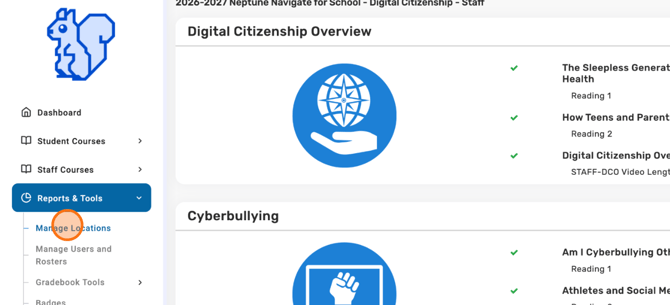
3. Now pick "Manage Locations." This is where the tools for adding lots of users at once live.
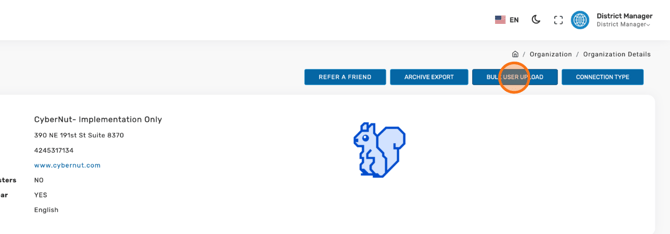
4. Click "BULK USER UPLOAD" to add many users in one go instead of one by one.
5. Open the "DOWNLOAD TEMPLATE HOW-TO-GUIDE" to see how your file should be filled out. It's a handy check if you're unsure about formatting.
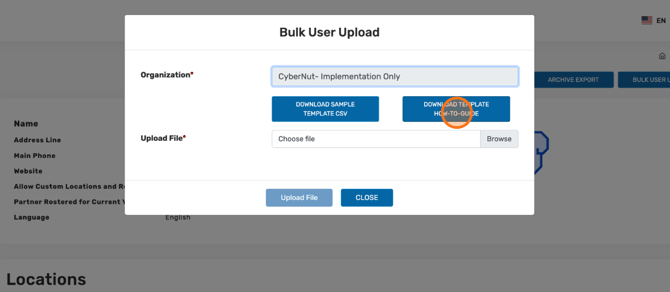
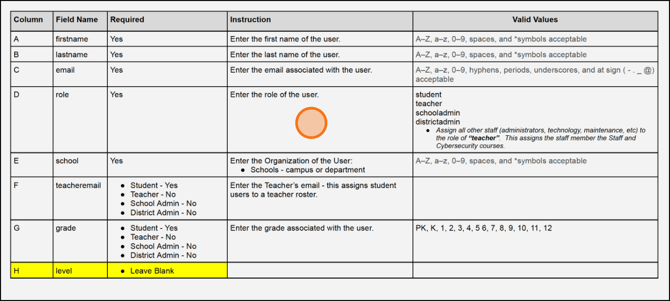
6. Take a look at the How to Guide for the file requirements. Follow it closely and your upload should go through without errors.
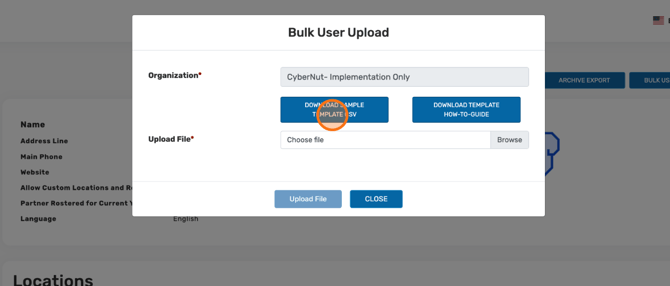
7. Download the "SAMPLE TEMPLATE CSV" for a ready-made file. Just add your users' details and you'll sidestep the most common upload errors.
8. Row 1 holds the field headers, so leave those as they are.
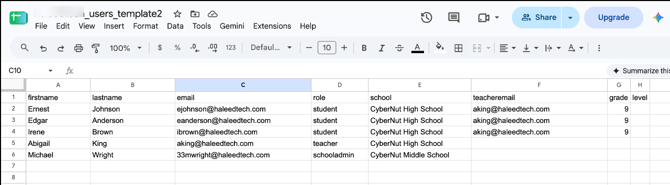
9. Column A is firstname, and it's required. Letters, numbers, and symbols all work here.
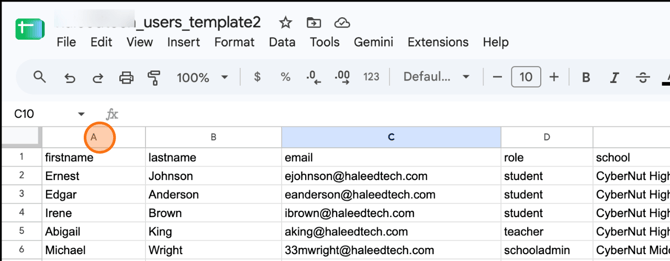
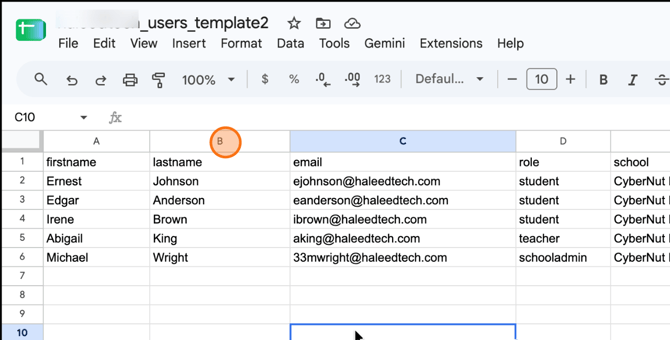
10. Column B is lastname, and it's required too. Letters, numbers, and symbols are all fine.
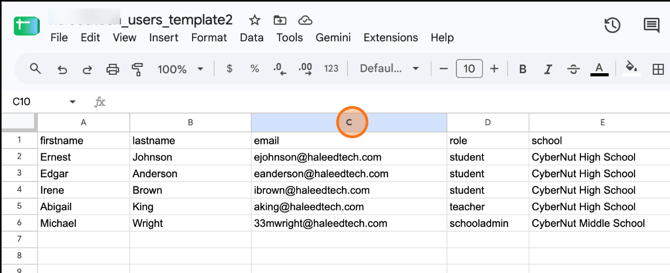
11. Column C is email, and it's required. You can use letters, numbers, hyphens, periods, underscores, and an at sign.
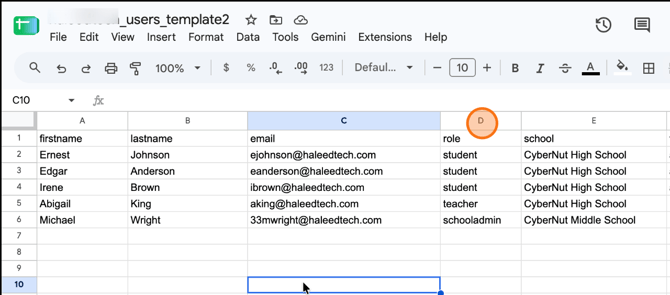
12. Column D is role, and it's required. Choose from student, teacher, schooladmin, or districtadmin. Other staff? Just assign them the teacher role.
13. Column E is school, and it's required. Enter the school, campus, or department, if it applies.
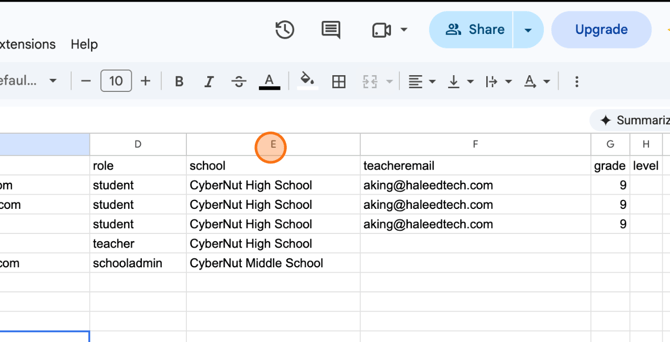
14. Column F is teacheremail, and it's only required for students. Add the teacher's email to place each student on that teacher's roster.
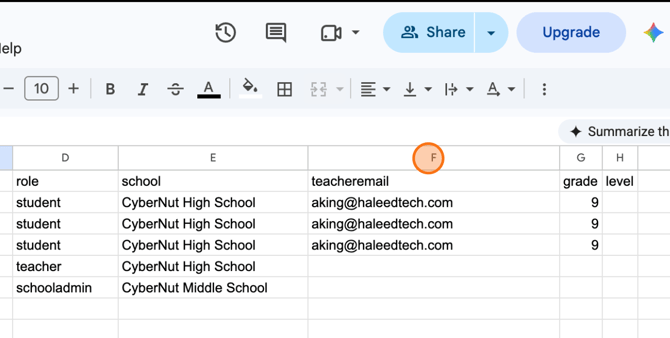
15. Column G is grade, and it's only required for students.
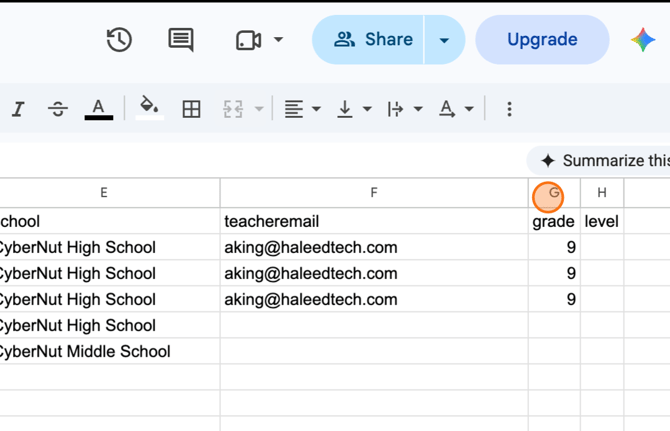
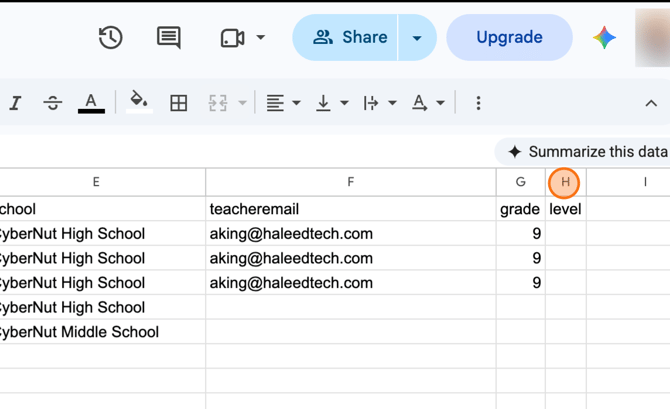
16. Column H is level. Leave it BLANK, nothing to fill in here.
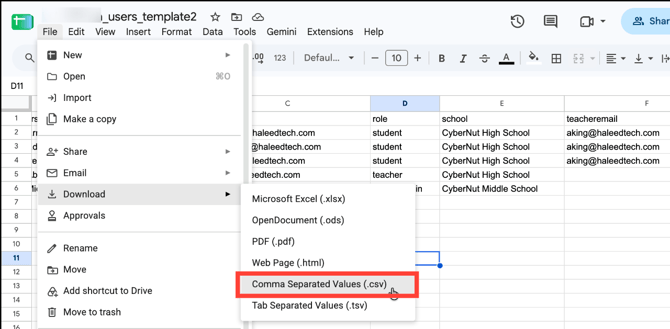
17. Save your file as a .csv
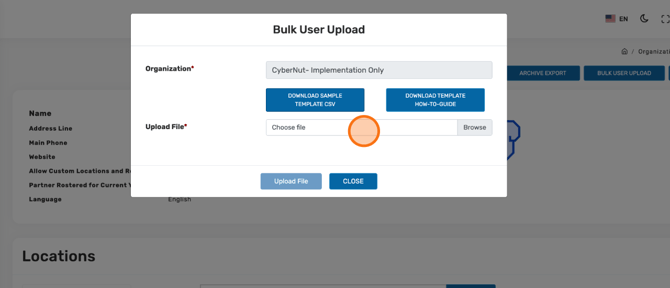
18. File ready? Click "Choose file" and select your completed CSV.
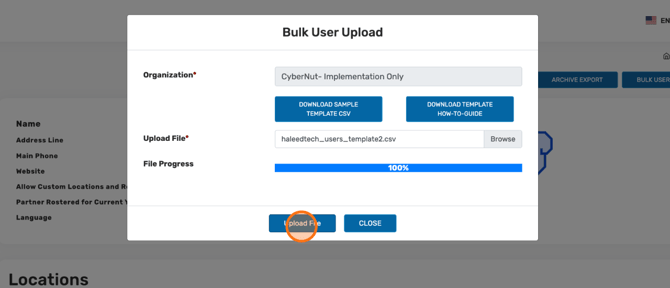
19. Click "Upload File" to upload your users.
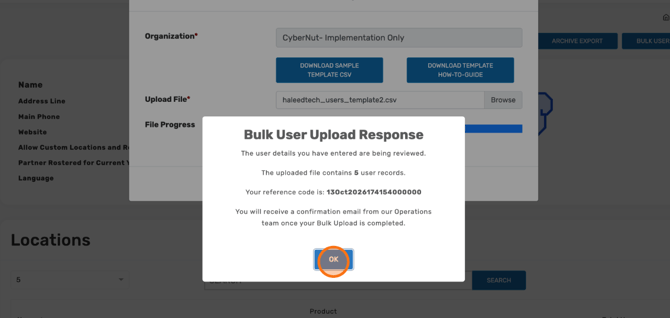
20. Last step: click "OK" to confirm, and you're done. You will receive an email when we have accepted the upload. Typically files will be approved within 24 hours.