Click below for a full screen walkthrough video.
▶️ Creating an Onboarding Campaign
1. Log in to the CyberNut Admin Portal at http://admin.cybernut.com
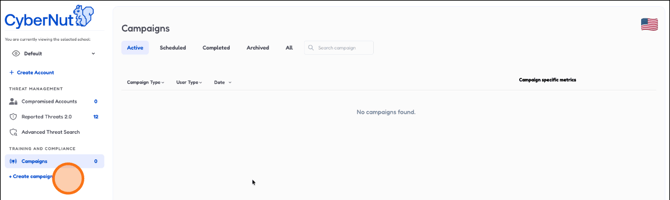
2. Select Create campaign to begin creating your Onboarding campaign.
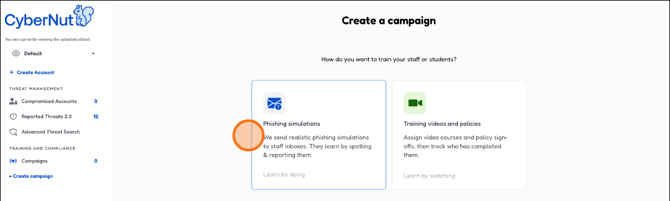
3. Select Phishing Simulations.
4. Scroll down the page and select Onboarding as the campaign type.
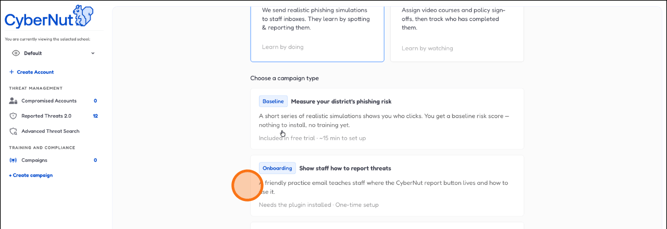
5. Click "Next" when you're ready to continue.
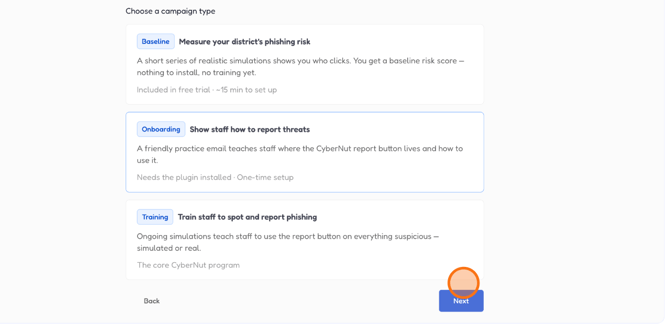
6. Name your campaign—pick something you'll remember easily.
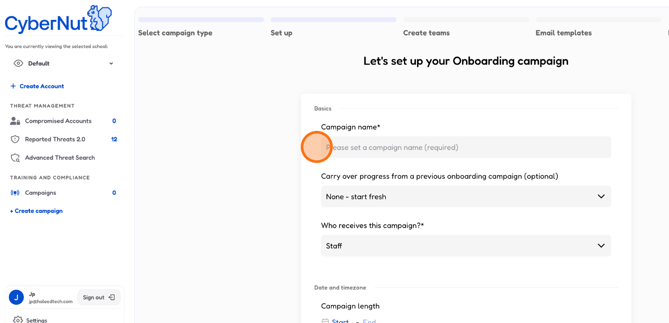
7. If you have a previous campaign you want to continue, select this option.
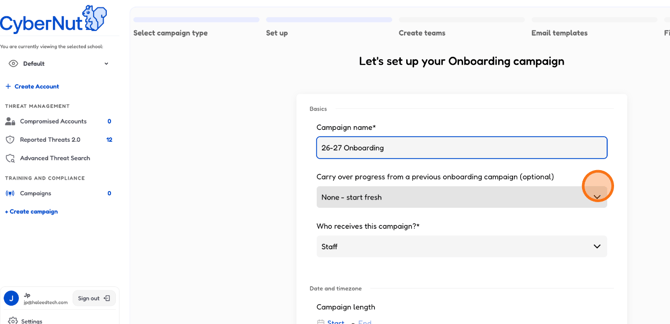
8. Choose Staff or Student as your target group.
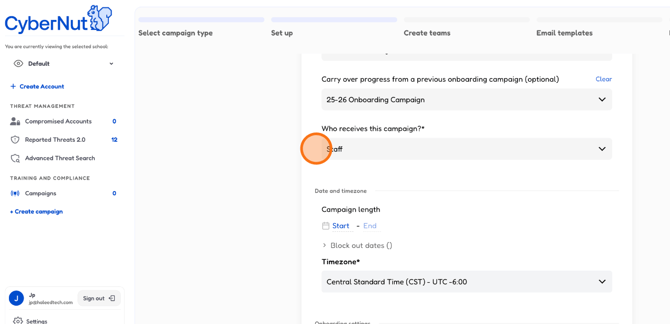
9. Pick when you want your campaign to start.
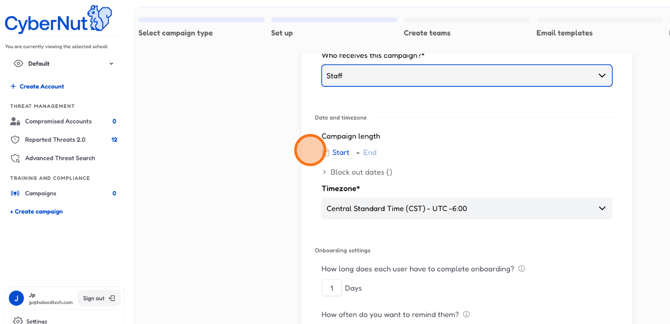
10. Select the start date.
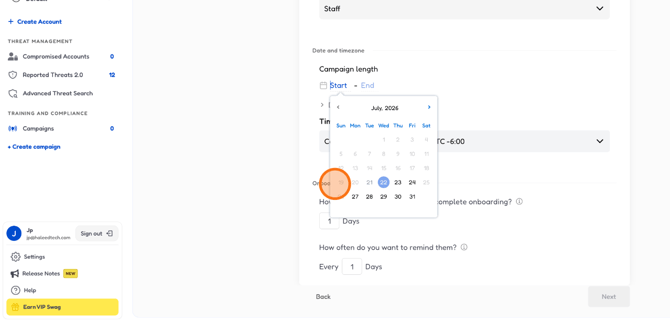
11. Now choose when your campaign ends.
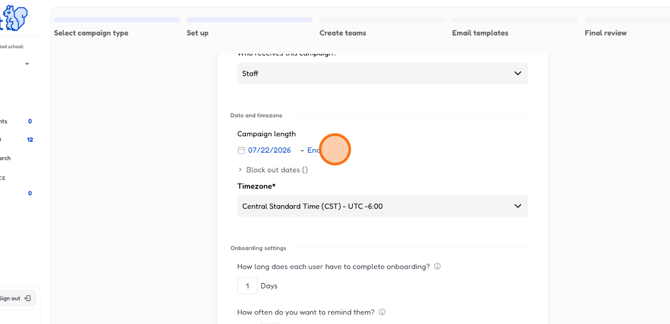
12. Pick the end date.
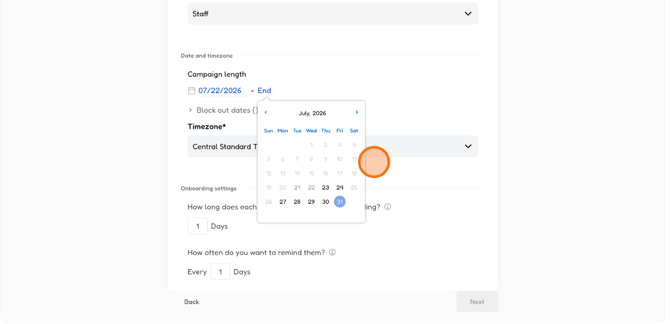
13. Select your timezone so emails send at the right time.
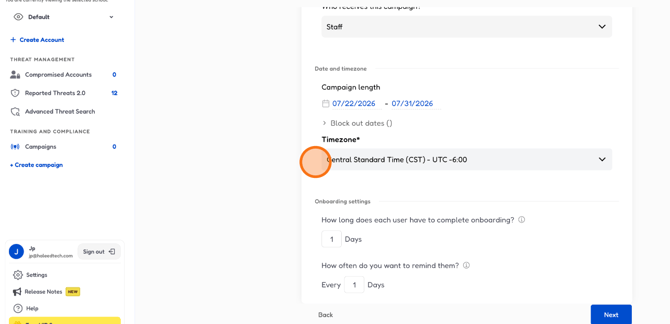
14. Type how many days users have to complete onboarding.
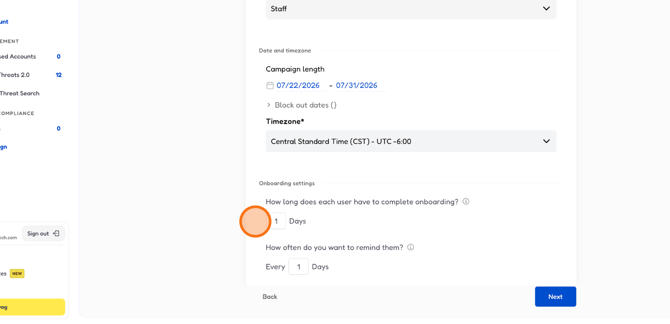
15. Type how often you want to remind them.
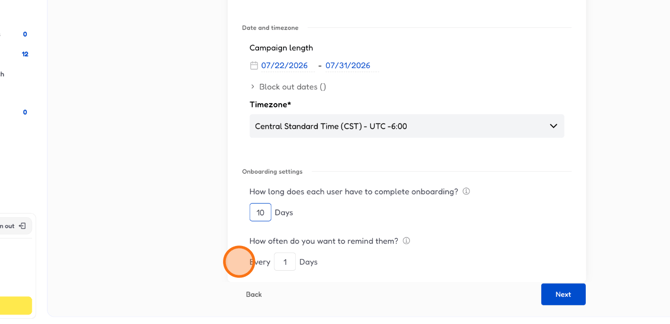
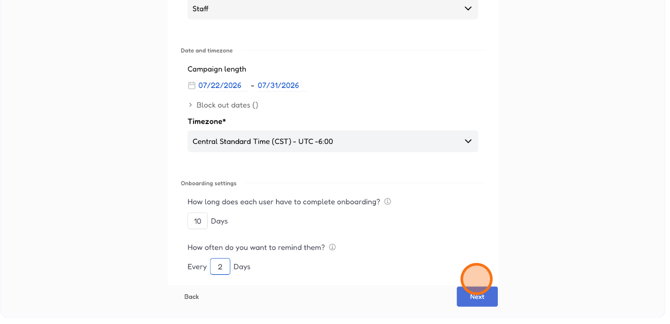
16. All good? Click "Next" to keep building your campaign.
17. Click "Create a team" to build one.
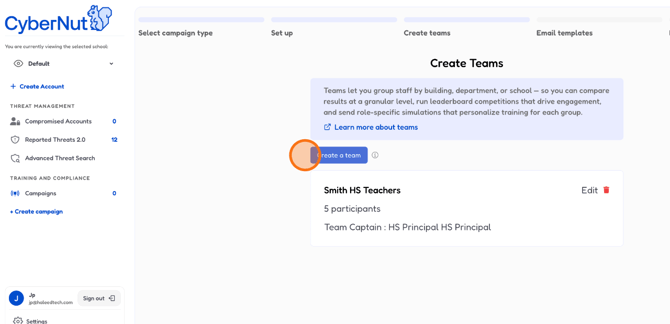
18. Give your team a name—click "Untitled" and type something clear.
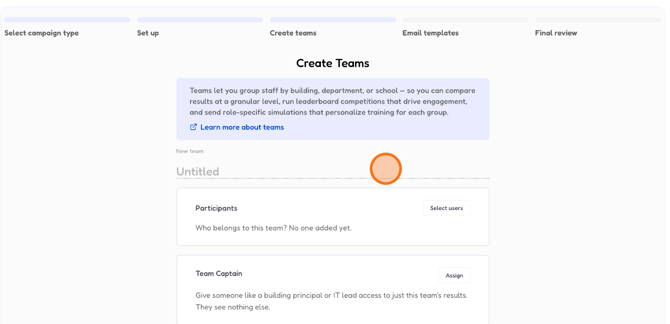
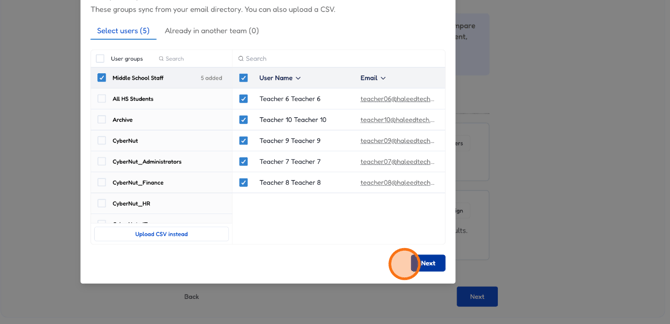
19. Click "Select users" to add people to your team.
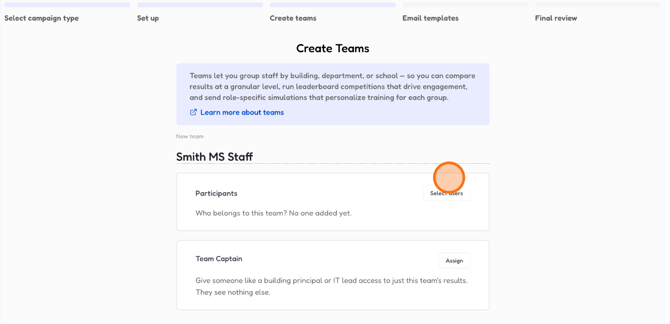
20. Choose the group of the users you want on this team.
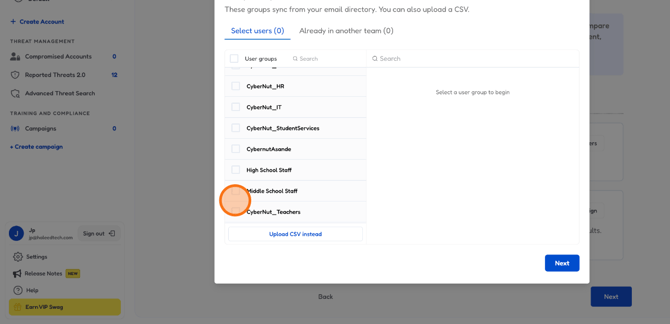
21. Team ready? Click "Next" to wrap it up.
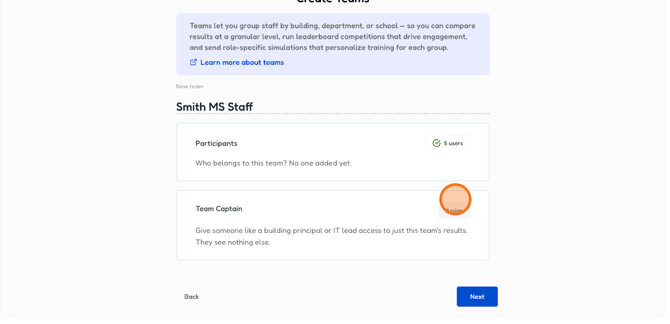
22. Click "Assign" to assign a Team Captain. This is optional but useful.
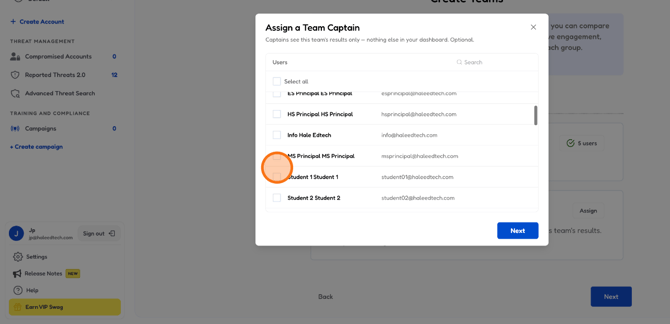
23. Select which user will be your team captain.
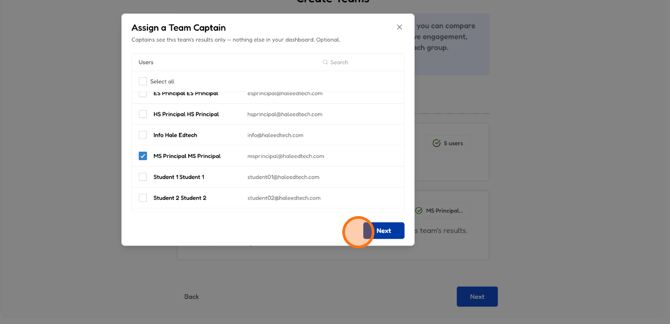
24. Everything looking right? Click "Next" to continue.
25. Keep going—click "Next" here.
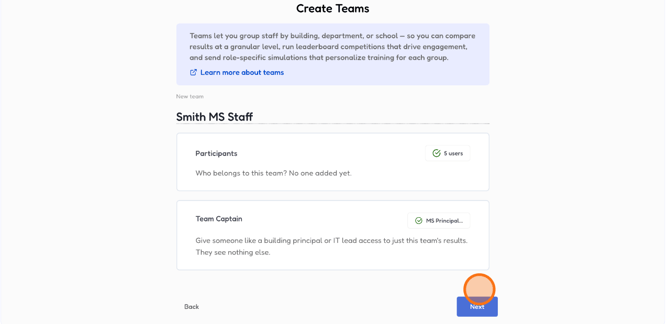
26. Click "Edit" to choose who gets the test emails.
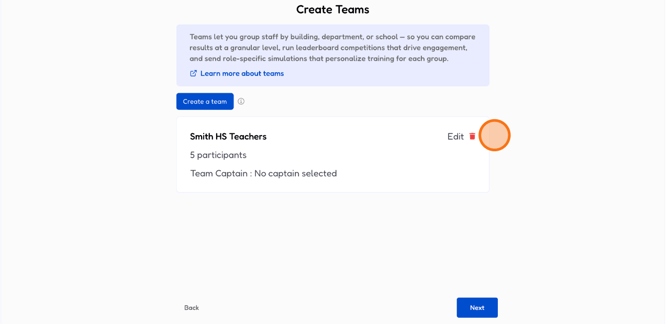
27. Select the Users to see the people you're testing.
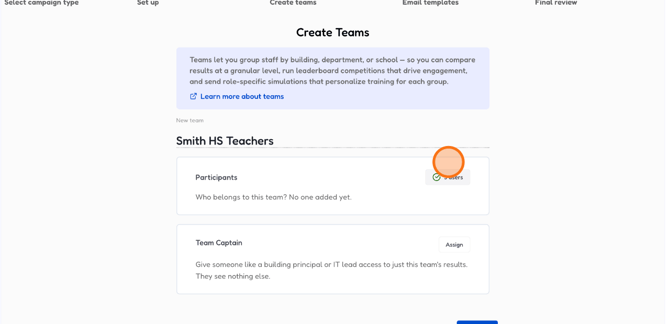
28. Choose the group you want to assign the onboarding campaign.
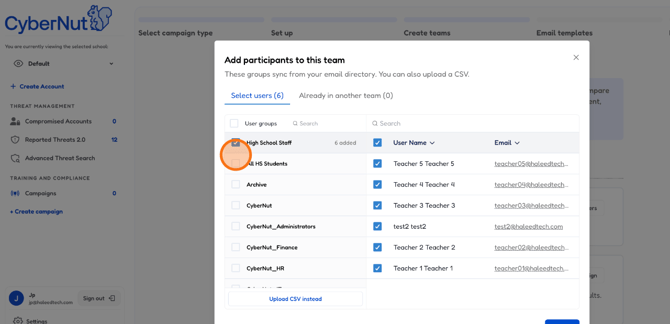
29. Select or deselect any users from the groups as needed.
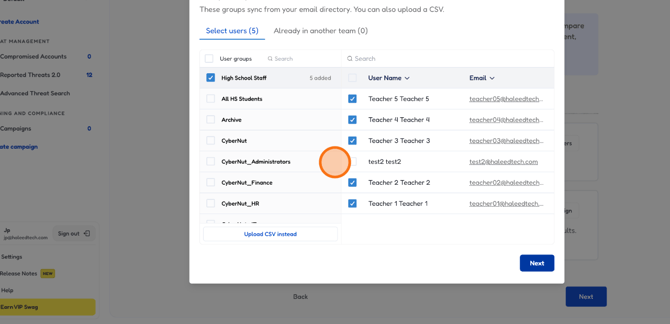
30. Make your final selections and click Next.
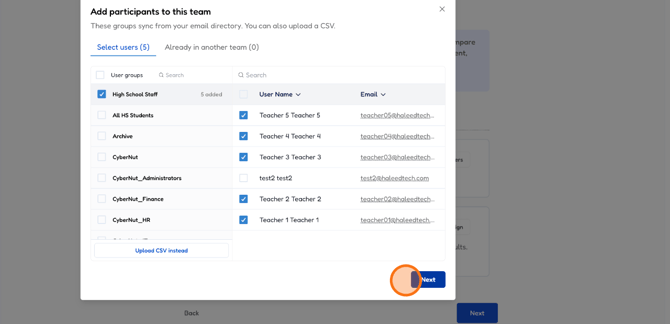
31. Click "Assign" to confirm your user selection.
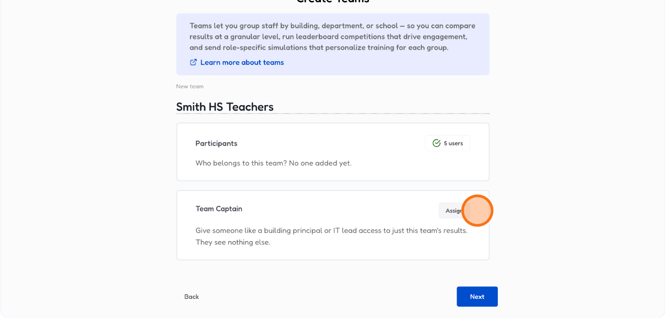
32. Select a Team Captain if needed.
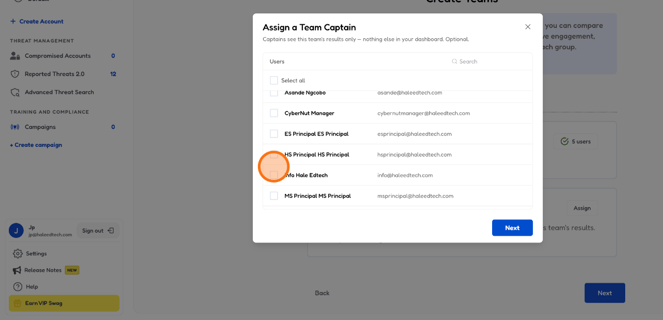
33. Click "Next" to continue.
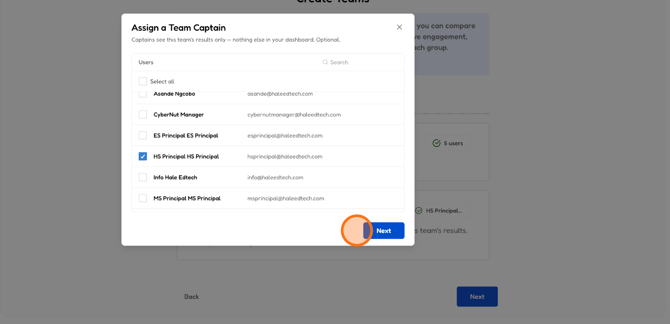
34. Click "Next" to keep things moving.
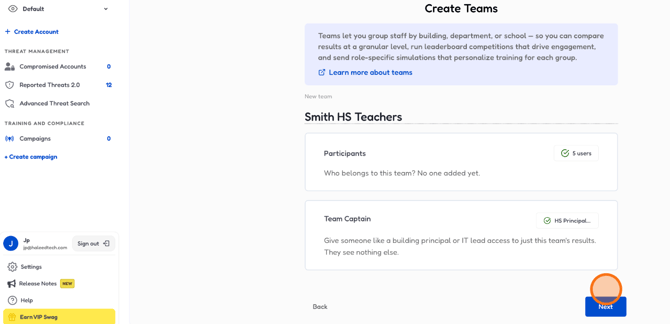
35. Almost done! Click "Next" to move forward.
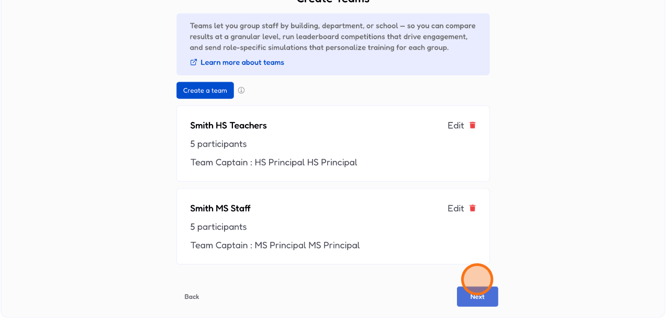
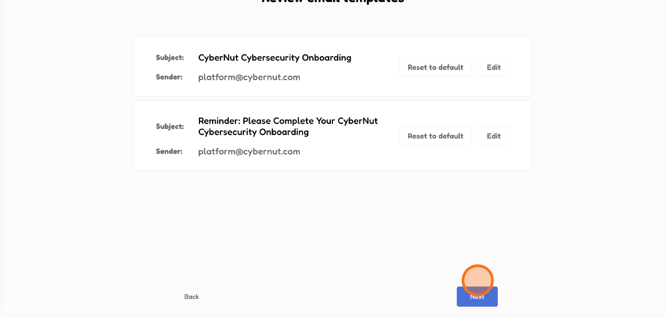
36. Now let's customize your onboarding email.
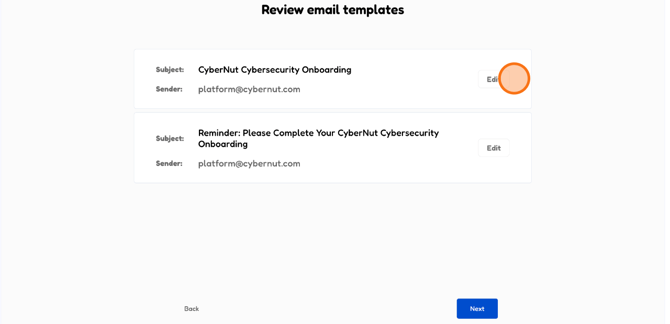
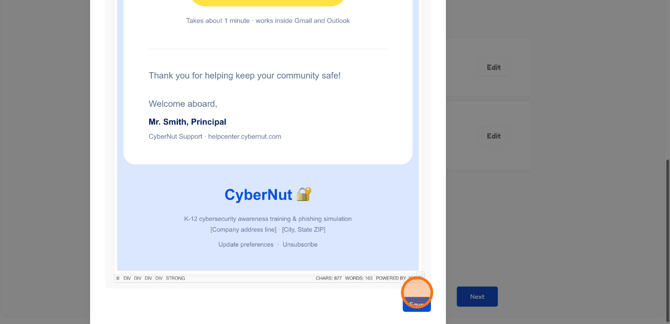
37. This email will be sent at the beginning of the onboarding. Personalize the contents to meet your needs.
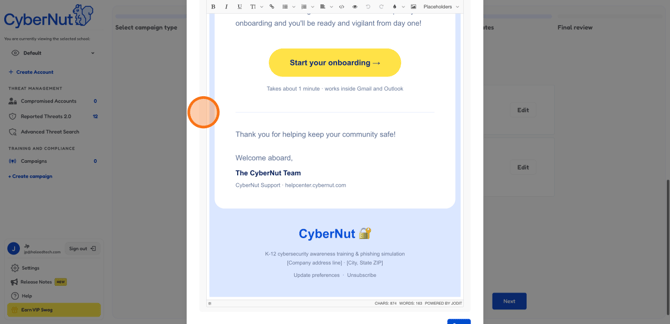
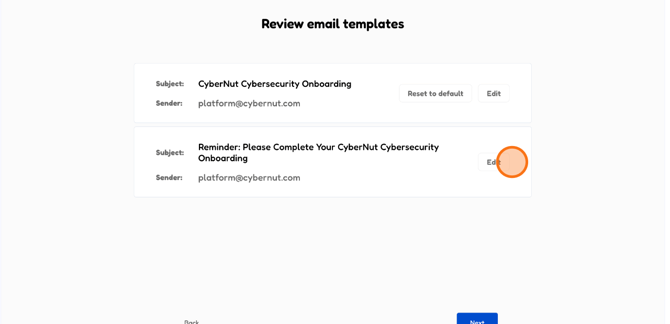
38. Happy with your changes? Click "Save" to keep them.
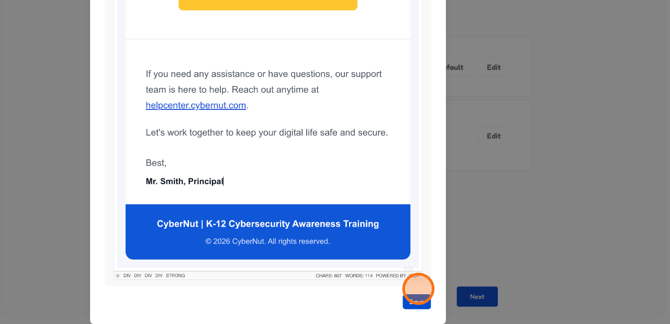
39. Want to edit the reminder email template? Click "Edit" again.
40. All set? Click "Save" to apply your changes.
41. Templates ready? Click "Next" to review everything.
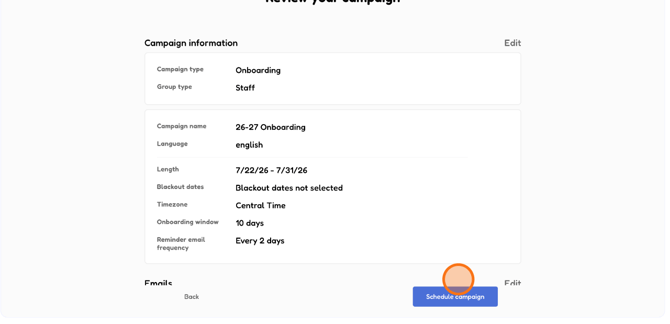
42. Ready to go live? Click "Schedule campaign" to launch it.
43. Campaign scheduled! Click "View Campaign" to see the details.
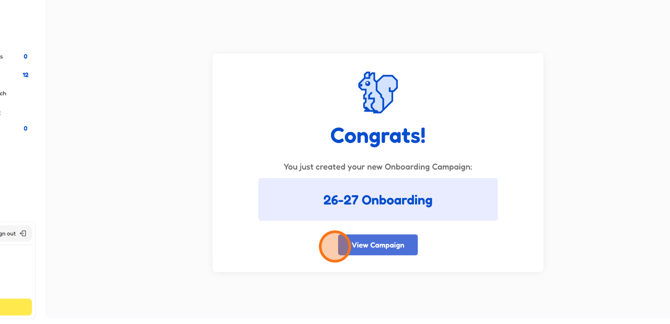
44. You Did It—Campaign Created!