Click below for a full screen walkthrough video.
▶️ Creating a Student Training Campaign
- Log in to the CyberNut Admin Portal at http://admin.cybernut.com
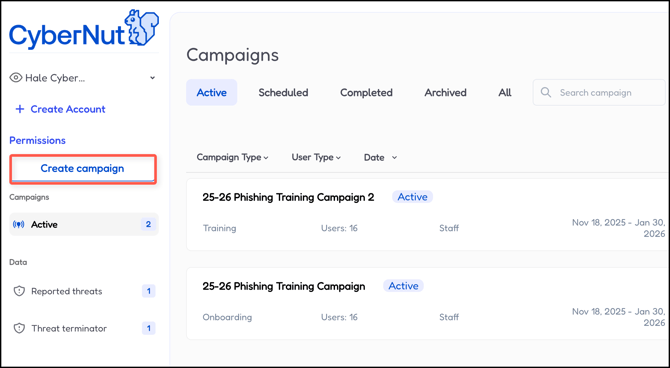
- Click Create campaign.
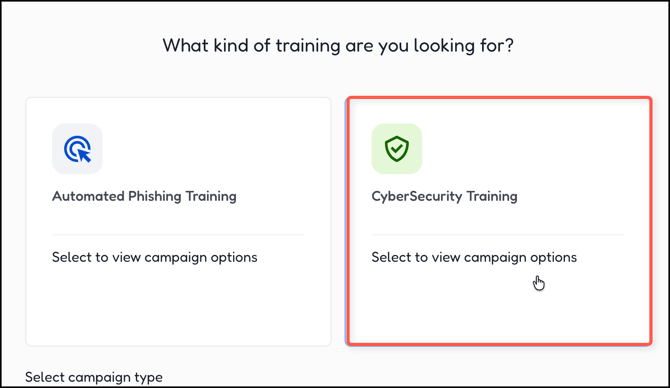
- Click CyberSecurity Training.
- Click Student Training Campaign and then click Next.
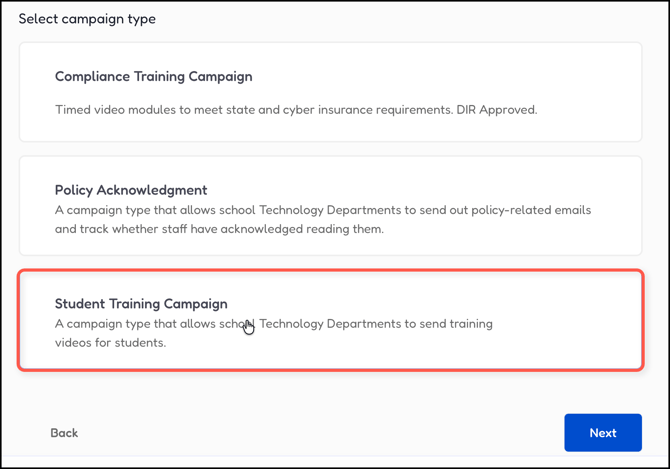
- Name the campaign.
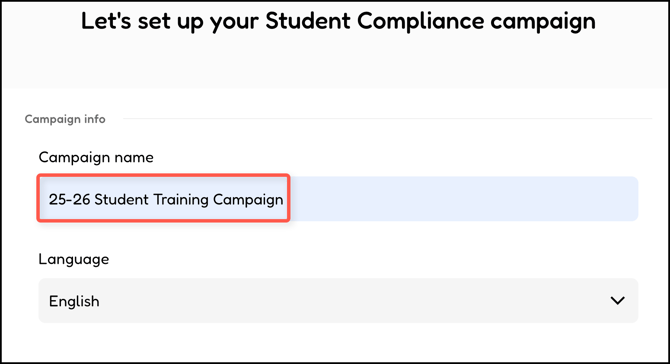
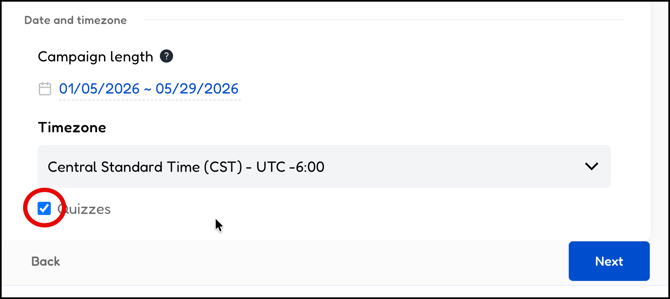
- Scroll down and click Start and select the start and end dates of the campaign.
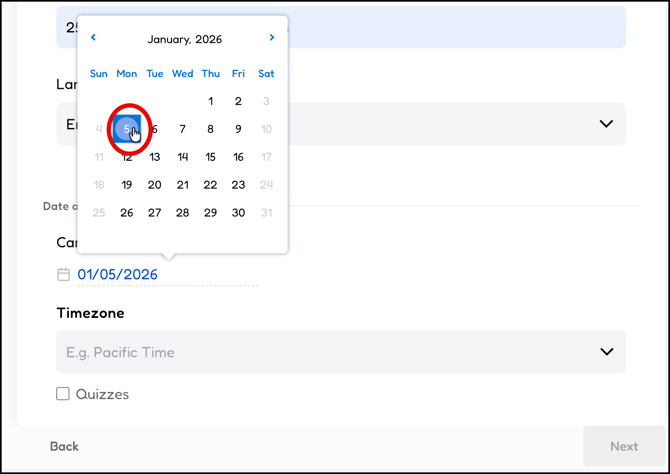
- Select the correct Timezone.
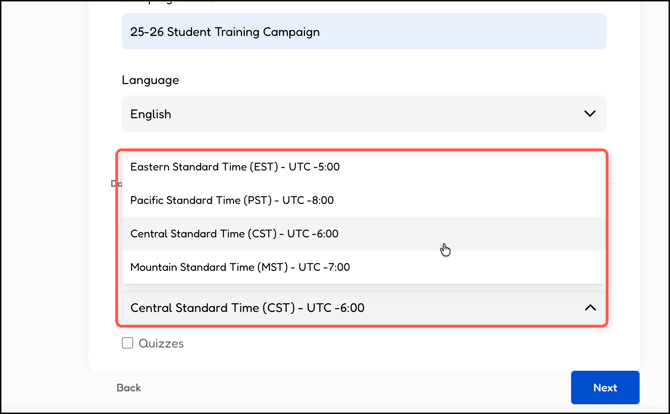
- Check if you want to include Quizzes and then click Next.
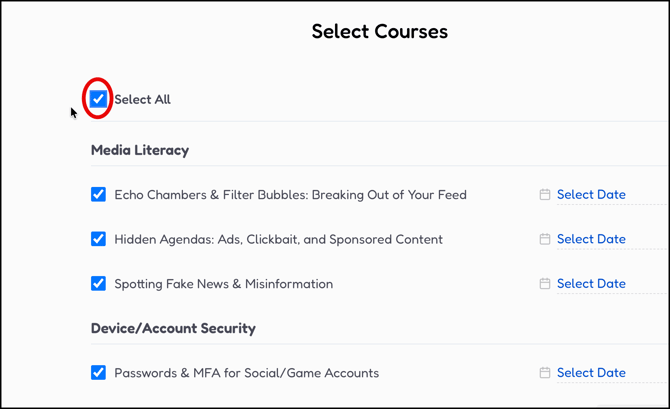
- Either check the box for Select All or select the courses individually.
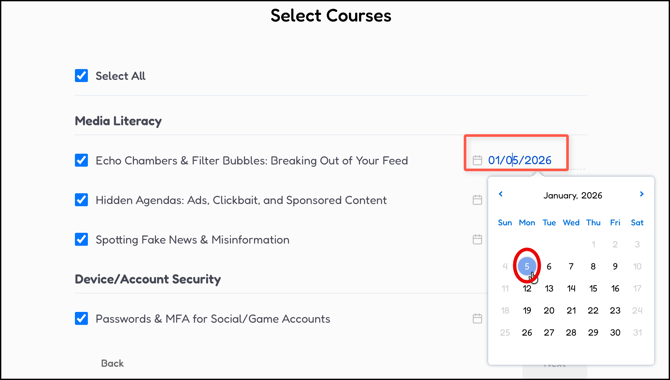
- Click Select Date and click the date you want an email to be sent to students to start the course.
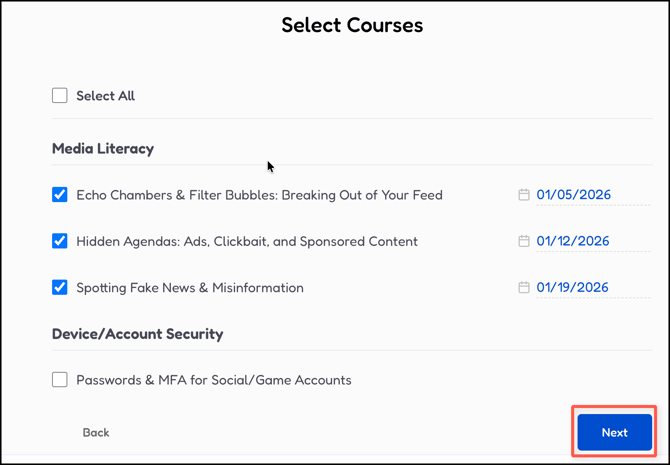
- Review your selected courses and dates. Then click Next.
- Click Create a team.
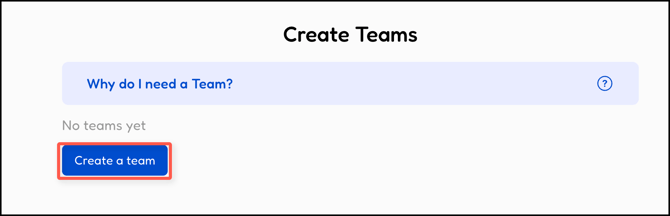
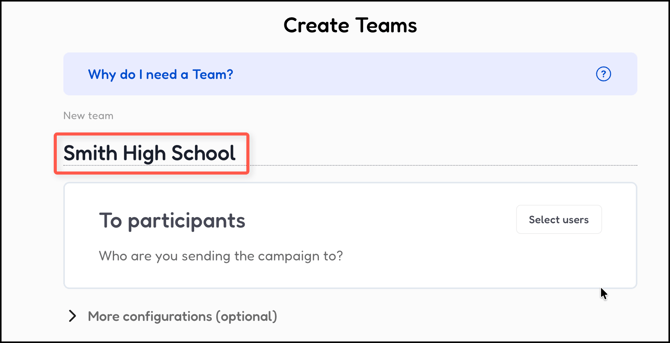
- Name the team. (ex. Smith HS, 9th Grade, etc)
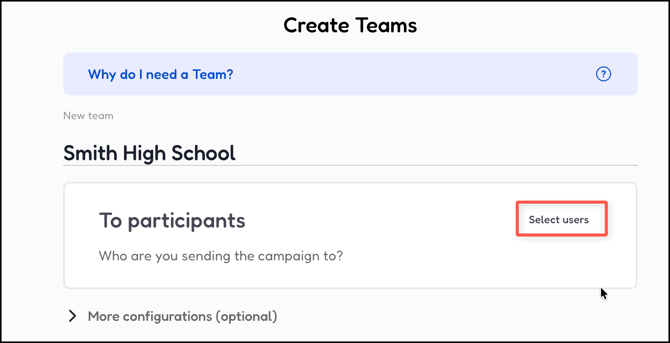
- Click Select users.
- Check the box beside the group of users in the left side panel. Then select all the users or individuals in the right side panel. Then click Next.
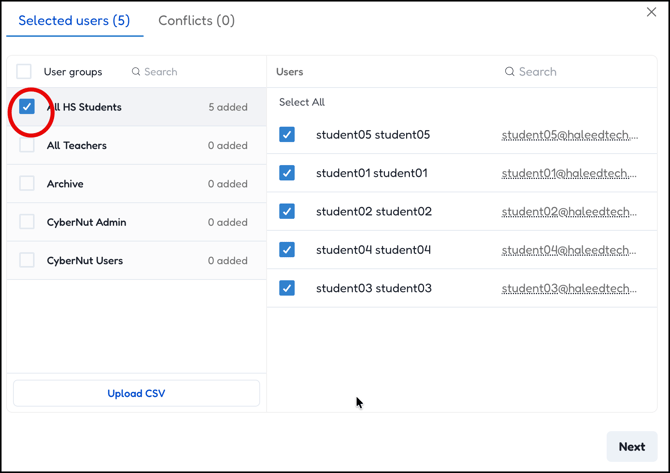
- Then select Next again and create more teams if needed.
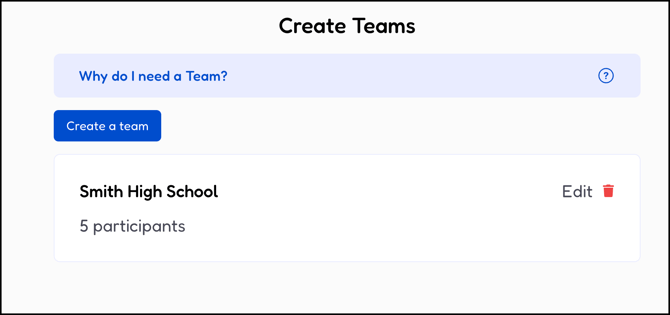
- Click Next after adding all the teams.
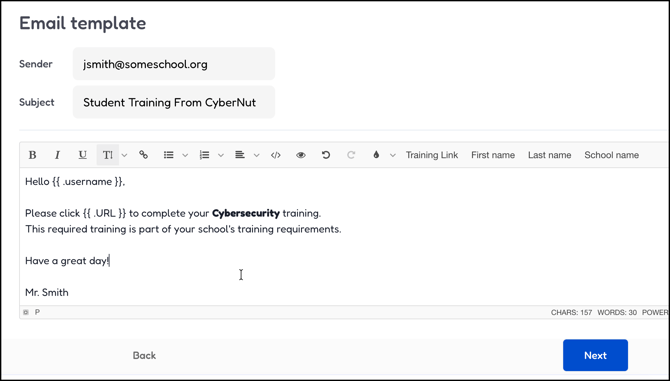
- Modify the Sender, Subject and/or content of the email that students will receive. Then click Next.
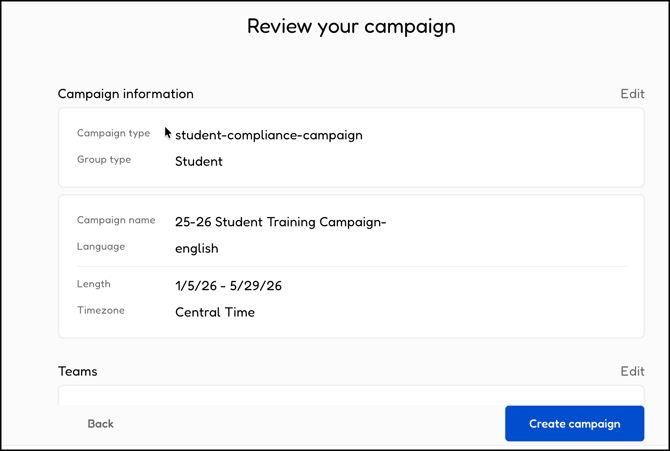
- Click Create campaign.