Click below for a full screen walkthrough video.
▶️ Creating a Phishing Training Campaign
1. Log in to the CyberNut Admin Portal at http://admin.cybernut.com
2. Click "Create campaign" to get started.
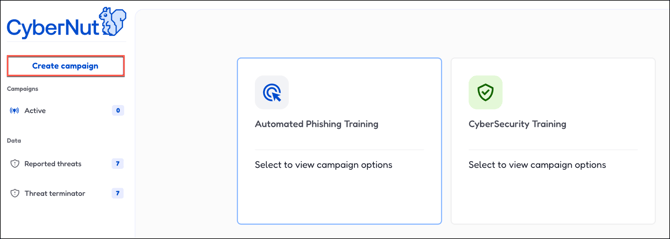
3. Select "Automated Phishing Training" to build ongoing security awareness for your team.
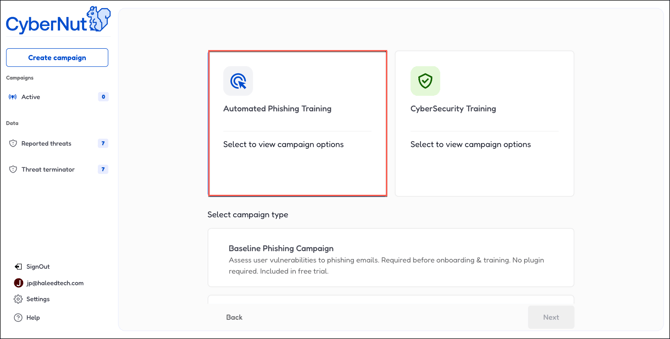
4. Choose "Phishing Training Campaign" to configure your first simulation.
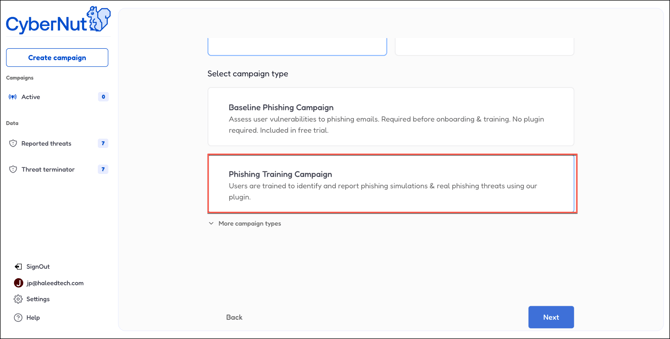
5. Click "Next" to move forward.
6. Give your campaign a name that's easy to remember later.
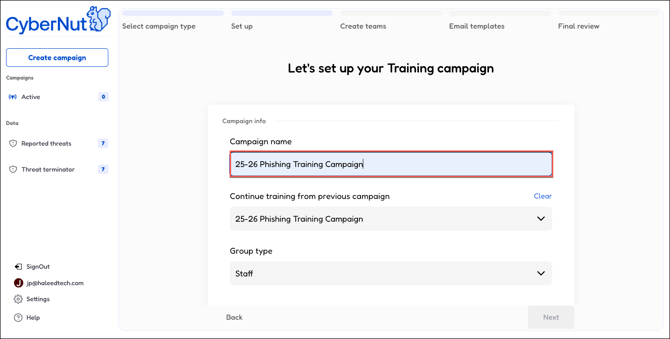
7. Click this drop down menu if you want to continue from a previous campaign.
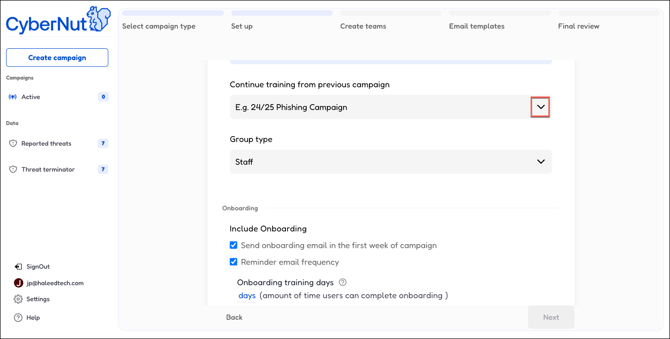
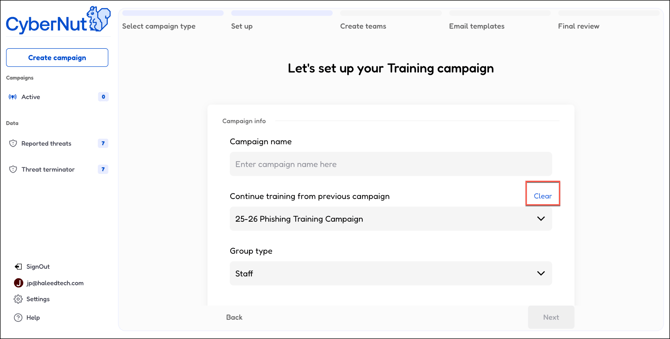
8. Click "Clear" to start a new campaign instead of continuing from a previous one.
9. Check this box to notify users when the campaign kicks off.
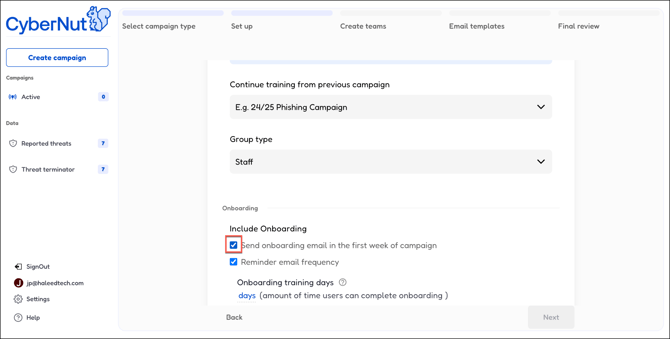
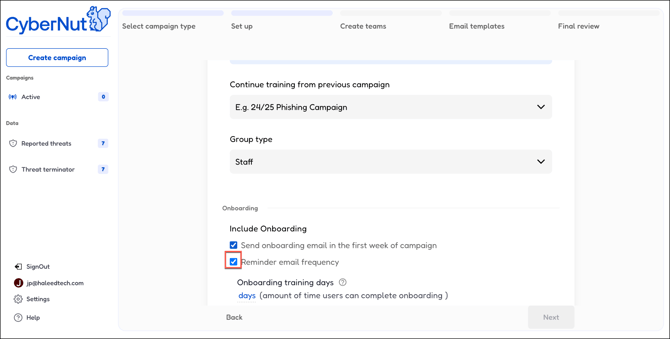
10. Enable reminder emails to keep users on track.
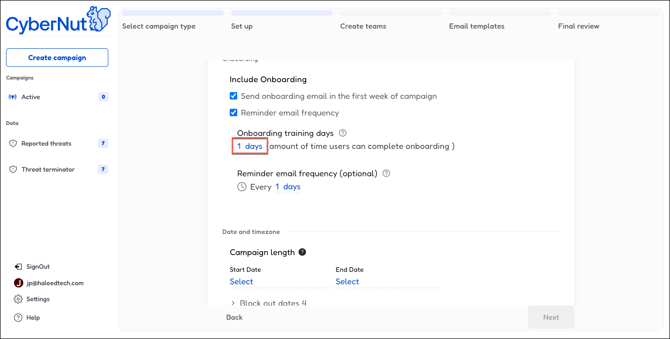
11. Set the number of days users have to complete their onboarding.
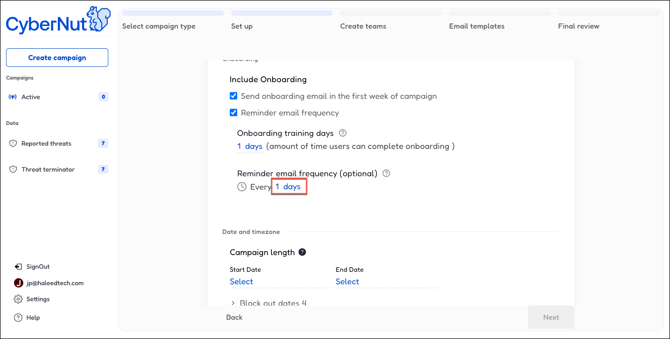
12. Specify how often reminders are sent until they finish.
13. Click "Select" to choose when the campaign should start.
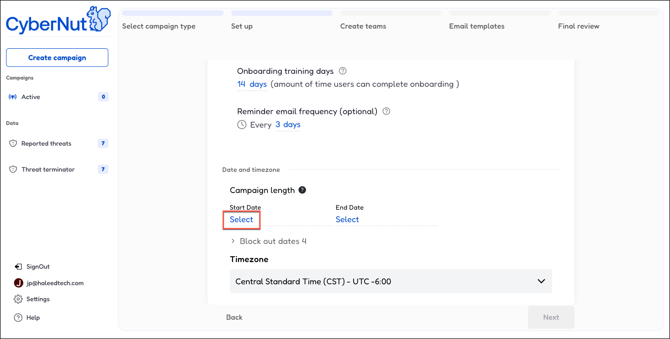
14. Pick your campaign's start date from the calendar.
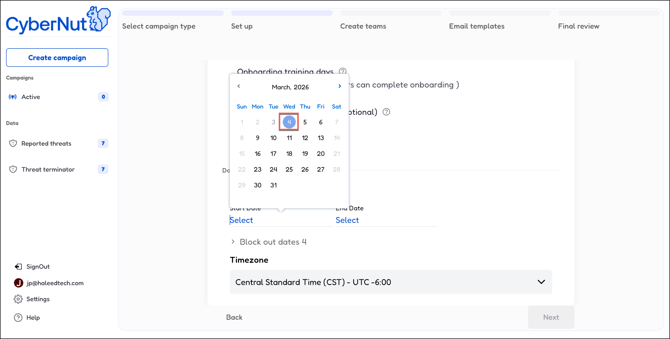
15. Now select when the campaign should end.
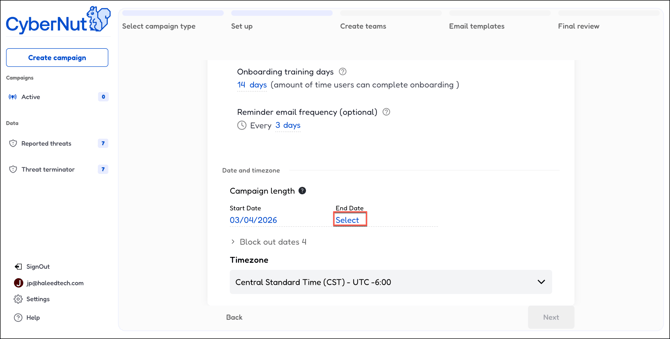
16. Choose an end date that gives everyone enough time to participate.
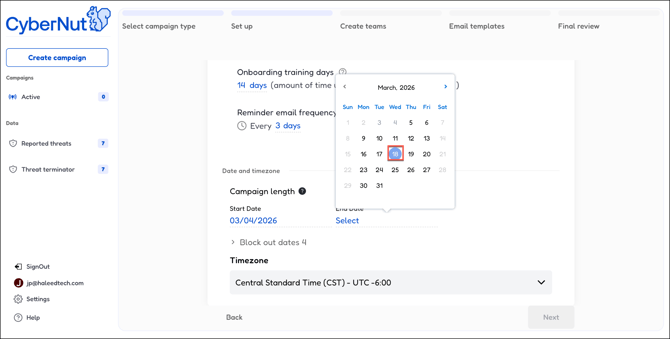
17. Find and select your organization's timezone so emails arrive at the right time.
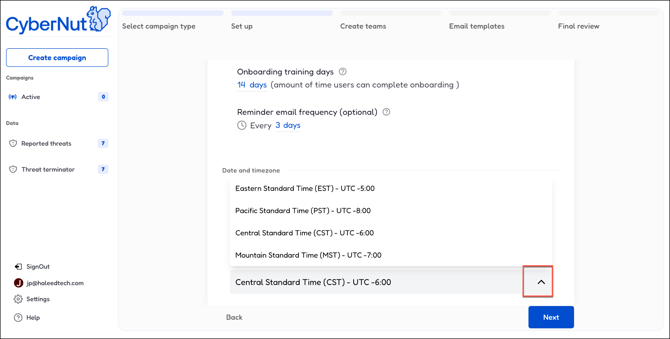
18. Click "Next" to set up your teams.
19. Click "Create a team" to organize users and track their progress.
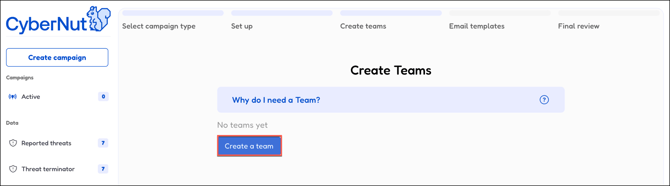
20. Replace "Untitled" with a team name that makes sense for you.
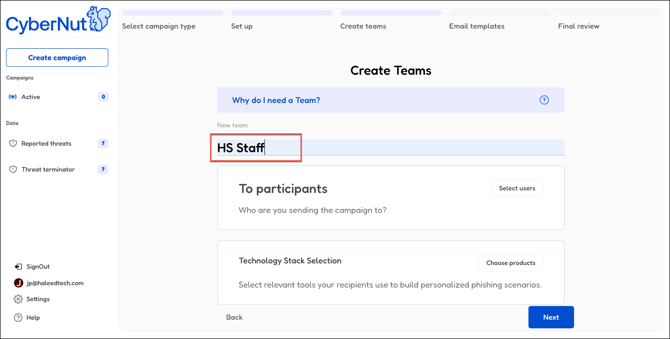
21. Click "Select users" to add members to this team.
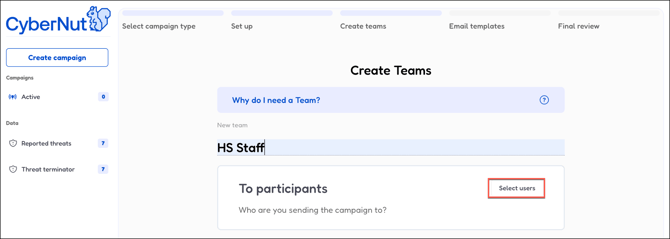
22. Pick a user group from the list to assign them all at once.
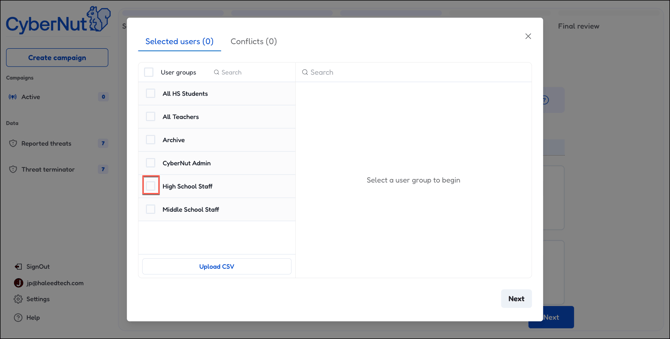
23. All users from that group are now selected—adjust if needed.
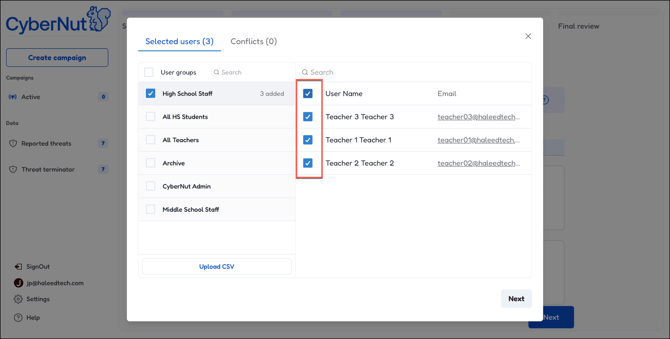
24. Click "Next" to continue.
25. Click "All selected" to add the email templates your users will receive.
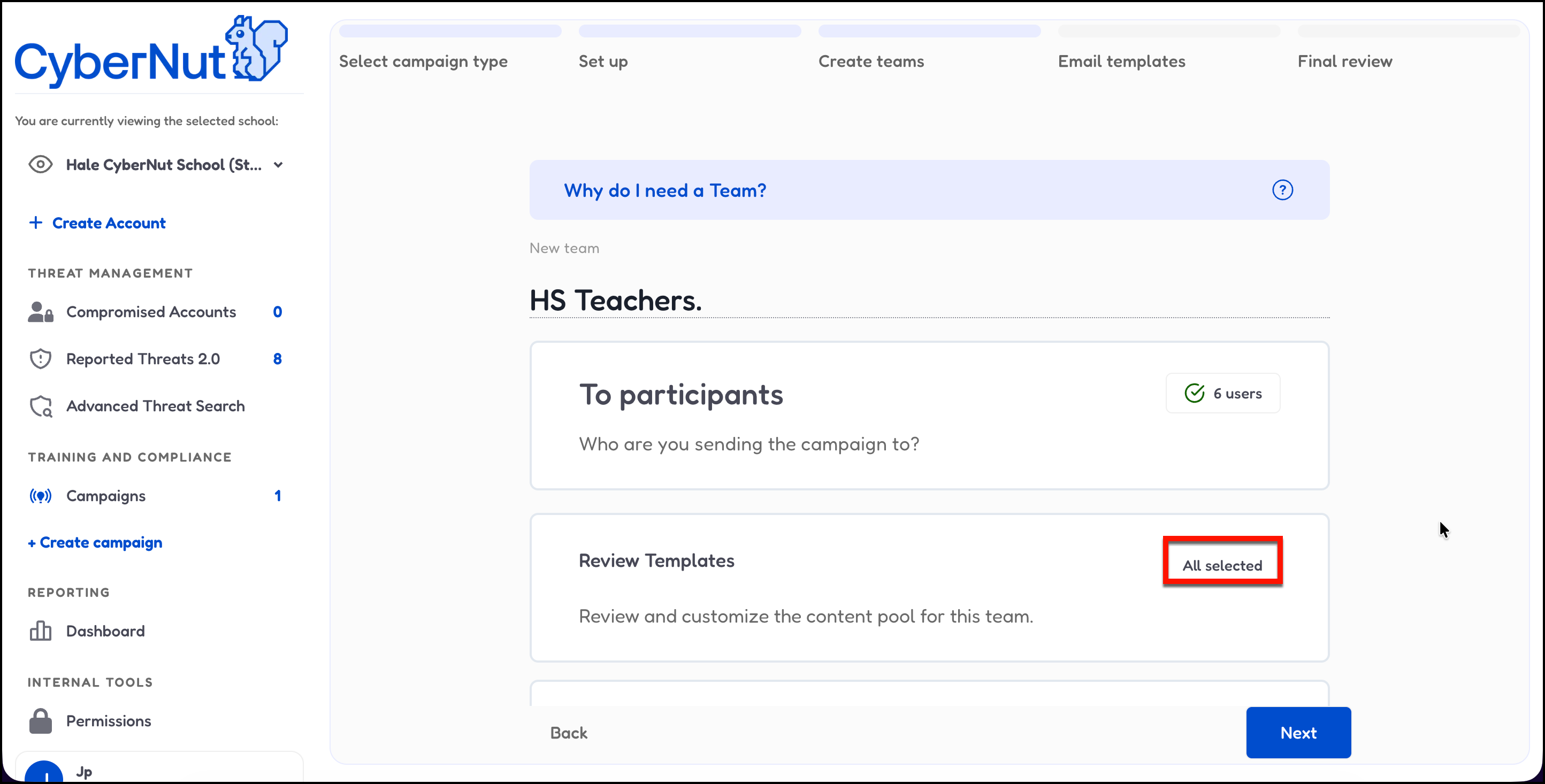
26. Select the email template categories you want to use.
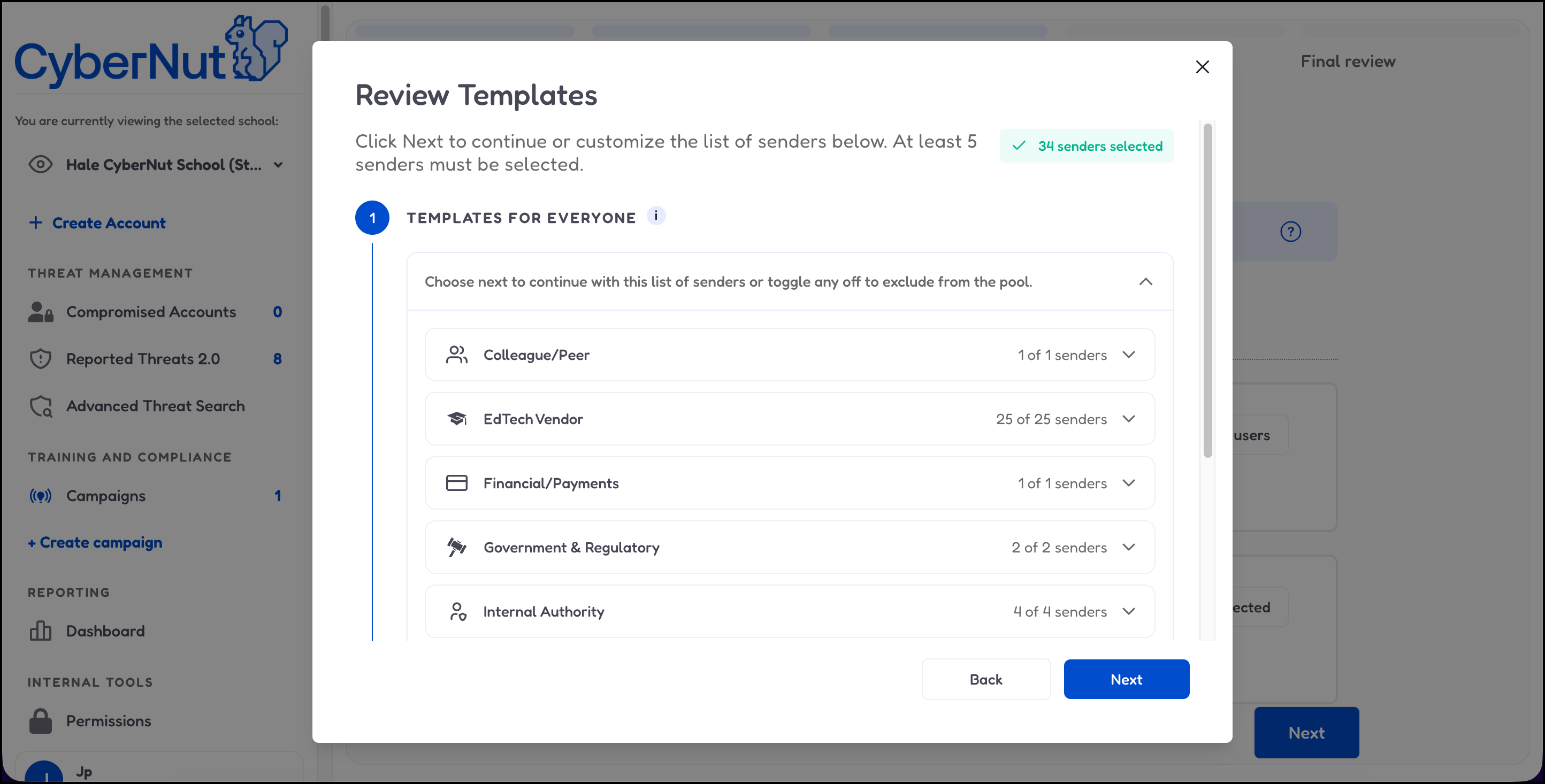
27. Toggle on/off the email template you want and then click Next. Note you can preview some of the emails.
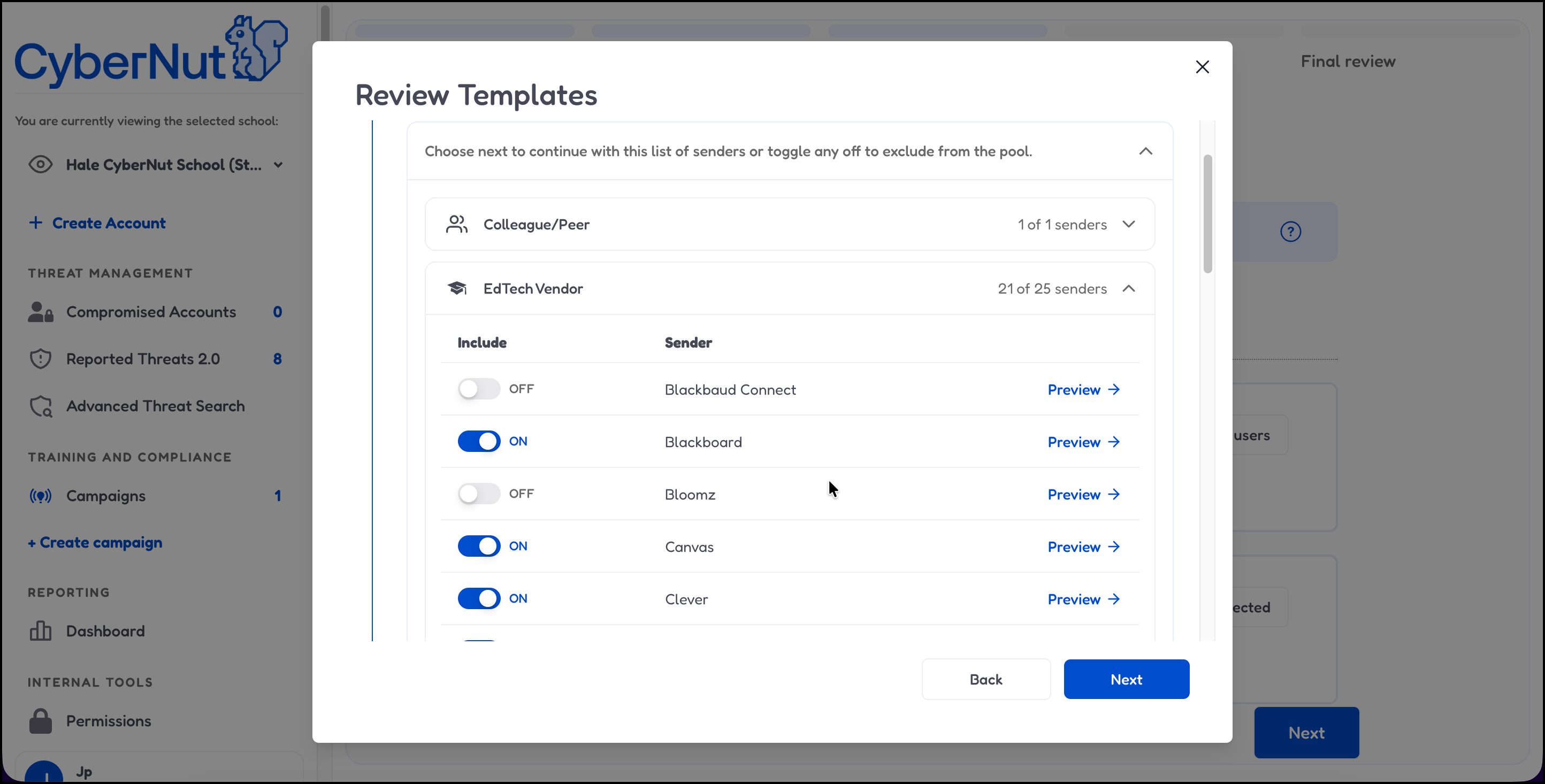
CAUTION!
If you are going to assign templates by department please see How to Create a Phishing Training Campaign by Department. You will need to create Google or Microsoft groups before creating your campaign.
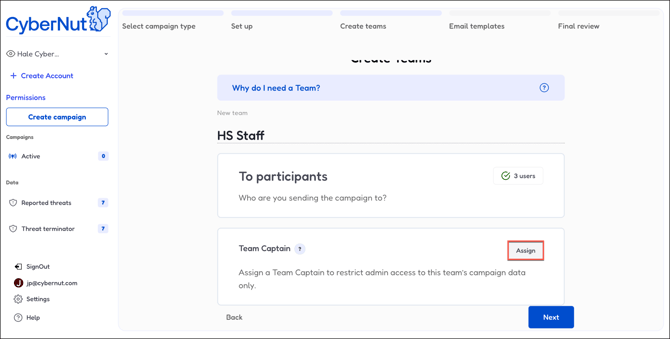
28. Click "Assign" to designate a Team Captain for this group.
29. Select the user who'll act as Team Captain for this campaign.
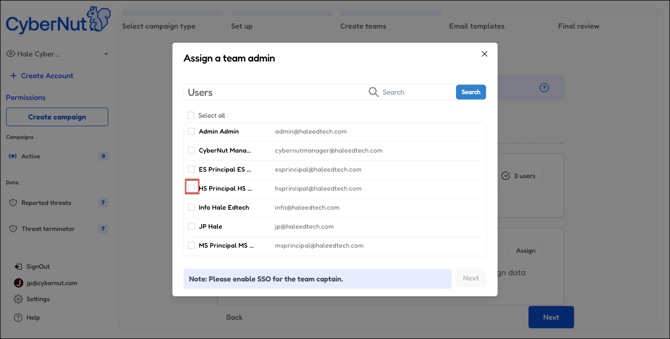
30. Click "Next" to move on to the next step.
31. Click "Next" to keep going.
32. Click "Next" to proceed.
33. Want to personalize this email? Click "Edit" to customize it.
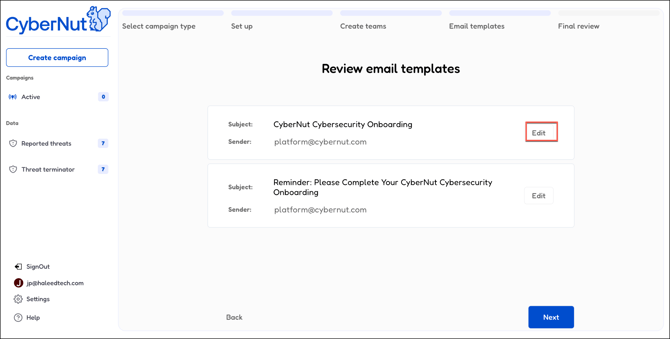
34. Edit the body text to match your organization's tone and messaging.
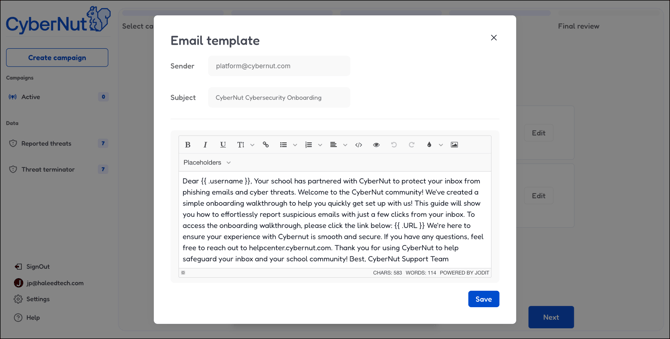
35. Click the eye icon to preview what users will actually see.
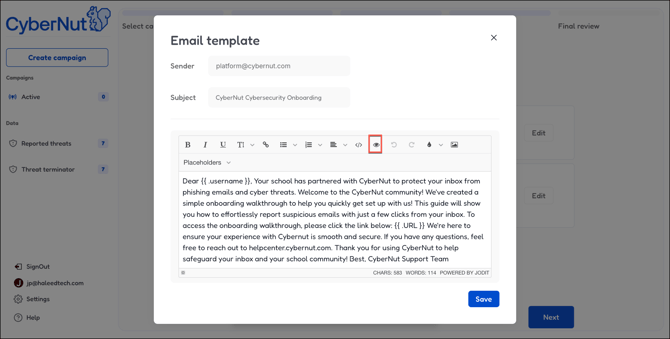
36. Close the preview by clicking the X.
37. Click "Save" to lock in your changes.
38. Follow the same steps to customize the reminder email template.
39. All set—click "Next" to review and launch your campaign.
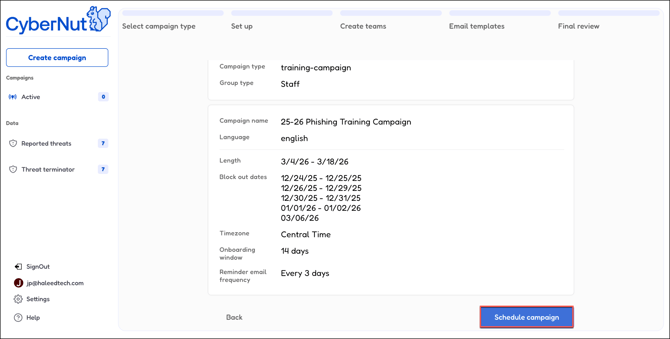
40. Everything looks good? Click "Schedule campaign" to go live.