
-
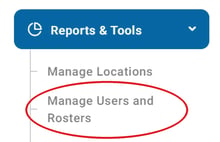
Go to Reports & Tools > Manage Users and Rosters
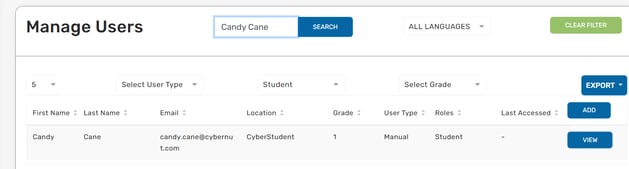
- Under Manage Users, search for the student.
- When you find the student, click VIEW next to their name.
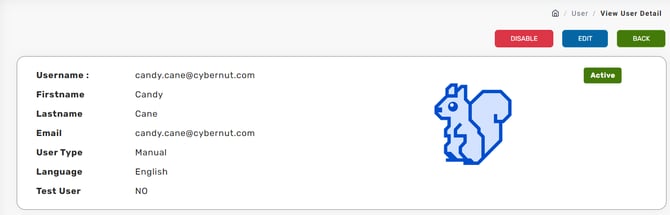
- On the View User Detail page, click the blue EDIT button in the top-right corner.
- On the Edit User Details page, scroll down to the Language section.
- Select the student’s primary language, then click the green SAVE button.

Important: When changing a student’s primary language, don’t edit any other fields on the user’s page. If your student data syncs from your SIS, other changes can disrupt the automatic import.
Change your own primary language
Teachers, School Managers, and District Managers can change their own primary language by selecting the flag icon at the top of their landing page. This is helpful when presenting lessons to a group of students in another language, such as an ESL class.
