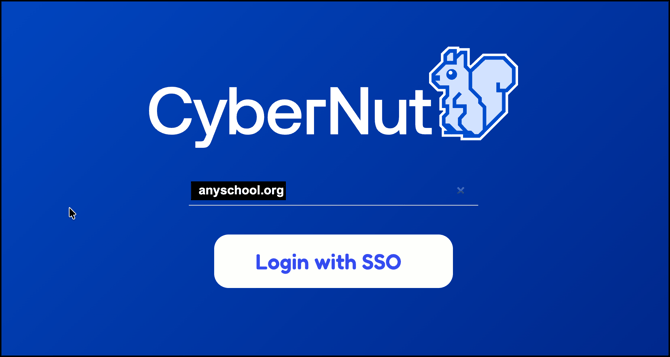
- Log in to the CyberNut Admin Portal at http://admin.cybernut.com
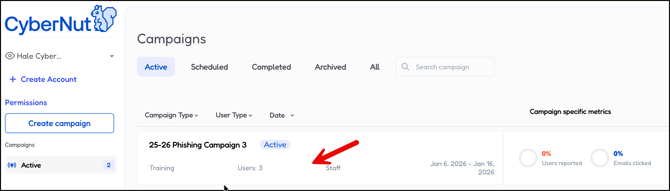
- Select an active campaign.
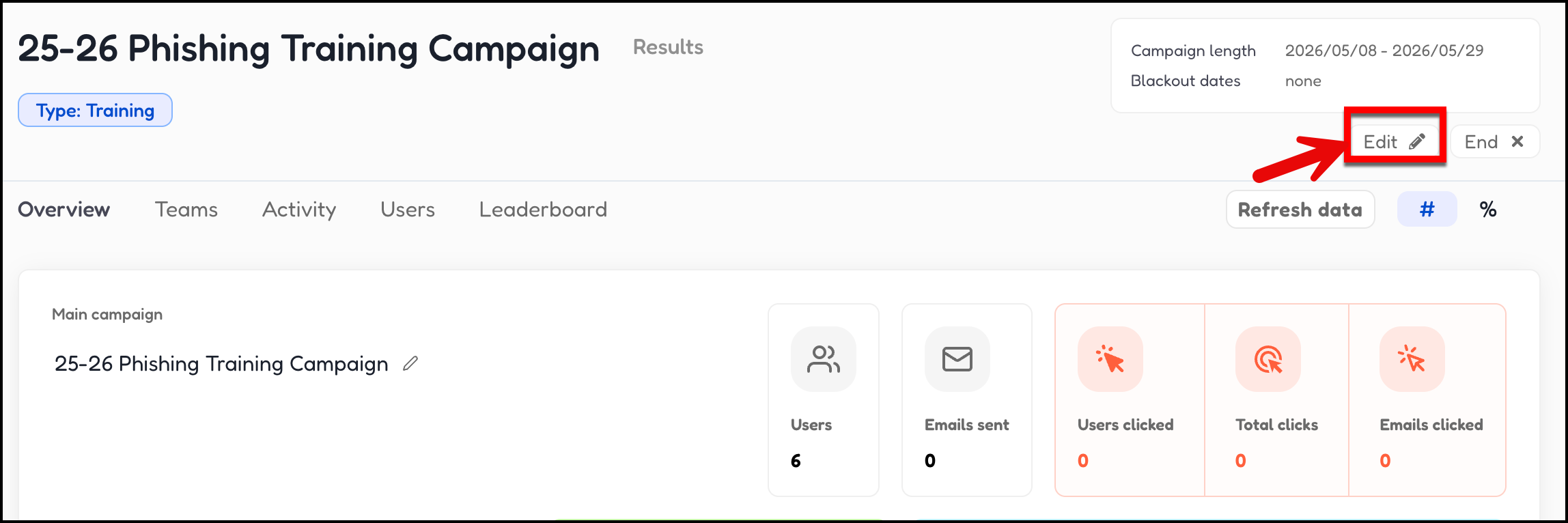
- Select the Edit button.
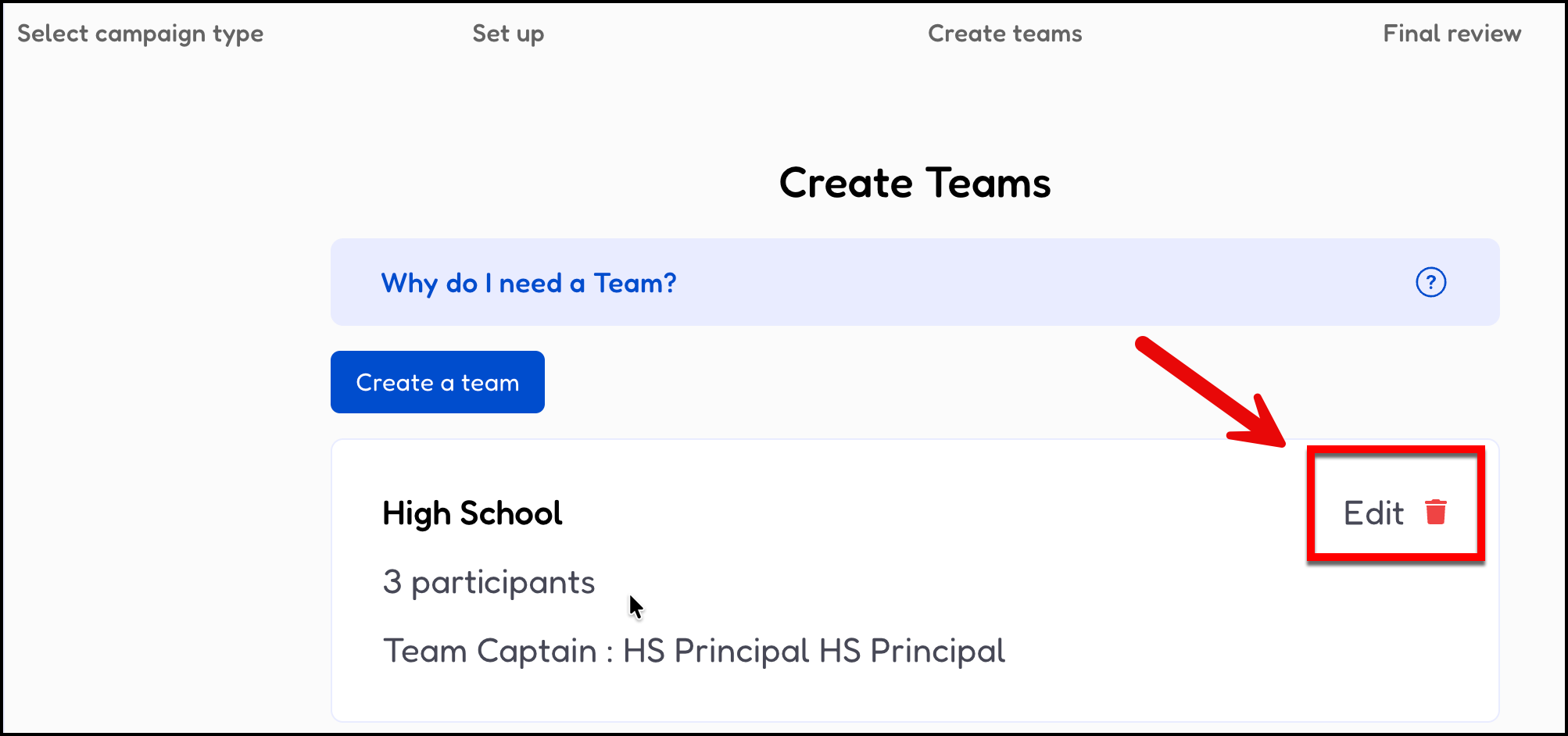
- Click the Edit button for the team.
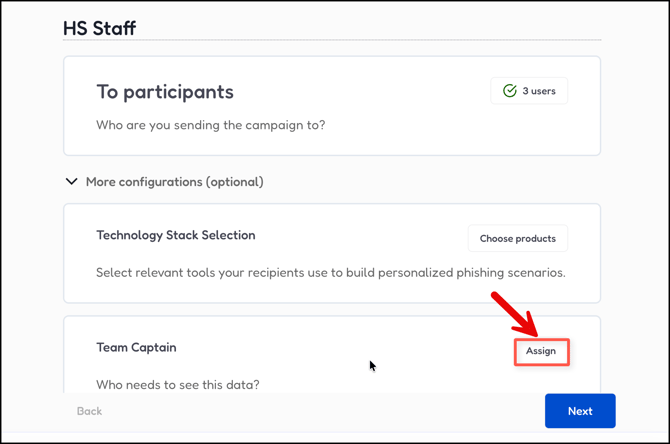
- Click Assign in the Team Captain section.
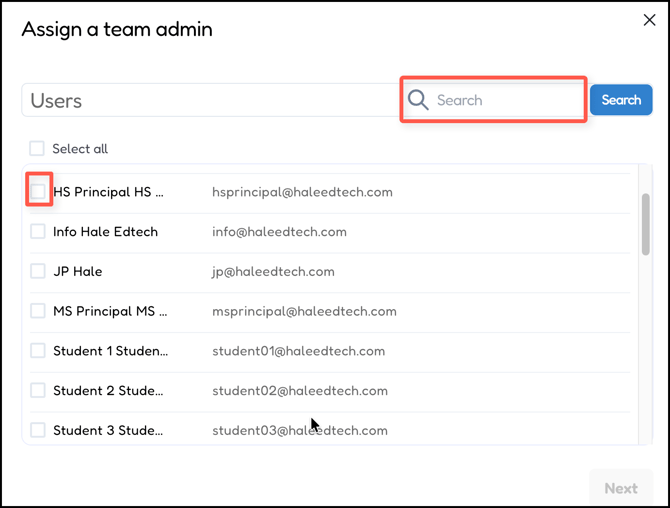
- Search for and select a Team Captain. Then click Next and Next.. (ex. High School Principal)
- Repeat the process for other teams as needed and then click Next.
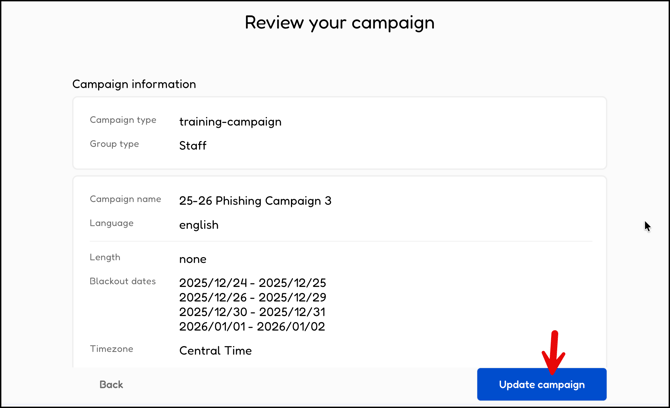
- Review your campaign and click Update campaign.
- Log in to the Microsoft Azure Portal at https://portal.azure.com/
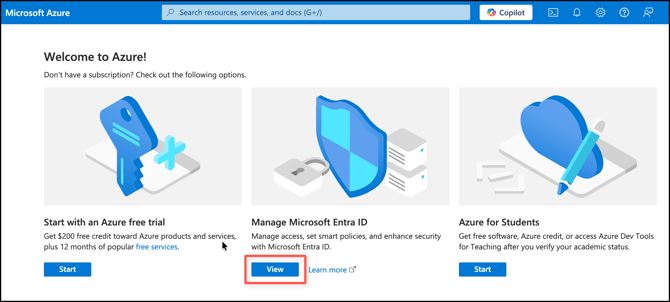
- Select View in the Manage Microsoft Entra ID section.
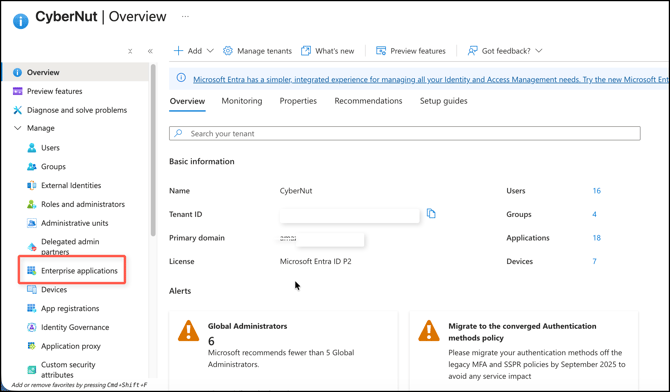
- Click Enterprise applications.
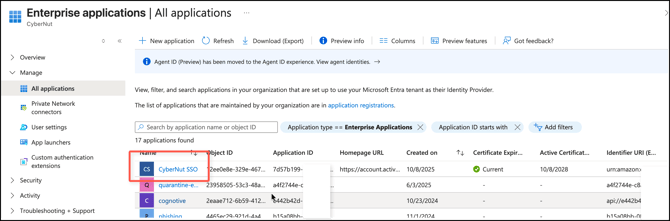
- Locate and select the CyberNut SSO application.
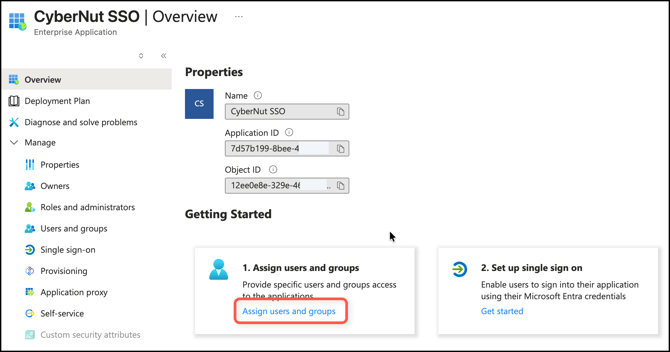
- Click Assign users and groups link.
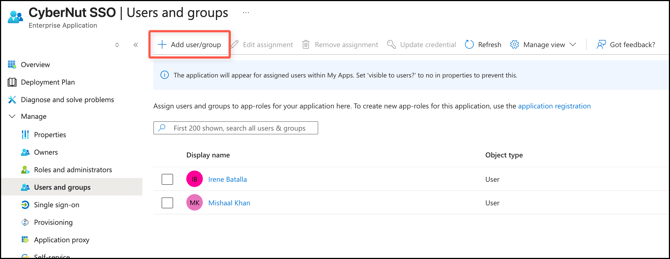
- Select Add user/group.
- Select None Selected link.
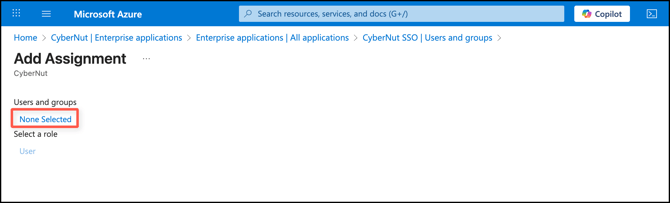
- Search and check a user(s) you want to be a Team Captain. Click Select button.
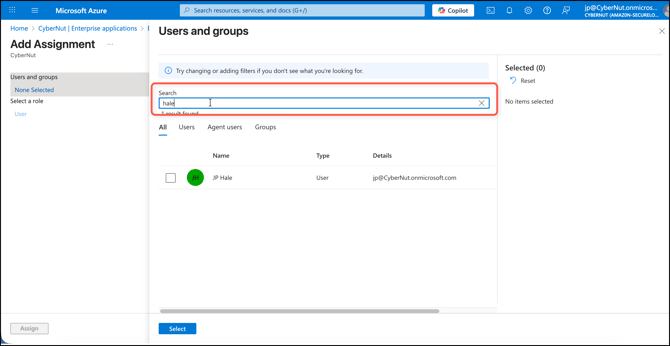
- Click Assign on the next screen.
- Have the new Team Captain visit the CyberNut Admin Portal at http://admin.cybernut.com and login using the SSO feature. There they can view only the campaign assigned.