
- Log in to the CyberNut Admin Portal at http://admin.cybernut.com
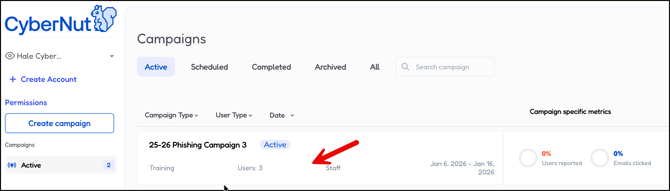
- Select an active campaign.
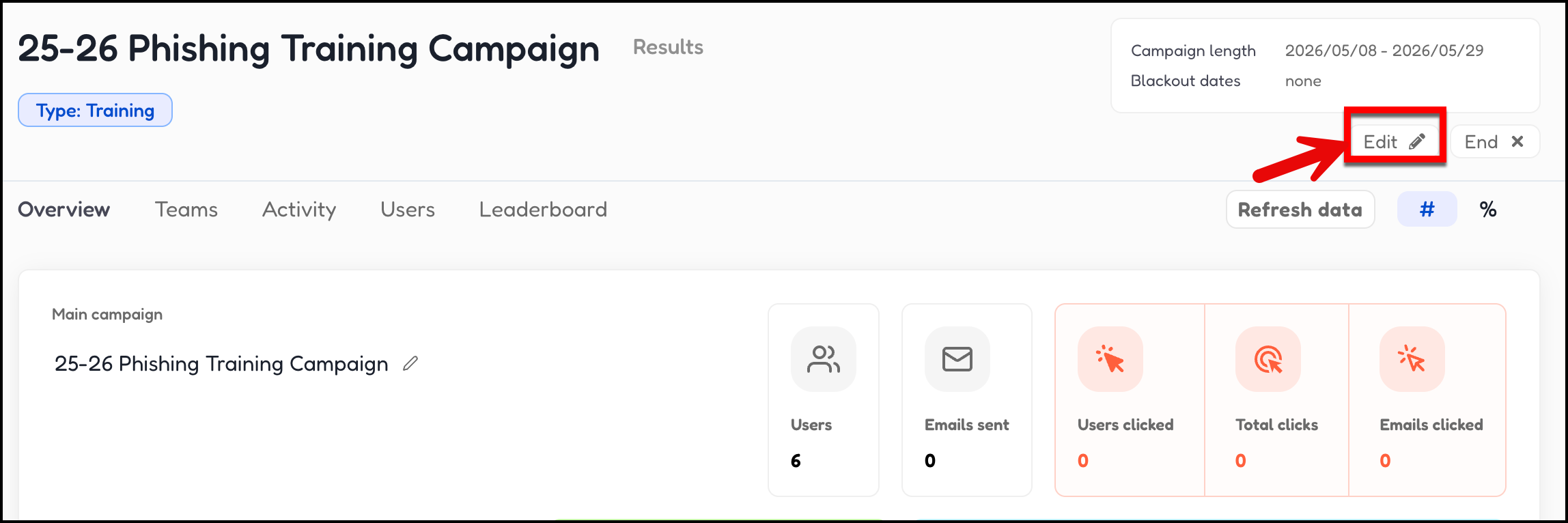
- Select the Edit button in the top right corner.
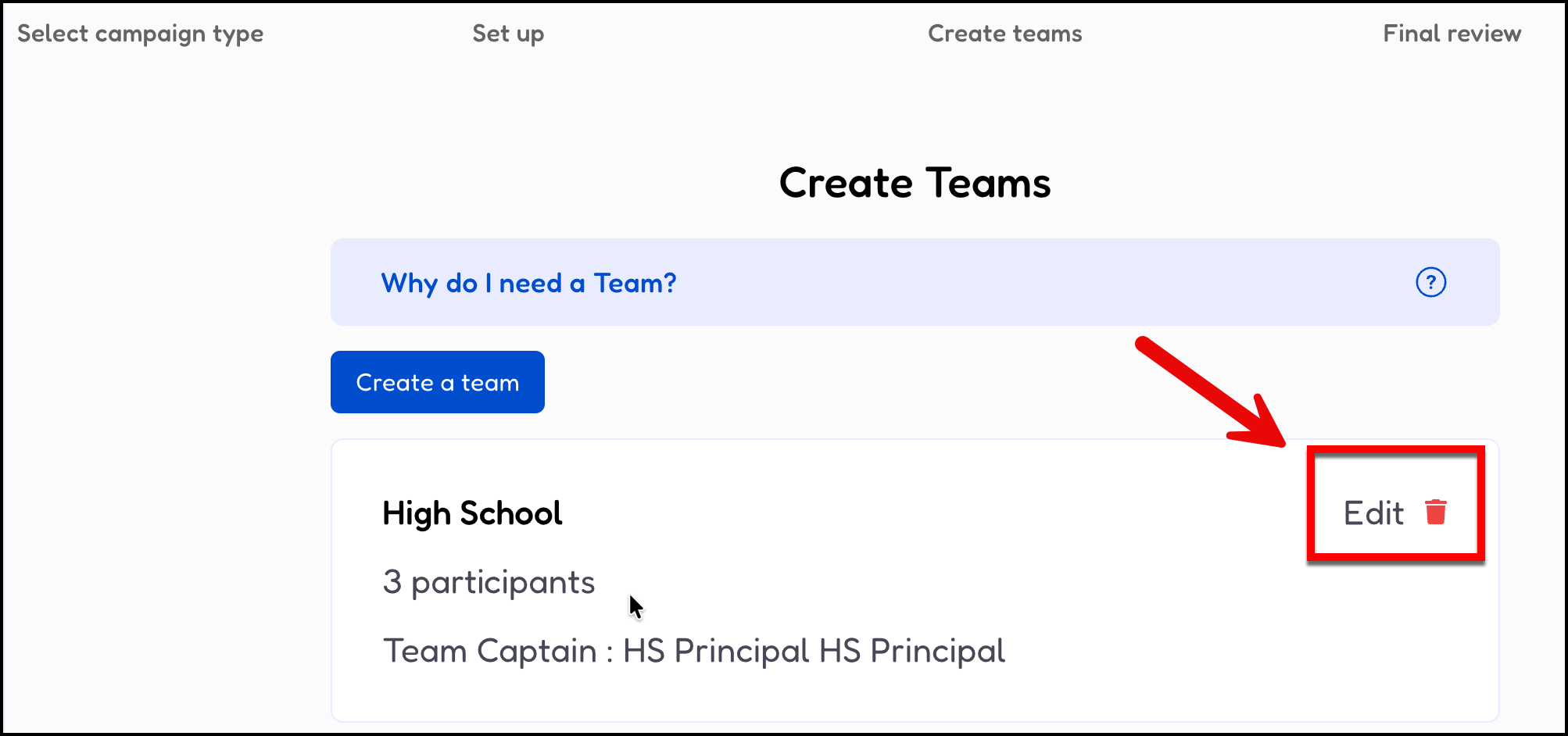
- Click Edit for the team.
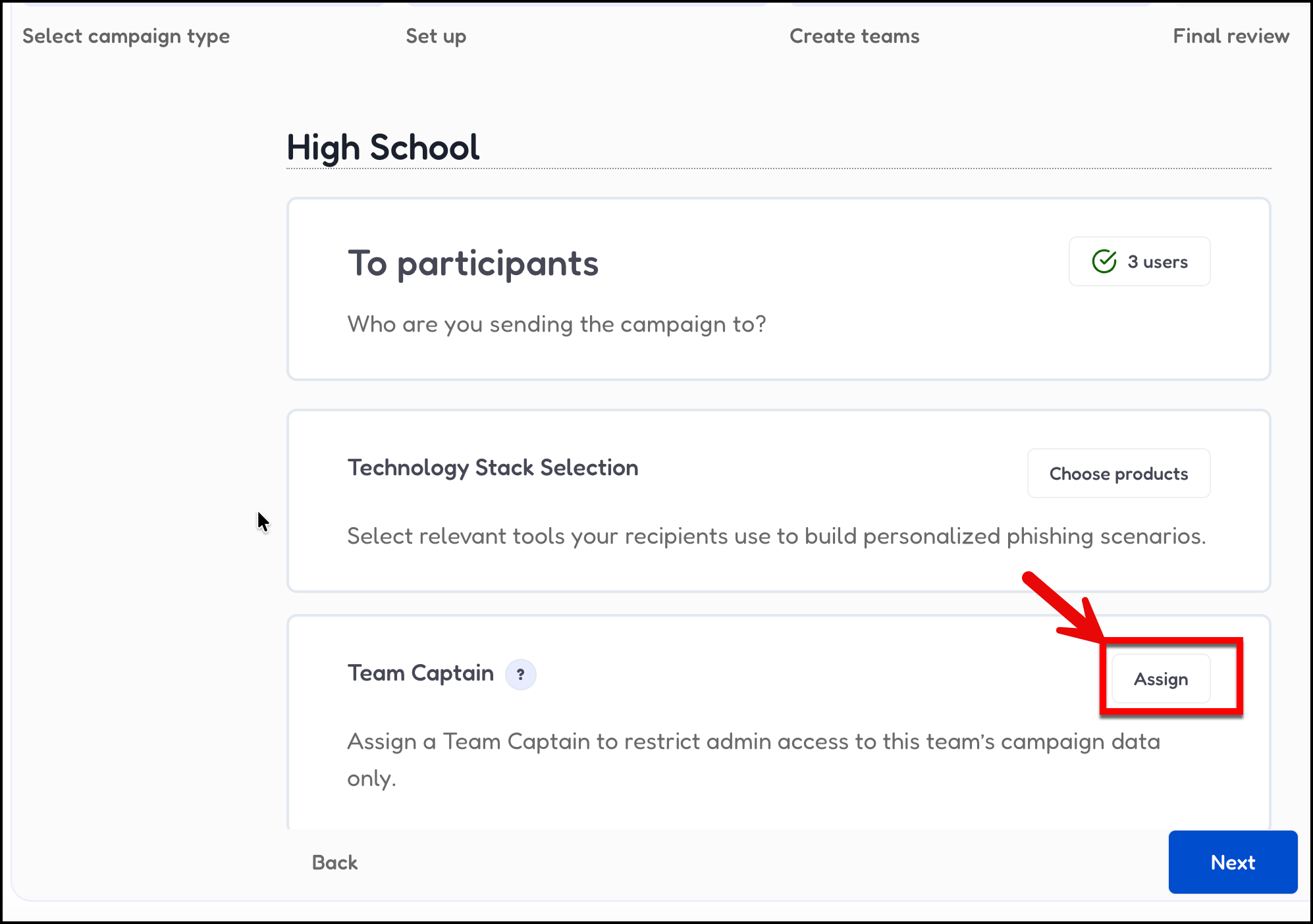
- Click Assign button in the Team Captain section.
- Search for and select a Team Captain. Then click Next and Next.. (ex. High School Principal)
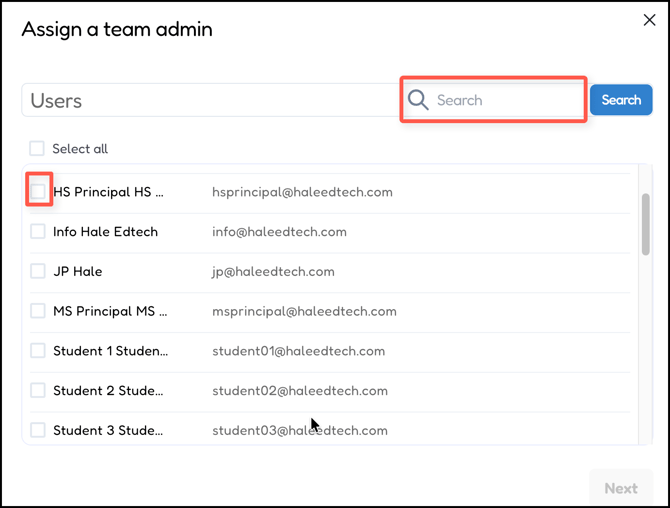
- Repeat the process for other teams as needed and then click Next.
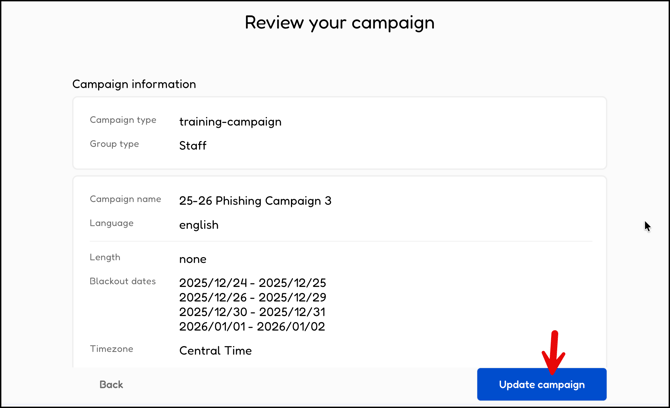
- Review your campaign and click Update campaign.
- Log in to the Google Admin Console at http://admin.google.com.
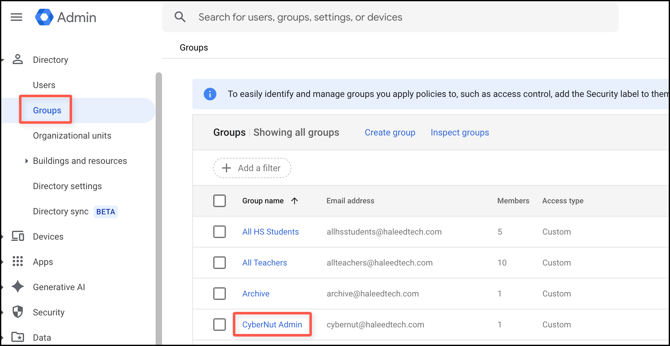
- Select Directory>Groups and click the CyberNut Admin group. (or group assigned to SSO for CyberNut)
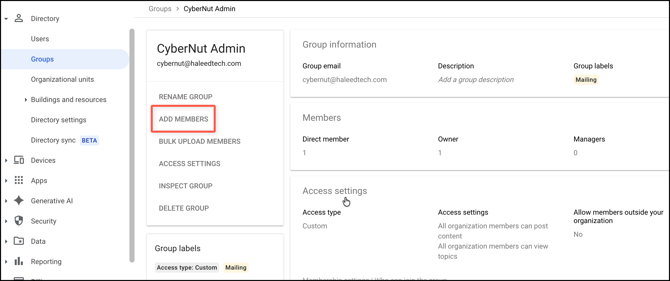
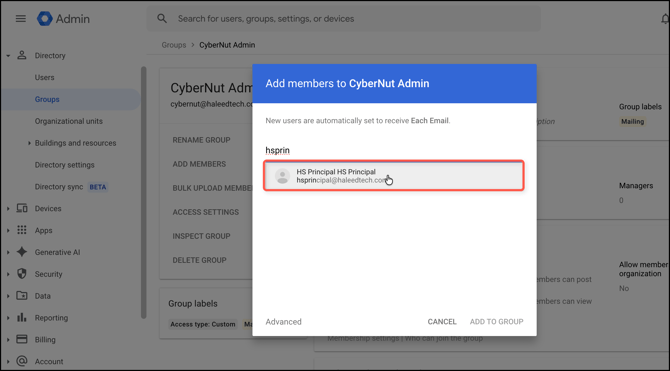
- Click Add Members.
- Search for and select the assigned Team Captain (ex. High School Principal) that you selected earlier in CyberNut. Then click Add to Group.
- Have the new Team Captain visit the CyberNut Admin Portal at http://admin.cybernut.com and login using the SSO feature. There they can view only the campaign assigned.