
Click below for a full screen walkthrough video.
▶️ Assigning Users and Groups the CyberNut Add-in for Microsoft 365 Admin Center
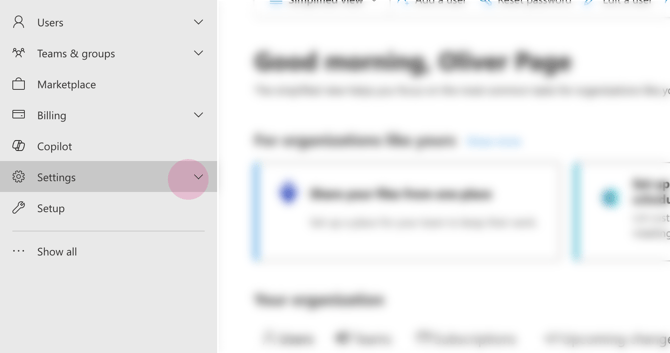
Step 1: Log in to the Microsoft 365 Admin Center at https://admin.cloud.microsoft/ and select Settings from the sidebar.
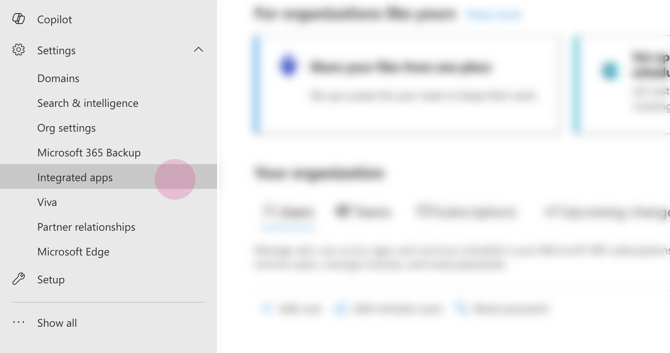
Step 2: Choose Integrated Apps from the dropdown menu.
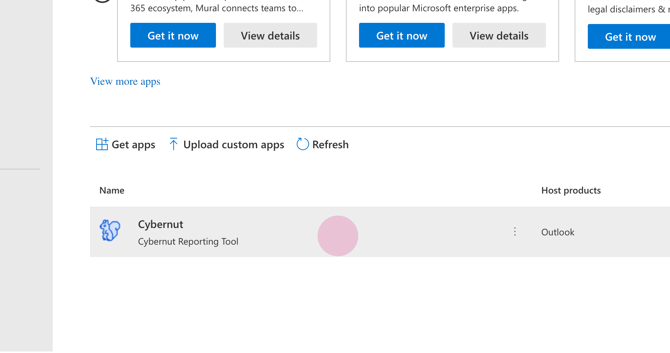
Step 3: Locate and select the CyberNut Reporting Tool.
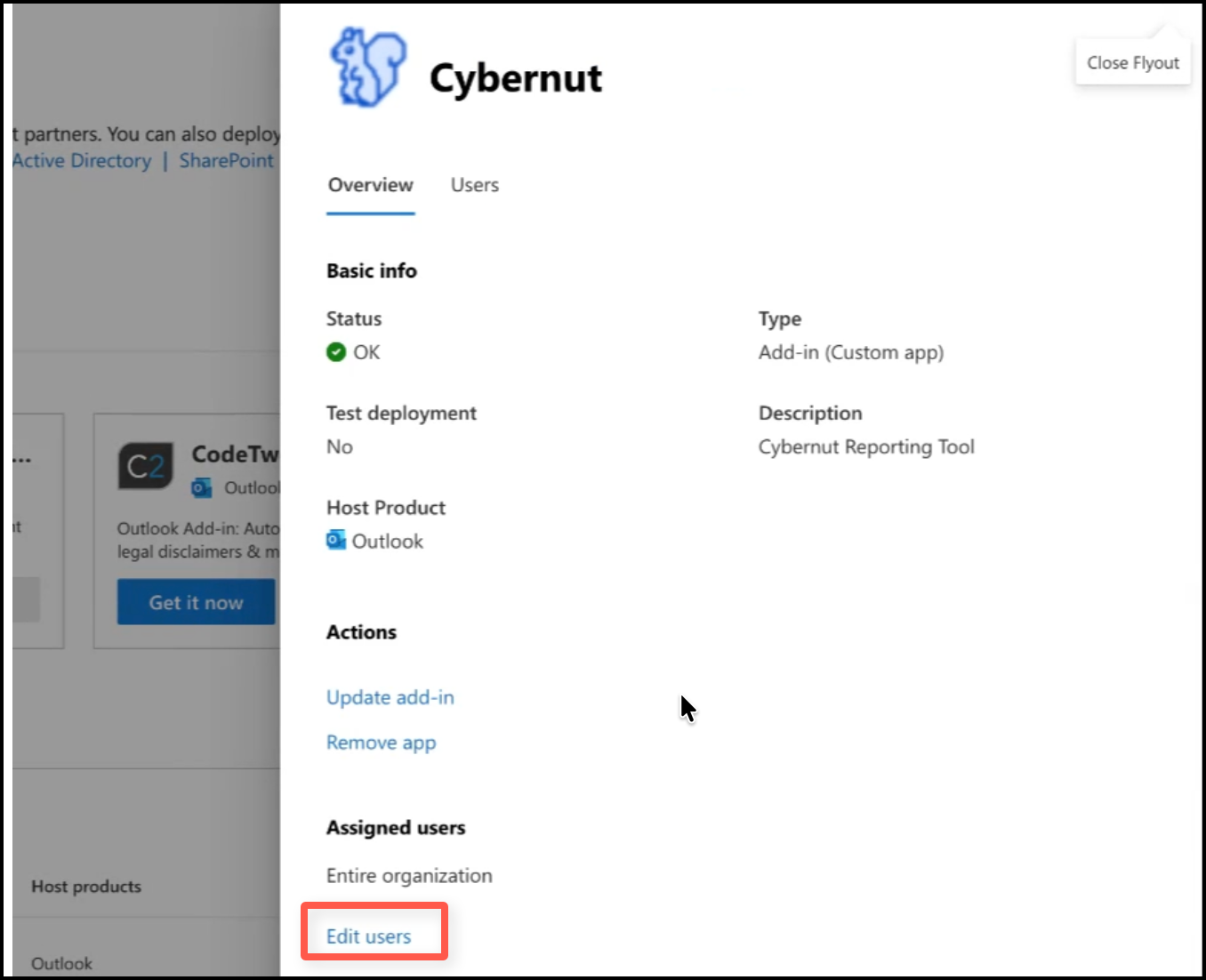
Step 4: On the overview page for the CyberNut Add-in, check the currently assigned users at the bottom. Ensure these match all the groups selected for your campaign. If any group is missing, users won't be able to complete CyberNut training. Click Edit if you need to modify the group assigned.
Step 5: Search for specific users/groups if you wish to add or remove certain groups from receiving the add-on.
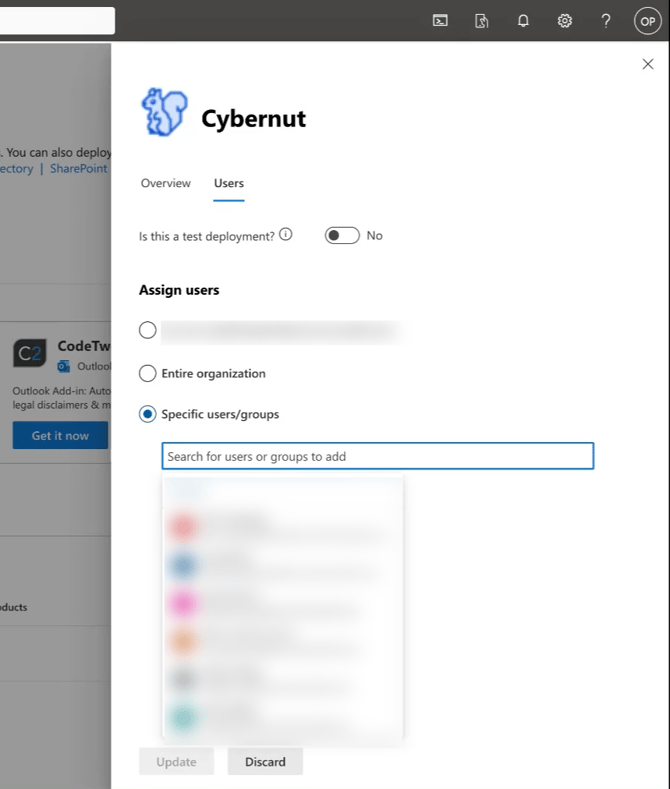
Step 6: Click Update to save your changes.
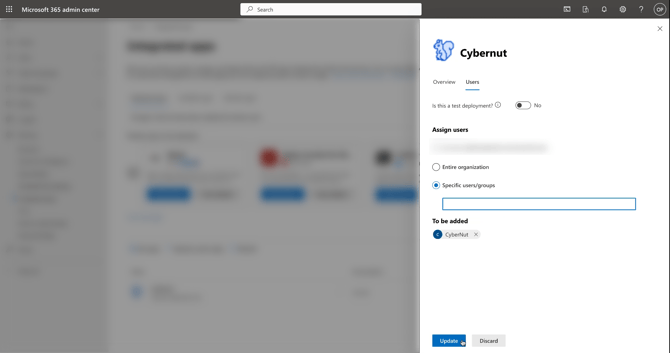
Note: It may take up to 72 hours before new users will have the addon appear.